
Telegram Setup: Complete Guide for Desktop, Mobile & Business
Step-by-step Telegram setup for desktop, mobile, and business. Learn account creation, security settings, Telegram Business features, and multi-channel API integration.
Telegram Setup: The Complete Guide for Desktop, Mobile & Business
Setting up Telegram correctly from the start saves time and locks in your privacy. Whether you are installing the desktop app, configuring a mobile device, or activating Telegram Business for customer communication, this guide walks through every step. You will also see how a unified messaging API can connect Telegram to other channels without building separate integrations.
Choosing Your Telegram Client
Telegram offers native apps for every major platform. The core experience stays consistent, but each client has platform-specific strengths.
- Telegram for Android and iOS: Full-featured mobile apps with biometric lock, secret chats, and push notifications.
- Telegram Desktop: A standalone desktop application for Windows, macOS, and Linux that syncs seamlessly with your phone. It supports keyboard shortcuts, system tray integration, and large file transfers.
- Telegram Web: A lightweight browser version that requires no installation. Useful for quick access on shared devices, though it lacks secret chats and some advanced settings.
For most users, installing both the mobile and desktop apps provides the best experience. Your messages stay synchronized across all devices thanks to Telegram’s cloud architecture.
Step-by-Step Telegram Setup on Mobile
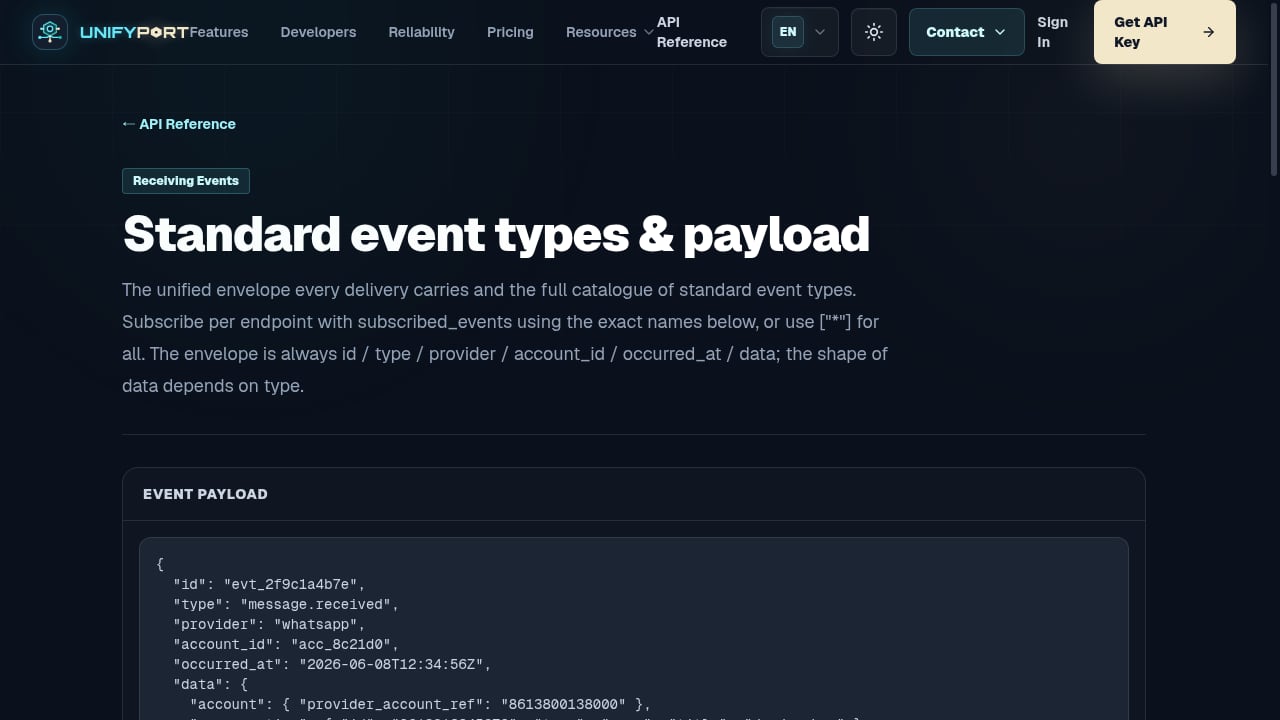
First viewport screenshot of Standard event types & payload — API Reference — UnifyPort.
Mobile setup is the foundation because your phone number acts as the primary account identifier.
1. Download and Install
Download Telegram from the official app store for your device. Avoid third-party APK sites; they can bundle modified clients with security risks.
2. Create Your Account
Open the app and enter your phone number. Telegram sends a verification code via SMS. Enter the code to confirm ownership. If the SMS does not arrive, you can request a phone call instead.
3. Configure Your Profile
Add your first and last name. Upload a profile photo that helps contacts recognize you. For businesses, use a clear logo or professional headshot.
4. Enable Two-Step Verification
Navigate to Settings > Privacy and Security > Two-Step Verification. Set a strong password and a recovery email. This prevents SIM-swap attacks from hijacking your account.
5. Adjust Privacy Settings
Under Privacy and Security, control who can see your phone number, last seen status, and profile photo. Set these to "My Contacts" or "Nobody" depending on your comfort level. Enable Passcode Lock with biometric authentication for an extra layer of device-level security.
Telegram Desktop Setup
The Telegram Desktop app runs independently, so you can use it even when your phone is offline.
Installation and Login
Download the installer from the official site. After installation, you have two login options:
- QR Code Scan: Open Telegram on your phone, go to Settings > Devices > Link Desktop Device, and scan the QR code displayed on your desktop screen.
- Phone Number: Enter your phone number and type the verification code sent to your Telegram mobile app (not SMS).
Desktop-Specific Configuration
Once logged in, explore these settings:
- System Tray Behavior: On Windows and Linux, minimize to the system tray instead of closing the app.
- Chat Folders: Organize conversations into custom folders such as Work, Family, or News channels.
- Keyboard Shortcuts: Speed up navigation with built-in shortcuts for search, new chat, and voice calls.
Telegram Business Setup
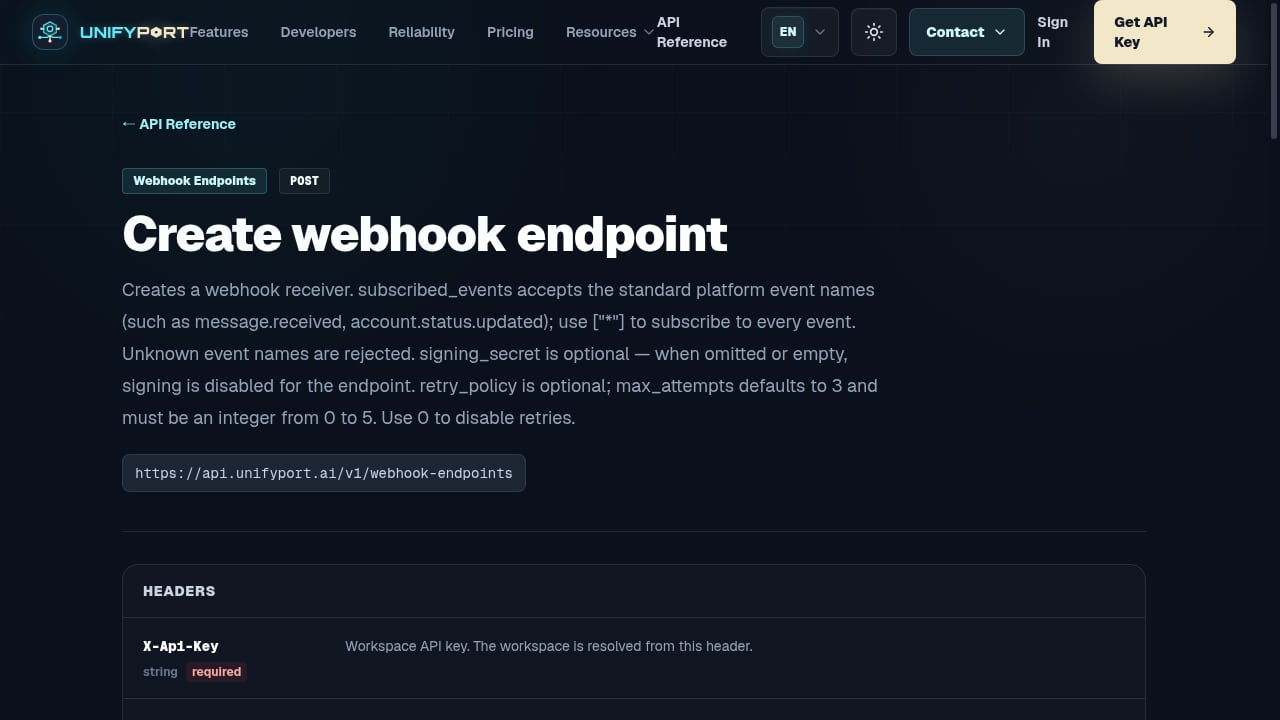
First viewport screenshot of Create webhook endpoint — API Reference — UnifyPort.
Telegram Business is a subscription that unlocks features designed for customer communication. It builds on the standard account and adds automation, branding, and integration capabilities.
Activating Telegram Business
- Open Telegram and go to Settings > Telegram Business.
- Choose a subscription plan (monthly or annual). Payment processes through your app store or Telegram’s payment provider.
- Once active, the Business section expands with new configuration options.
Core Business Features
- Automated Messages: Set away messages when you are offline and greeting messages for first-time contacts. These work within parameters you define and help set expectations for response times.
- Quick Replies: Create shortcuts for frequently sent messages. Type
/in any chat to insert a saved reply. - Business Profile: Display your location, business hours, website, and a description directly on your profile card. Users with updated Telegram clients see this information automatically.
- Chatbot Integration: Connect a third-party bot to your account. The bot can receive and optionally send messages on your behalf, enabling automated support and lead qualification. This feature relies on the Telegram Bot Platform and requires you to accept the relevant privacy and bot terms.
Cancellation and Billing
You can cancel anytime through Settings > Telegram Business. The subscription remains active until the end of the current billing period. Refunds are not issued for partial periods. If you purchased through Apple or Google, manage the subscription in their respective app store settings. Deleting the Telegram app does not cancel the subscription.
Integrating Telegram with a Unified Messaging API
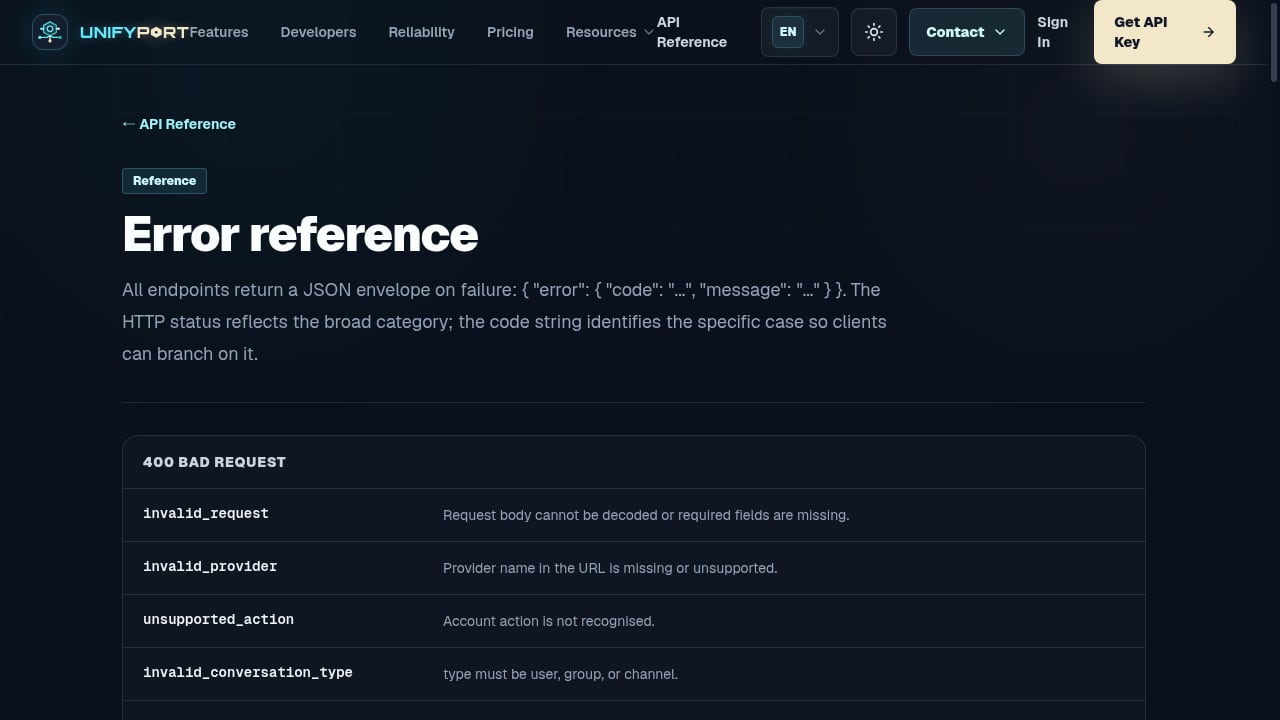
First viewport screenshot of Error reference — API Reference — UnifyPort.
For development teams building notification systems, AI agents, or customer platforms, connecting to Telegram’s Bot API is straightforward. However, supporting multiple messaging channels individually creates maintenance overhead. Each platform has its own SDK, authentication model, webhook format, and rate limit rules.
A unified messaging API like UnifyPort solves this by providing a single REST API that normalizes interactions across Telegram, WhatsApp, LINE, X (Twitter), Zalo, and TikTok. Instead of writing separate integration logic for each channel, developers send and receive messages through one standardized interface.
How the Integration Works
- Single REST Endpoint: Send a message to any supported channel using the same JSON structure. The API translates requests into provider-specific formats.
- Standardized Webhooks: All incoming messages arrive as consistent JSON events, regardless of the source platform. This simplifies ingestion for CRMs and AI agents.
- Built-in Reliability: The platform handles rate limiting, retries with idempotency, and failure isolation. If Telegram experiences a temporary outage, messages to other channels continue uninterrupted.
- Security Layer: API keys and HMAC-SHA256 signatures secure every request. Workspaces isolate environments, and accounts act as virtual devices per channel.
For a deeper look at multi-channel infrastructure, read our guide on what Communication Platform as a Service (CPaaS) is and how it works. If secure messaging is a priority, review the standards and risks covered in what secure messaging means for modern applications.
Security Best Practices After Setup
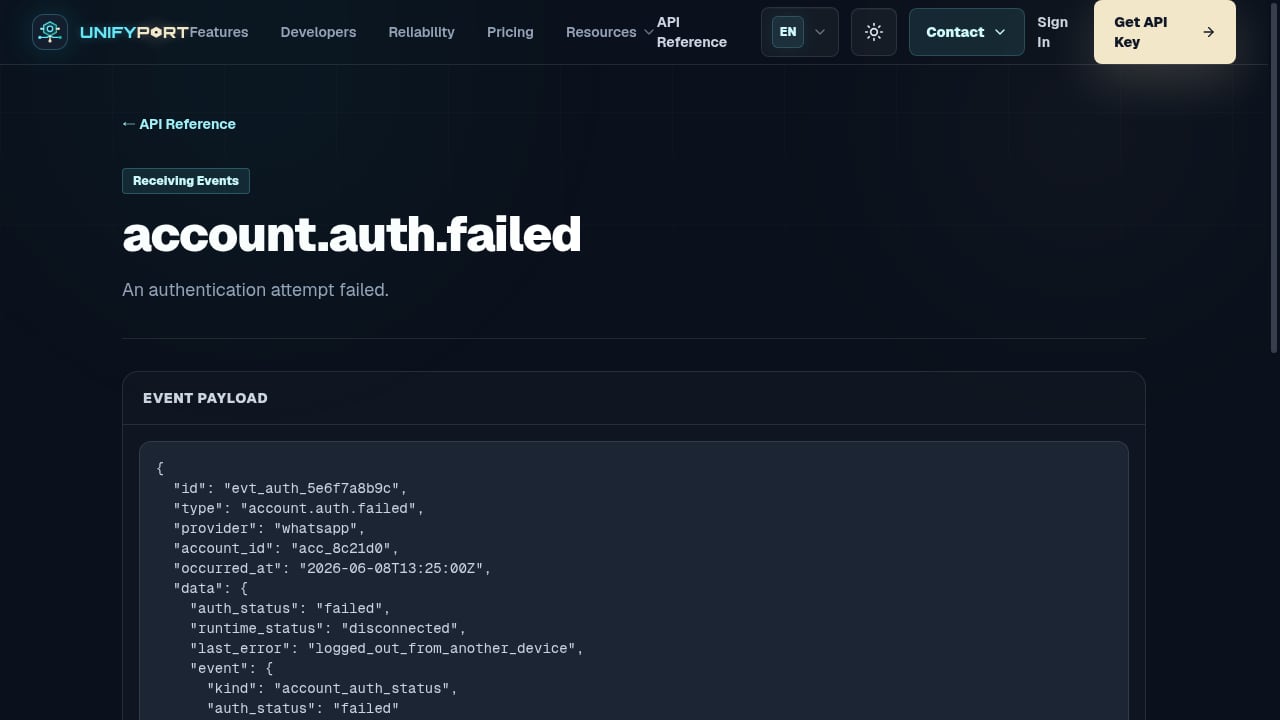
First viewport screenshot of account.auth.failed — API Reference — UnifyPort.
Telegram’s default encryption protects cloud chats, but you control several critical security layers.
- Secret Chats: For end-to-end encrypted, device-specific conversations that do not touch Telegram’s cloud. Initiate from a contact’s profile on mobile.
- Active Sessions: Regularly review Settings > Devices and terminate any session you do not recognize.
- Automatic Account Deletion: Set a self-destruct timer under Privacy and Security > Delete My Account If Away For. Options range from 1 month to 1 year.
- Login Alerts: Telegram notifies you when a new device accesses your account. Treat unexpected alerts as potential compromise indicators.
If you ever need to remove your account entirely, follow the steps in our guide to permanently deleting a Telegram account.
Related reading
- LINE Download: How to Install LINE on Mobile & Desktop Safely - A complete guide to downloading LINE on iOS, Android, Windows, and Mac. Covers installation, key features, security settings, and how unified APIs extend LINE into business workflows.
- Unipile Tutorial: Connect Multi-Channel Messaging in Days - Learn how to integrate WhatsApp, LinkedIn, Telegram, and email into your app with this Unipile tutorial. Covers setup, API calls, webhooks, and pricing.
Sources and further reading
- Terms of Service for Telegram Business - Telegram is a free application that provides a wide range of services for both individuals and businesses, including cloud storage, chat management features, support for multiple devices and more, at no cost. Some additional services, such as Telegram Business, may be available for purchase in certain countries – offering features built to help companies improve their communication with customers, while supporting the continued development of the Telegram platform.
- Telegram – a new era of messaging - Fast. Secure. Powerful.
FAQ
Can I use Telegram on multiple devices simultaneously?
Yes. Telegram syncs messages across all linked devices. You can be logged into a phone, tablet, and desktop at the same time. Secret chats are the exception—they remain on the device where they were created.
Is Telegram Business available in all countries?
Telegram Business is rolling out gradually. Check Settings > Telegram Business to see if it is available in your region. Availability may vary based on local regulations and payment processor support.
Do my customers need Telegram Business to message me?
No. Anyone with a standard Telegram account can message your business. The Business features are for your side of the conversation only.
How does a unified API handle Telegram’s specific features like inline buttons?
A well-designed unified API maps common interaction patterns across channels. Inline keyboards, quick replies, and media attachments are normalized into a consistent format. Platform-specific features that lack equivalents on other channels are exposed as optional parameters.
What happens to my data if I cancel Telegram Business?
Your account reverts to a standard Telegram account. Automated messages stop, and your business profile information becomes hidden. Chat history remains intact.
Conclusion
Telegram setup ranges from a quick mobile installation to a full business configuration with automated messaging and chatbot integration. Start with a strong security foundation—two-step verification, privacy controls, and session monitoring—then layer on the features that match your use case. For teams managing communication across multiple platforms, a unified messaging API eliminates the complexity of maintaining separate integrations while preserving Telegram’s native capabilities.