
LINE Download: How to Install LINE on Mobile & Desktop Safely
A complete guide to downloading LINE on iOS, Android, Windows, and Mac. Covers installation, key features, security settings, and how unified APIs extend LINE into business workflows.
LINE Download: How to Install LINE on Mobile & Desktop Safely
LINE is far more than a simple chat app—it’s a communication platform that blends instant messaging, high-quality voice and video calls, a social timeline, and an ecosystem of integrated services. Whether you want to stay in touch with friends across borders, follow your favorite brands, or build LINE into a multi-channel customer experience, the first step is getting the app onto your device. This guide walks you through every official LINE download path, what you get after installation, and how to keep your account secure.
What Is LINE and Why Download It?
First viewport screenshot of List provider regions — API Reference — UnifyPort.
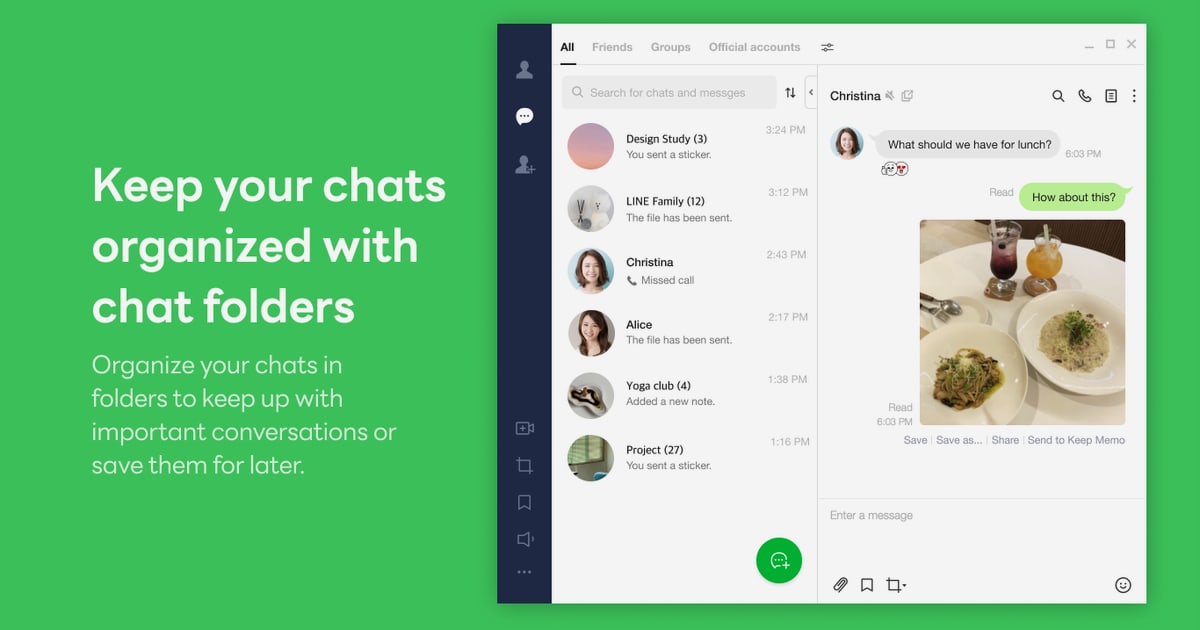
LINE started as a messaging app and grew into a lifestyle platform used by hundreds of millions of people, especially across Japan, Taiwan, Thailand, and Indonesia. After you download LINE, you can send unlimited text messages, make free voice and video calls, and share photos, videos, and voice notes. The platform also includes a social feed called LINE VOOM (available in select regions), a sticker shop with thousands of expressive characters, and built-in tools like Keep Memo for saving personal notes and media.
For developers and businesses, LINE is also a critical messaging channel. The LINE Messaging API lets applications send notifications, handle customer conversations, and automate workflows. When you need to connect LINE alongside WhatsApp, Telegram, or other channels without building separate integrations, a unified messaging API platform like UnifyPort provides a single REST API that normalizes messages across all of them—so your AI agent or CRM only needs to speak one language.
LINE Download Options at a Glance
| Platform | Where to Download | Key Requirements |
|---|---|---|
| iOS (iPhone) | App Store | iOS 18.0 or later |
| iPad | App Store | iPadOS 18.0 or later |
| Apple Watch | App Store via paired iPhone | watchOS 11.0 or later |
| Android | Google Play Store or official APK from LINE | Varies by device; generally Android 8.0+ |
| Windows (Desktop) | LINE official website or Microsoft Store | Windows 10 or later |
| Mac (Desktop) | LINE official website or Mac App Store | macOS 12 or later |
| Chrome OS | Google Play Store (Android version) | Chrome OS with Play Store support |
Always use the official stores or the line.me domain. Third-party APK sites may bundle modified or outdated versions that put your account at risk.
How to Download LINE on iOS (iPhone, iPad, Apple Watch)
- Open the App Store on your device.
- Search for “LINE” (published by LY Corporation).
- Verify the app icon—a white speech bubble on a green background.
- Tap Get and authenticate with Face ID, Touch ID, or your Apple ID password.
- Once installed, open LINE and follow the on-screen registration steps.
On iPad, LINE runs as an iPhone-optimized app. You can use the same account across iPhone, iPad, and Apple Watch simultaneously—messages sync seamlessly. The Apple Watch version lets you read and reply to messages, view stickers, and receive call notifications without pulling out your phone.
How to Download LINE on Android
- Open the Google Play Store.
- Search for “LINE” and confirm the developer is LY Corporation.
- Tap Install. The app requests permissions for contacts, camera, microphone, and storage—grant only what you’re comfortable with.
- After installation, launch LINE and either log in with an existing account or create a new one using your phone number or email address.
If your device doesn’t have Google Play Services (e.g., Huawei devices), visit the official LINE website from your mobile browser and download the APK directly. Make sure to enable “Install from unknown sources” only for that download and disable it afterward.
How to Download LINE on Desktop (Windows & Mac)
LINE desktop apps give you a full keyboard experience and keep you connected while working. The desktop version requires you to have an existing LINE account on your phone first.
Windows
- Go to line.me/en/download and click the Windows icon.
- Run the installer and follow the prompts.
- Alternatively, get it from the Microsoft Store for automatic updates.
Mac
- Download the Mac version from line.me/en/download or the Mac App Store.
- Drag the LINE icon into your Applications folder.
- Open the app and scan the QR code with your phone’s LINE app to log in (LINE app → Settings → QR code login).
Desktop apps support chats, voice calls, video calls, and file sharing. Some mobile-only features—like Keep Memo editing and certain sticker purchases—may be limited on desktop.
First-Time Setup After LINE Download
After installation, you’ll need to register or log in. Here’s what to expect:
- Phone number verification: Enter your mobile number and wait for an SMS code. This is the primary registration method and enables voice/video calls.
- Email registration (optional): You can register with an email address, but this limits you to text chat only—no calls.
- Profile setup: Choose a display name, upload a profile picture, and optionally sync your contacts to find friends already on LINE.
- Account linking: Link your account to an email and password so you can recover it if you switch devices.
Tip: Turn on “Letter Sealing” immediately. This enables end-to-end encryption for your messages, call history, and location information. Go to Settings → Privacy → Letter Sealing and toggle it on.
Key Features You Unlock After LINE Download
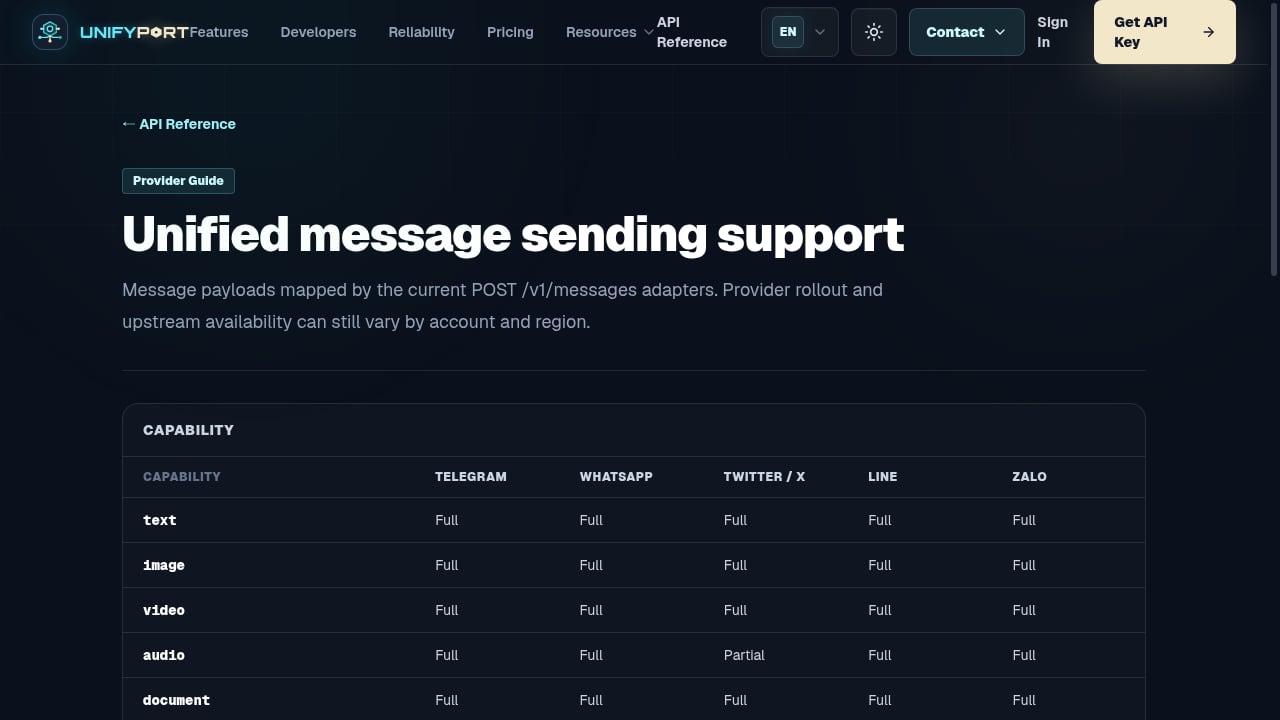
First viewport screenshot of Unified message sending support — API Reference — UnifyPort.
Messages, Voice Calls, and Video Calls
Free, unlimited communication with other LINE users worldwide. Group chats support up to 100 participants, and group video calls make remote catch-ups feel natural. Call quality is generally excellent over Wi-Fi and stable on cellular data.
Stickers, Emojis, and Themes
LINE’s sticker library is one of its biggest draws—thousands of animated and static stickers featuring original characters like Brown and Cony, plus collaborations with global brands. You can also apply custom themes to change the entire look of your chat interface.
LINE VOOM (Timeline)
In supported regions (Japan, Taiwan, Thailand), LINE VOOM is a social feed where you can post updates, photos, and videos. Friends can like and comment, and you can follow official accounts from celebrities, brands, and publishers.
Keep Memo
A private, one-to-one chat with yourself. Use it to store messages, photos, videos, links, and voice notes that you want to access later across your devices.
Hidden Chat
Send time-limited messages that disappear after the recipient opens them. Similar to ephemeral messaging in other apps, Hidden Chat adds a layer of privacy for sensitive conversations.
AI Integration
LINE has integrated ChatGPT via a feature called AI Chat-kun (availability varies by region). You can ask questions, generate text, or get recommendations without leaving the app. While the feature is optimized for desktop and English, it signals LINE’s direction toward AI-assisted communication.
Security and Privacy After LINE Download
LINE offers several layers of protection, but you must enable them:
- Letter Sealing: End-to-end encryption for messages and calls. Both parties must have it turned on.
- Two-step verification: Add a secondary password that’s required when logging in on a new device.
- Login alerts: Receive notifications when your account is accessed from a new device.
- Permissions control: On both iOS and Android, you can revoke camera, microphone, or contact access at the system level.
Be aware that LINE’s privacy labels (visible on the App Store) show that the app may link data such as purchases, location, contacts, user content, and browsing history to your identity. If you’re evaluating LINE for business use—especially when handling customer data—consider how the platform’s data practices align with your compliance requirements. For deeper context on what makes messaging truly secure, read our breakdown of secure messaging standards and risks.
Using LINE for Business and Multi-Channel Messaging
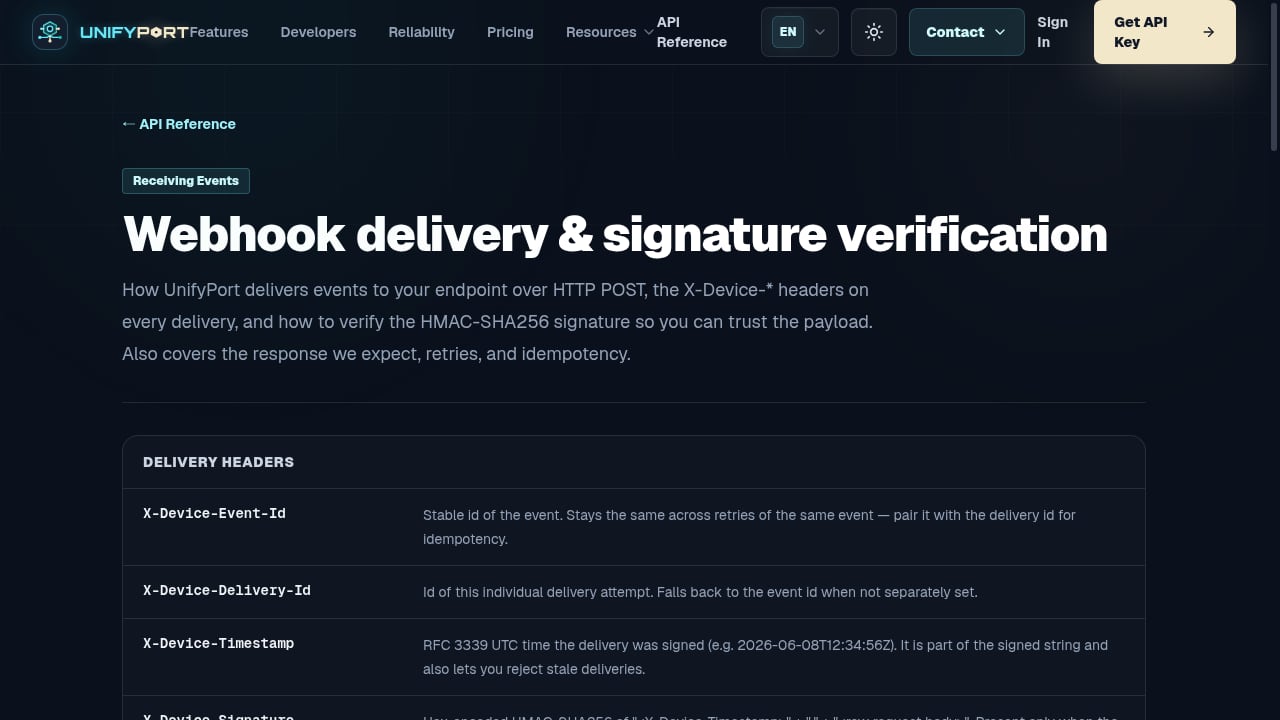
First viewport screenshot of Webhook delivery & signature verification — API Reference — UnifyPort.
Businesses and developers often need to reach customers on LINE alongside other channels like WhatsApp, Telegram, or Zalo. Building and maintaining separate integrations for each platform is time-consuming and error-prone. That’s where a unified API layer becomes valuable.
UnifyPort is a unified messaging API platform that lets you send and receive messages across LINE and five other channels through a single REST API. Instead of wrestling with LINE’s Messaging API, Telegram’s Bot API, and WhatsApp’s Cloud API individually, you work with one normalized JSON event format, one webhook control plane, and one set of SDKs (Node.js, PHP, Go).
This is especially useful when you’re building AI agents, notification systems, or CRM integrations that need to operate across channels without duplicating logic. UnifyPort handles rate limiting, retries with idempotency, and webhook signature verification (HMAC-SHA256) out of the box, so your engineering team can focus on the product rather than the plumbing. To understand how this fits into a broader communication strategy, see our CPaaS guide for 2026.
Common LINE Download Problems and Fixes
“App not compatible with this device”
Check that your OS meets the minimum version requirement. On Android, if the Play Store blocks the download, your device may be too old or running a custom ROM without Google Play certification. Try the official APK from LINE’s website as a workaround.
Installation stuck or freezes
Insufficient storage is the most common cause. Free up at least 500 MB and try again. On iOS, a forced restart (volume up, volume down, hold side button) can clear temporary download glitches.
“Login failed” or “Network error”
LINE requires a stable internet connection during login. If you’re on a VPN, disable it temporarily. Also confirm that your phone number hasn’t been previously linked to another LINE account without proper transfer.
Notifications not working
After installing LINE, check both in-app notification settings and your device’s system notification permissions. On Android, disable battery optimization for LINE to prevent the system from killing background processes. On iOS, ensure “Background App Refresh” is enabled.
LINE desktop won’t scan QR code
Make sure your phone’s LINE app is updated and that the desktop app is the official version from line.me. Dim your screen brightness slightly if the QR code isn’t being recognized.
LINE Download FAQ
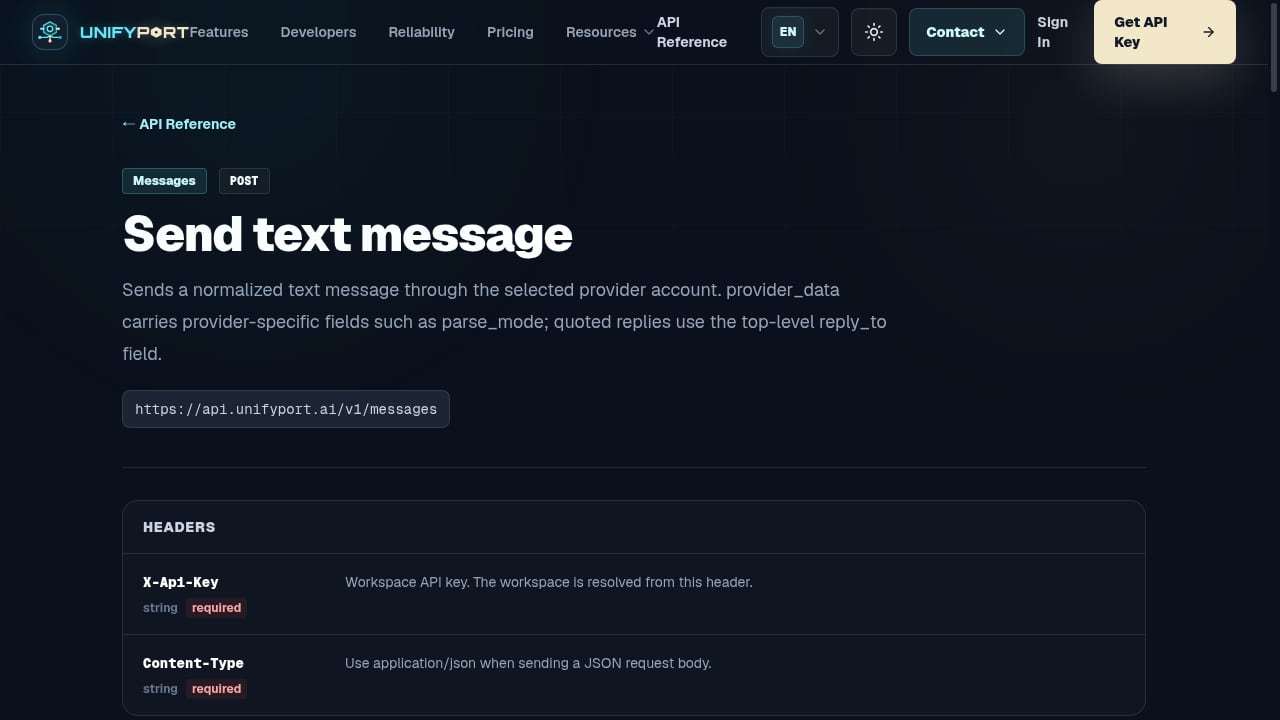
First viewport screenshot of Send text message — API Reference — UnifyPort.
Is LINE free to download and use?
Yes. LINE is free to download on all platforms. Core features—messaging, voice calls, video calls, and timeline—are free. In-app purchases include stickers, themes, and LINE Coins for premium items.
Can I use LINE without a phone number?
You can register with an email address, but you’ll be limited to text chat only. Voice and video calls require phone number verification.
How many devices can I use with one LINE account?
You can use LINE on one phone, one desktop (Windows or Mac), and one iPad simultaneously. The Apple Watch version pairs with your iPhone’s LINE app. You cannot use the same account on two phones at once.
Is LINE available in my country?
LINE is available globally, but certain features—like LINE VOOM and the sticker shop’s full catalog—vary by region. The core messaging and calling features work everywhere.
How do I transfer my LINE account to a new phone?
Before switching devices, back up your chat history (Settings → Chats → Backup) and confirm your account is linked to an email and password. On the new phone, install LINE, log in with your email, and restore your backup. Note that some data, like sticker purchase history, transfers automatically; chat backups are platform-specific (iOS to iOS, Android to Android).
Can I use LINE for business customer support?
Yes, through LINE Official Accounts and the LINE Messaging API. Businesses can send push notifications, create auto-reply bots, and manage one-on-one conversations. For teams that need to handle LINE alongside other messaging channels, a unified API like UnifyPort simplifies the integration and reduces maintenance overhead.
Related reading
- Unipile Tutorial: Connect Multi-Channel Messaging in Days - Learn how to integrate WhatsApp, LinkedIn, Telegram, and email into your app with this Unipile tutorial. Covers setup, API calls, webhooks, and pricing.
- What Is a Digital Platform? Types, Architecture & Integration - Explore what a digital platform is, how it works, and the key types—from social media to unified APIs. Learn how modern platforms connect tools, channels, and AI agents.
Sources and further reading
- LINE|always at your side. - More than just a messenger app. LINE is new level of communication and the very infrastructure of your life.
- LINE for Android - Download - LINE for Android, free and safe download. LINE latest version: Fun WhatsApp alternative that lets you make calls and chat. LINE lets you call, chat, a
Conclusion: Download LINE and Build on It
Downloading LINE is straightforward whether you’re on iOS, Android, or desktop. The app delivers a rich communication experience that goes well beyond basic texting—stickers, social feeds, encrypted chats, and even AI features are all part of the package.
For developers and businesses, LINE is also a powerful channel that deserves a place in your messaging stack. When you need to connect LINE with other platforms like WhatsApp or Telegram without juggling multiple SDKs, a unified messaging API platform like UnifyPort gives you one port for every channel—normalized events, built-in reliability, and SDKs that speed up delivery. Start with the official LINE download, then explore how to scale your messaging infrastructure from a single integration point.