
How to Use UnifyPort with Latenode: Unified Messaging Automation
Learn how to connect UnifyPort's unified messaging API to Latenode workflows. Step-by-step setup, webhook triggers, and practical automation examples.
How to Use UnifyPort with Latenode: Unified Messaging Automation
UnifyPort gives you one REST API and one standard webhook stream for WhatsApp, Telegram, LINE, TikTok, Zalo, and X. Latenode gives you a visual workflow builder that can react to webhooks, call APIs, run AI agents, and route data to 5,500+ integrations. Put them together and you get a practical automation stack: UnifyPort handles the messy channel layer, Latenode handles the logic that runs on top of every inbound and outbound message.
This guide explains how the two products fit together, how to wire them up, and which real-world problems the combination solves.
Why combine UnifyPort and Latenode?
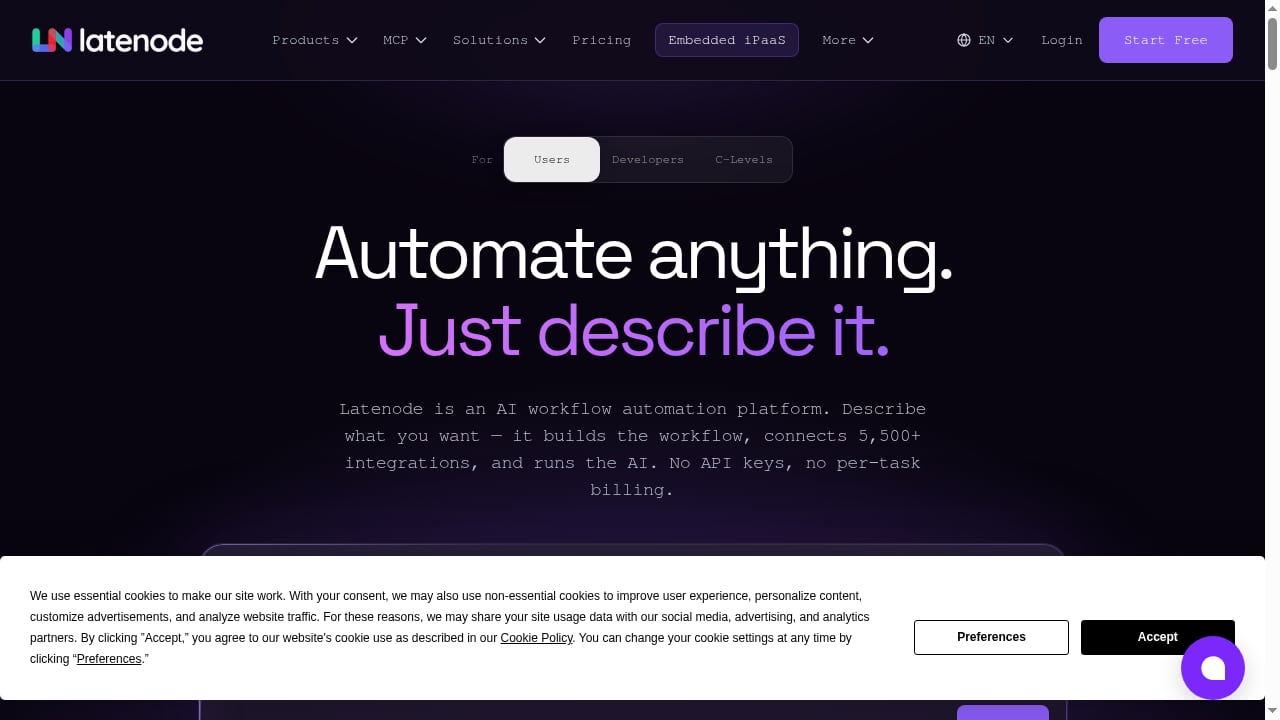
First viewport screenshot of Latenode — AI Workflow Automation with 335+ LLMs Built In.
Most teams hit the same wall when they add messaging channels: each provider has its own SDK, its own webhook payload shape, and its own retry semantics. UnifyPort removes that variance by normalizing provider messages, status updates, and account events into a stable JSON shape. Latenode removes the next wall: once you have a clean event, you still need somewhere to run branching logic, call other systems, and involve AI.
| Layer | UnifyPort | Latenode |
|---|---|---|
| Channel connectivity | WhatsApp, Telegram, LINE, TikTok, Zalo, X | Connects to UnifyPort via HTTP and webhook nodes |
| Event format | Normalized JSON with a webhook control plane | Consumes JSON and maps it into workflow steps |
| Auth | API key plus HMAC-SHA256 signatures | Stores credentials in workflow configuration |
| Logic | Delivery queue, retries, idempotency, rate limits | Branching, AI agents, RAG, browser automation, database steps |
| Output | One send endpoint for every channel | 5,500+ integrations across 1,200+ apps and LLMs |
In short: UnifyPort is the messaging transport and event layer. Latenode is the orchestration and decision layer. Neither replaces the other, and the handoff between them is a single HTTPS call in each direction.
How the integration works
There are two directions of traffic, and it helps to think of them separately.
Direction 1: Inbound messages trigger Latenode workflows
- A customer sends a message on WhatsApp, Telegram, LINE, or another connected channel.
- UnifyPort receives the provider event, normalizes it, and delivers it to your registered webhook endpoint.
- That endpoint is a Latenode webhook trigger.
- The workflow parses the normalized event, branches on channel, sender, or message content, and runs whatever steps you need.
Because UnifyPort normalizes the payload, one workflow can often handle several channels without per-provider parsing. You still get channel-specific fields where they matter, but the envelope is consistent.
Direction 2: Latenode workflows send messages through UnifyPort
- A workflow reaches a step that needs to reply, notify, or broadcast.
- Latenode makes an HTTP request to
POST https://api.unifyport.ai/v1/messageswith your workspaceX-Api-Key. - UnifyPort queues the message, applies rate limits and retries, and delivers it to the right channel account.
That is the whole loop. Everything else is workflow design.
Setup: connecting UnifyPort to Latenode
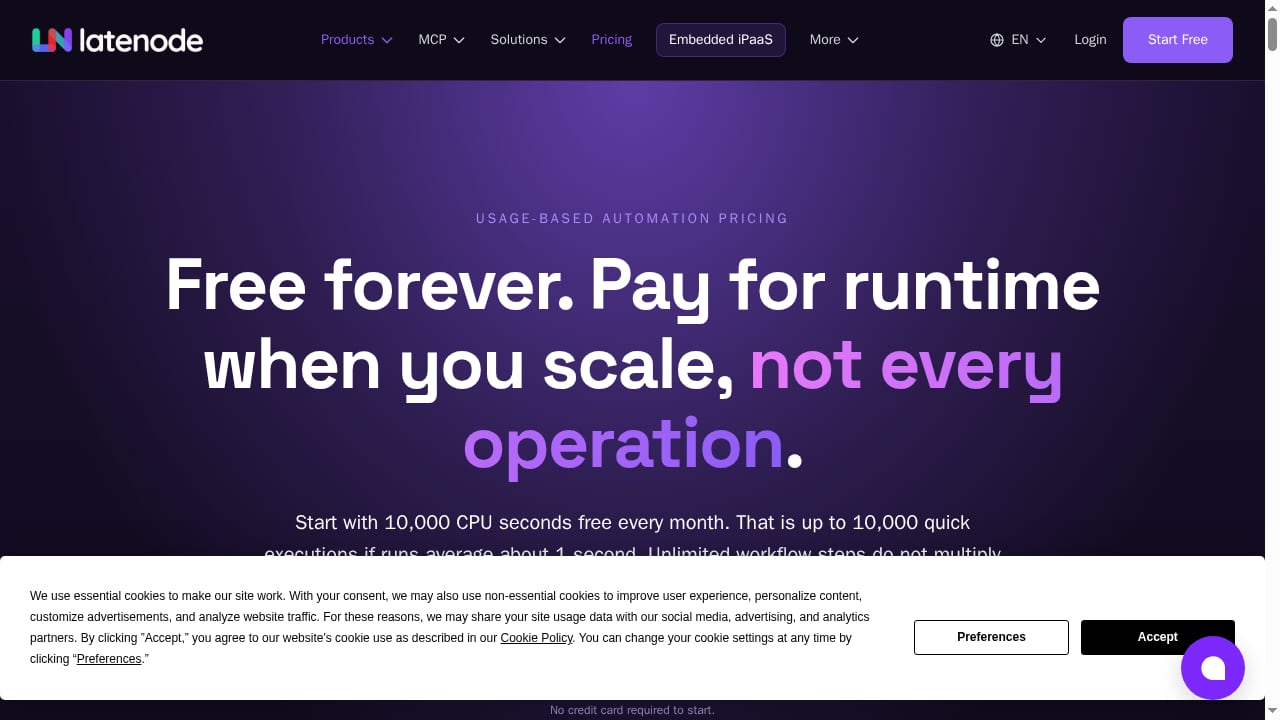
First viewport screenshot of Latenode Pricing - Free Forever, Then Pay as You Go.
Step 1: Prepare your UnifyPort workspace
Create a workspace API key and confirm it works. The base URL is https://api.unifyport.ai, and every /v1 endpoint authenticates with the X-Api-Key header.
curl "https://api.unifyport.ai/v1/workspace" \
  -H "X-Api-Key: <YOUR_API_KEY>"
You also need at least one connected messaging account with a running runtime status, not just completed authorization. Check runtime status separately before you rely on a channel in production.
Step 2: Register a webhook endpoint in UnifyPort
UnifyPort has no REST message-history read API and no guaranteed replay, so register a webhook receiver before you go live and store what you need on arrival. WhatsApp can emit limited best-effort HistorySync events after bootstrap or reconnect, but treat those as a bonus, not an archive.
In UnifyPort, create the webhook subscription, set your signing secret, and configure retry and failure-tracking behavior through the webhook control plane.
Step 3: Create the Latenode webhook trigger
In Latenode, start a new workflow with a webhook trigger. Copy the generated trigger URL and use it as the UnifyPort webhook destination. Send a test event from UnifyPort and confirm the payload arrives in the Latenode run log.
Step 4: Verify signatures before processing
UnifyPort signs webhook deliveries with HMAC-SHA256. Add a verification step at the top of the workflow, or in a small proxy you control, and reject anything that fails. Keep API keys and signing secrets on the server side; never place them in a client-side workflow or a public browser step.
Step 5: Add the outbound HTTP request
For replies, add an HTTP Request step in Latenode pointing at POST https://api.unifyport.ai/v1/messages. Pass the workspace API key as a header, set the channel account and recipient from the trigger payload, and include an idempotency value so retries do not double-send.
Step 6: Test with one channel, then expand
Run the loop end to end on a single channel first. Once inbound parsing, signature verification, and outbound delivery all work, add the remaining channels. The normalized event shape is what makes this expansion cheap.
Practical automation examples
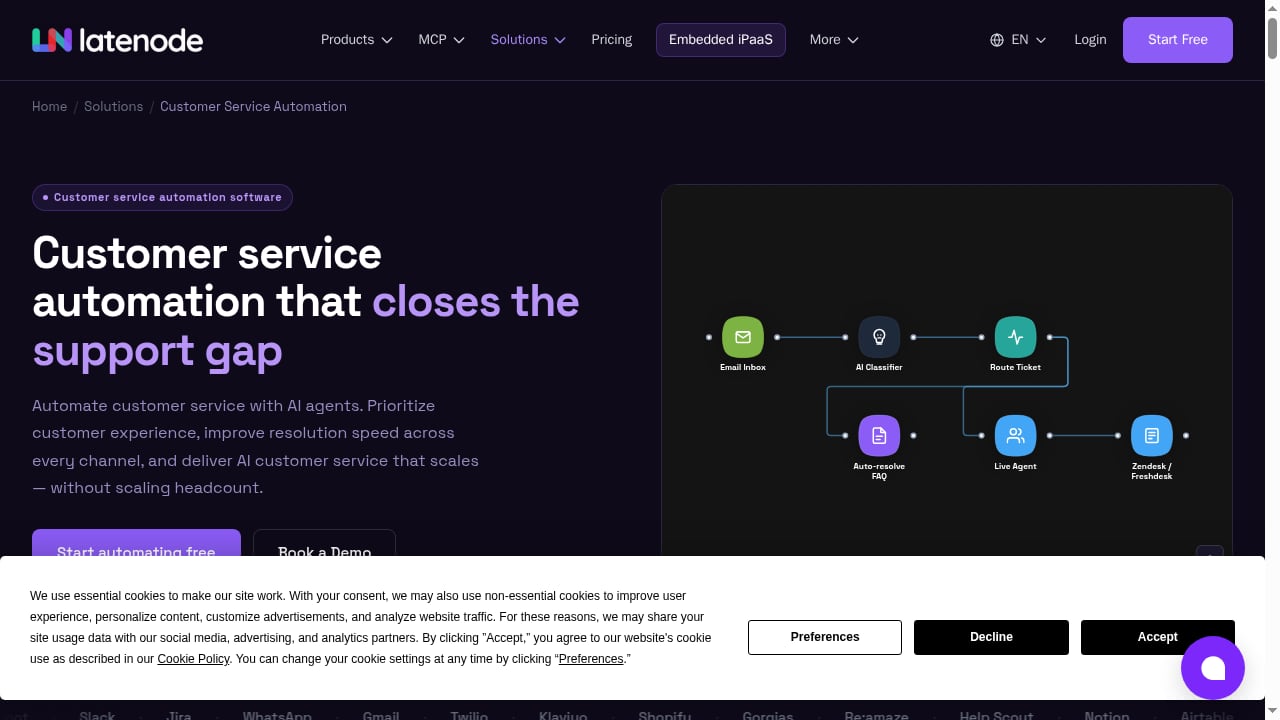
First viewport screenshot of Customer Service Automation Software — AI-Powered | Latenode.
Example 1: AI first-response agent across channels
Trigger: UnifyPort webhook on any inbound message.
Workflow: verify signature, normalize the sender, check whether the conversation is new, then pass the message to an AI agent step with a retrieval step over your help-center content. If confidence is high, send the answer back through UnifyPort. If not, route to a human queue and post a notification to your team's internal tool.
Why it works: the AI agent only ever sees a normalized message object, so the same prompt and retrieval logic serves WhatsApp, Telegram, and LINE without rewrites.
Example 2: Delivery status and failure tracking
Trigger: UnifyPort status events.
Workflow: log each status transition to a database, flag messages that exhaust retries, and alert the owning team. Because UnifyPort isolates failures per delivery, one bad recipient does not stall the rest of a batch.
This is a common gap in DIY integrations: teams send messages but never close the loop on what happened after the send call returned.
Example 3: Cross-channel broadcast with per-channel formatting
Trigger: a scheduled Latenode run or an internal event.
Workflow: pull the audience list, branch by channel, adjust formatting and length limits per platform, then call UnifyPort once per recipient. UnifyPort's delivery queue handles rate limits and retries so the workflow does not need its own throttling logic.
Example 4: Account lifecycle monitoring
Trigger: UnifyPort account events.
Workflow: when an account drops out of running, open a ticket, notify the account owner, and pause dependent workflows. This is especially useful for teams managing many messaging accounts across channels.
Where the combination fits, and where it does not
First viewport screenshot of DevOps Automation Tool for AI Deployment Workflow | 16 DevOps Automation Tools | Latenode.
Use UnifyPort with Latenode when:
- You need messaging channels plus workflow logic without building two separate systems.
- You want AI steps, retrieval, or browser automation in the same flow as message handling.
- You are managing multiple messaging accounts and need a consistent event shape.
- You want to avoid per-task billing for AI agent runs while keeping messaging costs predictable.
Look elsewhere or add components when:
- You need a full message archive or guaranteed event replay. UnifyPort is a webhook-first platform, so persist events yourself.
- You need sub-second synchronous request/response inside a chat. Workflow engines add latency; design for asynchronous replies.
- You need deep CRM-native conversation management. A CRM pairing may fit better; see how to use UnifyPort with Kommo for that pattern.
If you are still choosing a messaging API, the UnifyPort vs Infobip comparison and the top CPaaS APIs and SDKs guide cover channels, SDKs, and webhook behavior in more depth.
Common pitfalls to avoid
- Skipping signature verification. HMAC-SHA256 verification is cheap and prevents spoofed events from triggering workflows.
- Assuming replay exists. Store inbound events on arrival. Do not plan on fetching history later.
- Ignoring runtime status. An authorized account is not necessarily a running connection.
- Sending without idempotency. Network retries happen; idempotency keys keep them from becoming duplicate messages.
- Hardcoding channel logic too early. Start with the normalized fields, then add channel-specific branches only where formatting or limits require it.
Related reading
- UnifyPort vs SocialAPI.ai vs Syniverse CPaaS: Messaging API Guide - Compare UnifyPort, SocialAPI.ai, and Syniverse CPaaS for omnichannel messaging. Evaluate channels, webhooks, SDKs, pricing, and developer fit.
- UIB Review 2026: Omnichannel AI Platform, APIs & Pricing - Evidence-based UIB review for 2026: omnichannel AI agents, unified messaging APIs, setup, pricing signals, limitations, and who should buy the platform.
- LINE Mini App Ecommerce: Messaging APIs for Devs - How LINE Mini App ecommerce works and how developers wire it to a unified messaging API for orders, service messages, and multi-channel events.
FAQ
Do I need to write code to connect UnifyPort and Latenode?
No. The core connection is a webhook trigger in Latenode and an HTTP Request step calling POST /v1/messages. Code is only useful if you want a custom signature-verification proxy or complex payload transformation.
Which UnifyPort channels work with this setup?
All channels exposed by UnifyPort, including WhatsApp, Telegram, LINE, TikTok, Zalo, and X. The normalized event shape means one workflow can often serve several of them.
Can Latenode AI agents reply directly to customers?
Yes, as long as the final send step calls UnifyPort. Keep the agent's output constrained and route low-confidence answers to a human.
Is there a message history I can query from Latenode?
Not through a REST history endpoint. UnifyPort is webhook-first with no guaranteed replay, so write events to a database or storage step in Latenode as they arrive.
How is pricing structured across the two products?
UnifyPort uses graduated pricing for messaging accounts, with free messaging accounts available in every workspace. Latenode uses usage-based CPU-second pricing with a free forever plan that includes 10,000 CPU seconds per month, 5 active workflows, and access to all apps and AI features.
Conclusion
UnifyPort and Latenode solve adjacent problems: one standardizes messaging across channels, the other standardizes what happens after an event arrives. The integration is deliberately thin, a webhook in and an HTTP request out, which means you can build the first working loop in an afternoon and expand channels without rewriting logic. Start with one channel, verify signatures, persist your events, and let the workflow layer handle the decisions.
For the API details behind the setup, see the UnifyPort API introduction. For workflow building blocks, the Latenode documentation and the Latenode integrations reference cover triggers, HTTP requests, and available nodes.