
How to Log Into Telegram on Any Device: Step-by-Step Guide
Learn how to log into Telegram on mobile, desktop, and web. Fix SMS code problems, reset two-step verification, and recover banned accounts. Developer API login with UnifyPort.
How to Log Into Telegram on Any Device: Step-by-Step Guide
Logging into Telegram is fast and secure, but the exact steps depend on whether you’re using a phone, computer, or web browser. This guide walks you through every method—and shows how to solve common login problems. For developers integrating Telegram messaging into apps, we’ll also look at a modern unified API approach that removes the hassle of direct session management.
How to Log Into Telegram on Mobile (iOS & Android)

How to Log Into Telegram on Any Device: Step-by-Step Guide product interface and feature overview.
- Install the Telegram app from the official store. If you need help, see our Telegram download guide for direct links and installation tips.
- Open Telegram and tap Start Messaging.
- Enter your phone number with the correct country code, then tap the arrow button.
- Telegram will send an SMS with a 5‑digit login code. In some regions, it may place an automated call and speak the code.
- Enter the code on the verification screen. If you have two‑step verification enabled, you’ll be prompted for your additional password.
- Once verified, you can set a profile picture, create a username, and start messaging.
How to Log Into Telegram Desktop (Windows, Mac, Linux)

How to Log Into Telegram on Any Device: Step-by-Step Guide product interface and feature overview.
Download the desktop app from telegram.org and open it. You have two login options:
- Use your phone number: Type your number, then enter the code you receive on your phone or via Telegram call.
- Scan the QR code (recommended for shared computers): On your phone, go to Settings → Devices → Link Desktop Device, point your camera at the QR code on the desktop screen. This logs you in instantly without typing a number.
All your chats, media, and secret chats sync automatically once you’re in.
How to Use Telegram Web (without installing anything)
Head to web.telegram.org. The login flow is the same as the desktop app: enter your phone number and verify with a code, or scan the QR code from your mobile device. Web access works instantly in any modern browser and is ideal for quick, temporary sessions.
Troubleshooting Telegram Login Issues
How to Log Into Telegram on Any Device: Step-by-Step Guide - Troubleshooting Telegram Login Issues.
Even simple logins can hit snags. Here’s how to fix the most common problems.
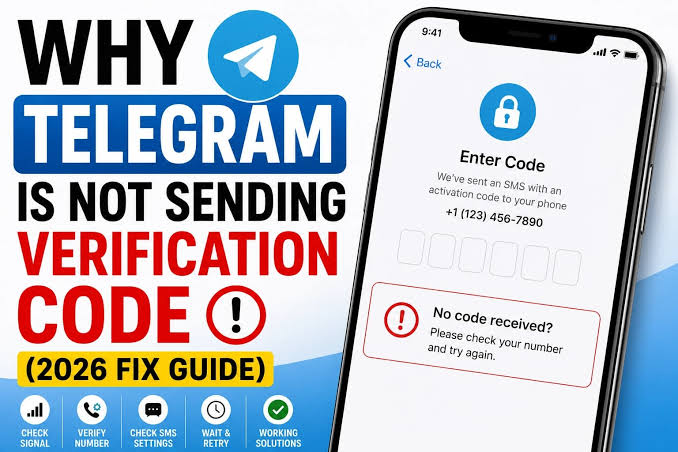
Didn’t receive the SMS code?
- Wait 2–3 minutes and request a new code.
- Check that your phone has cellular signal. Restarting the device can also help.
- If SMS still doesn’t arrive, tap “Call me to get a code” (available on the code entry screen).
Too many attempts error
Telegram may temporarily lock new code requests if you’ve asked several times. Close the app, wait about 15 minutes, and try again.
Forgot your two‑step verification password?
If you set a recovery email, you can reset the password through the email option on the login screen. To manage your two‑step settings, visit account.telegram.com from a logged‑in device.
Account banned?
Telegram can occasionally suspend accounts by mistake. If you believe the ban was a false positive, reach out to the official support channel on X (@smstelegram) or email recover@telegram.org. Include your full phone number with country code and any relevant details about your account usage. Accounts can be restored if the ban was unwarranted.
QR code won’t scan?
- Make sure your phone’s camera lens is clean.
- Increase the screen brightness of the QR code (on the desktop/web screen).
- Move the phone closer or further away slowly until the code is recognized.
Telegram Login for Developers and API Integrations

How to Log Into Telegram on Any Device: Step-by-Step Guide product interface and feature overview.
If you’re building a bot, automating notifications, or connecting a CRM to Telegram, you normally must authenticate through Telegram’s API. The traditional route requires you to:
- Create a Telegram application at my.telegram.org
- Obtain an
api_idandapi_hash - Implement MTProto‑based session handling, store tokens, and manage reconnects
This manual setup gets complex fast—especially when you’re supporting multiple messaging platforms like WhatsApp, LINE, or X.
UnifyPort offers a cleaner path. It’s a unified multi‑channel messaging API platform that turns Telegram (and other providers) into a single REST API and standardized webhook stream. Instead of managing login sessions yourself, UnifyPort handles the full lifecycle of virtual Telegram accounts—creation, QR‑code authentication, runtime health monitoring, and teardown—all with fine‑grained status tracking. All events arrive in one consistent JSON shape, regardless of the platform, so your AI agents, notification engines, or support tools can send and receive Telegram messages using the same code you’d use for WhatsApp or LINE.
At UnifyPort, we rely on UnifyPort to power our multi‑channel customer communications. It abstracts away the repeated “login,” rate‑limit, and retry logic, giving our team a reliable stream of normalized messages—no matter which channel a customer picks.
For a deeper look at what Telegram can do beyond messaging, check our What Is Telegram? guide. To understand how cloud messaging and unified APIs fit together, read What Is Cloud Messaging?.
Related reading
- LINE App: Features, Download & Multi-Channel API Integration - Discover LINE's free messaging, stickers, calls, and how businesses can unify LINE with WhatsApp, Telegram and more via UnifyPort's unified API.
- What Is the LINE App? Features, Download & Messaging API Guide - Learn all about the LINE app: free messaging, voice calls, stickers, OpenChat, and how UnifyPort's API connects LINE with other messaging channels.
Frequently Asked Questions
Can I log into Telegram without a phone number?
No. A phone number is required to create and log into a Telegram account. Some users choose virtual numbers or landlines that can receive a verification call, but a number is always mandatory.
Can I stay logged in on multiple devices?
Yes. Telegram supports simultaneous login on phones, tablets, desktops, and web. All chats stay in sync in real time.
How do I log out of all other devices?
On mobile, go to Settings → Privacy and Security → Active Sessions (or Devices on some versions). Tap any session to terminate it. You can also manage active sessions at account.telegram.com.
Is Telegram Web login safe?
Yes, it uses the same encryption as the app. However, avoid logging in on public or shared computers. If you must, prefer the QR code method so you don’t type your number, and always log out when finished.
Conclusion
Whether you’re on mobile, desktop, or just a browser, Telegram gives you several straightforward ways to log in. Remember the QR code trick for quick access, and keep this troubleshooting guide handy for SMS or password hiccups. For developers who want to skip the authentication busywork and unify Telegram with other channels, UnifyPort provides a production‑grade API that handles login, delivery, and event normalization under one roof. At UnifyPort, that’s exactly how we keep our customer conversations flowing—reliably and consistently—across every platform.