
LINE Web: Browser Access, Desktop Apps & Developer APIs
Learn how to use LINE on the web, compare browser vs desktop options, and discover how developers integrate LINE messaging through APIs.
LINE Web: Browser Access, Desktop Apps & Developer APIs
LINE is more than a messaging app—it's a communication infrastructure used by hundreds of millions of people, primarily in Asia. While the mobile app is the most common way to access LINE, many users and developers need to know how to use LINE on the web, what desktop options exist, and how to integrate LINE messaging into their own applications.
This article covers the practical side of LINE web access, compares browser and desktop experiences, and explains how developers can connect LINE to a unified messaging API for scalable, production-grade integrations.
What Is LINE Web?
LINE Web: Browser Access, Desktop Apps & Developer APIs - What Is LINE Web?.
LINE web refers to accessing LINE through a web browser instead of the mobile app. The most common entry point is the official LINE website at line.me, where you can find download links, service information, and account management tools.
However, LINE does not offer a full-featured web messenger like some competitors. Instead, the primary desktop experience is delivered through dedicated applications for Windows and macOS. These desktop apps sync automatically with your mobile LINE account, so your chats, photos, and files stay up to date across devices.
LINE Web Login and QR Code Access
When you use LINE on a new device—whether desktop or web—you typically log in by scanning a QR code with the LINE mobile app. This QR code login flow is secure and fast: open the QR code reader in the Android or iOS version of LINE, scan the code displayed on your computer, and your account is authenticated without typing a password.
This method is used for LINE Desktop and other authorized web-based services. It ensures that your account credentials are never exposed on the web.
LINE Desktop vs. LINE Web: Key Differences
LINE Web: Browser Access, Desktop Apps & Developer APIs - LINE Desktop vs. LINE Web: Key Differences.
| Feature | LINE Desktop App | LINE Web (Browser) |
|---|---|---|
| Full messaging | Yes | Limited or unavailable |
| Voice/video calls | Yes (up to 200 people) | No |
| File sharing | Yes (large files supported) | Limited |
| Sync with mobile | Automatic | Via QR login |
| Screen share | Yes | No |
| Stickers and themes | Yes | Limited |
LINE Desktop is available for Windows and macOS through official app stores and the LINE website. It supports free voice and video calls, group calls with up to 200 participants, screen sharing, and full chat functionality including photos, videos, stickers, and large files.
The browser-based experience is more limited. If you need full LINE functionality on a computer, the desktop app is the recommended choice.
Security Features on LINE
LINE includes several security features across platforms. Letter Sealing encrypts chat messages, calls, and shared locations end-to-end. The QR code login system prevents password theft. For developers, LINE also provides official APIs with their own authentication and signature mechanisms.
How Developers Integrate LINE Messaging
LINE Web: Browser Access, Desktop Apps & Developer APIs - How Developers Integrate LINE Messaging.
Beyond personal use, LINE is a major channel for business messaging, customer support, and notifications—especially in Japan, Taiwan, and Thailand. Developers building AI agents, CRMs, or notification systems often need to send and receive LINE messages programmatically.
LINE offers its own Messaging API, but integrating it requires handling LINE-specific SDKs, webhook formats, and authentication. If you also need to support WhatsApp, Telegram, or other channels, maintaining separate integrations for each provider becomes costly and complex.
Using a Unified Messaging API for LINE and Other Channels
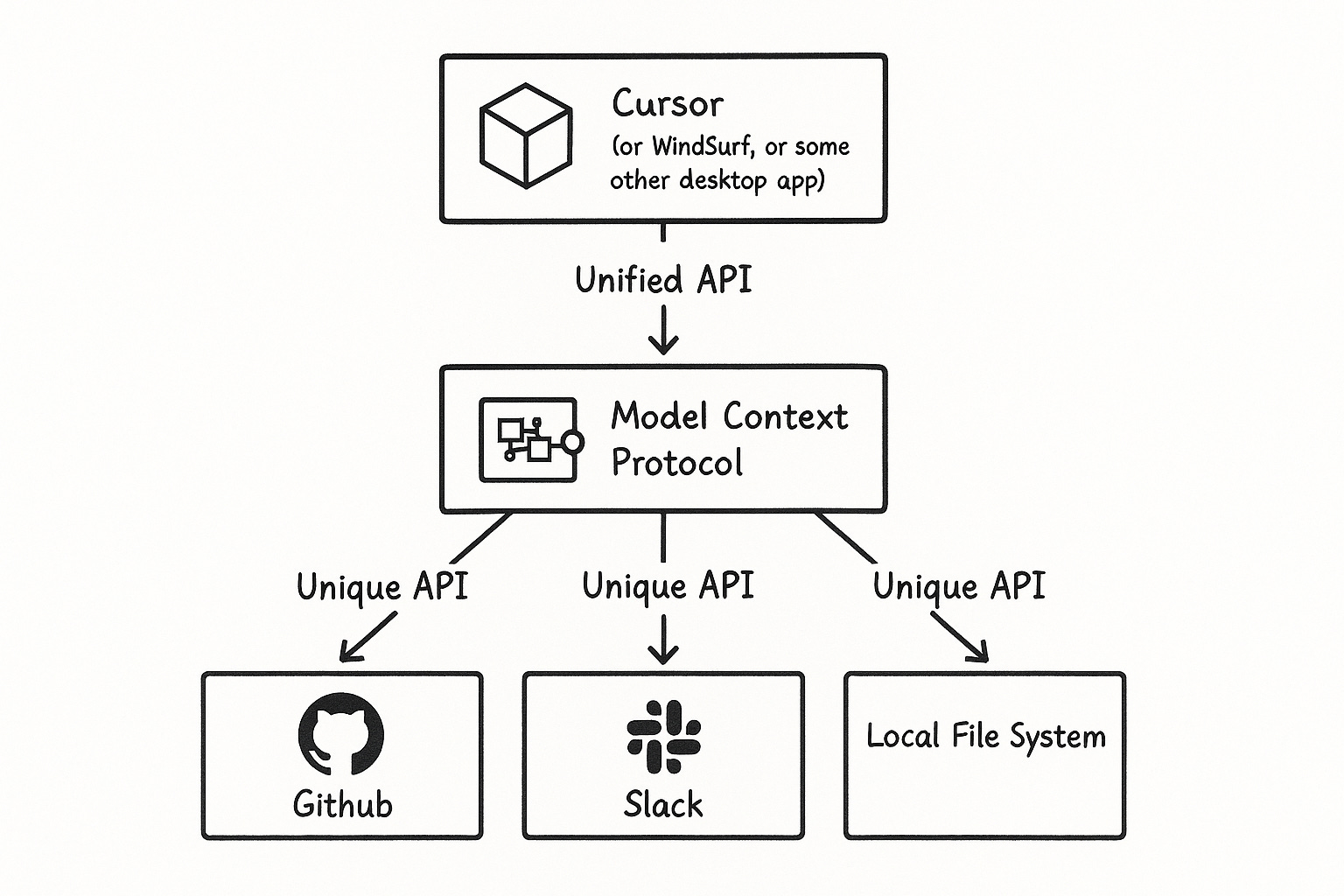
A unified messaging API abstracts away provider-specific differences. UnifyPort is one such platform: it provides a single REST API and standardized webhook events for LINE, Telegram, WhatsApp, X (Twitter), Zalo, and TikTok.
With UnifyPort, you create a workspace, connect a LINE account as a virtual device, and send messages through a normalized interface. Incoming LINE messages are converted into a consistent JSON shape, so your application logic doesn't need to parse LINE-specific payloads. The platform handles rate limiting, retries with idempotency, and failure isolation, which is important for reliable delivery at scale.
For a step-by-step setup, see How to Use UnifyPort: A Practical Setup Guide. If you're evaluating whether a unified API fits your stack, UnifyPort Review: A Deep Look at the Unified Messaging API covers channel support, pricing, and trade-offs.
LINE API vs. Unified API: Decision Guide
| Consideration | LINE Messaging API | Unified Messaging API (e.g., UnifyPort) |
|---|---|---|
| Channel support | LINE only | Multiple channels |
| SDKs | LINE-specific | Official SDKs for Node.js, PHP, Go |
| Webhook format | LINE-specific JSON | Standardized event layer |
| Rate limiting | Manual | Built-in |
| Retries | Manual | Built-in with idempotency |
| Best for | LINE-only projects | Multi-channel products |
If your product only ever needs LINE, the native API is sufficient. If you're building an omnichannel strategy—for example, supporting customer conversations across LINE, WhatsApp, and Telegram—a unified API reduces integration overhead and lets you focus on your core product. For a broader comparison of messaging platforms and APIs, see Messaging App Guide: Top Picks & Developer APIs.
Practical Examples: Sending a LINE Message via Unified API
LINE Web: Browser Access, Desktop Apps & Developer APIs - Practical Examples: Sending a LINE Message via Unified API.
Here's a simplified example of how a unified API call might look when sending a LINE message. The exact endpoint and payload depend on the provider, but the pattern is consistent across channels.
POST /v1/messages
Authorization: Bearer YOUR_API_KEY
Content-Type: application/json

{
  "channel": "line",
  "to": "USER_ID",
  "text": "Hello from UnifyPort!"
}
Incoming messages arrive at your webhook endpoint as standardized events:
{
  "event": "message.received",
  "channel": "line",
  "from": "USER_ID",
  "text": "Hi there!",
  "timestamp": "2025-01-01T00:00:00Z"
}
This consistency means your application can handle LINE messages with the same code path as messages from other channels, reducing complexity and maintenance.
Related reading
- CM.com Share Price: Live Quote, Trends & What Moves CMCOM - Track the CM.com share price (CMCOM.AS) on Euronext Amsterdam. See live quotes, 52-week range, valuation metrics, analyst targets, and key drivers.
- Unipile API: Features, Pricing, Setup & Alternatives - A practical guide to the Unipile API: supported channels, pricing, setup flow, webhooks, and how it compares with unified messaging alternatives.
Sources and further reading
- LINE Desktop - Download and install on Windows | Microsoft Store - LINE reshapes communication around the globe, letting you enjoy not only messaging but also free voice and video calls wherever you find yourself. Download LINE now and stay close with your favorite people.
◆ Free voice and video calls any time, anywhere. Share your screen during video conferences.
Enjoy great quality calls free of charge, no matter where you are. Up to 200 people can join a group call. Host video conferences and online gatherings with the all-new Screen Share feature.
◆ Convenient chats where anything is possible! Send and receive messages, photos, videos, stickers, and even large files from your friends.
◆ Auto-sync your device and PC Your LINE chats are always up-to-date! Whether on the go with the mobile version or connected to the desktop version at work or home, your LINE is synced automatically across all versions.
◆ Your own private chat, Keep Memo Send memos, photos, and more to your personal Keep Memo chat.
◆ Enjoy secure chats with Letter Sealing All your chat messages, calls, and shared locations can be encrypted using Letter Sealing. Your chats are always safe in LINE!
- LINE Login - LINE Login - Secure and fast QR code login for LINE. Access your LINE account easily with our LINE Login QR code system.
Frequently Asked Questions
Can I use LINE in a web browser?
LINE does not offer a full web messenger. The primary desktop experience is through the LINE Desktop app for Windows and macOS. You can log in via QR code from your mobile LINE app. Some web-based services may offer limited LINE functionality, but for full messaging, use the desktop app.
Is LINE Desktop free?
Yes, LINE Desktop is free to download and use. It supports free voice and video calls, including group calls with up to 200 participants.
How do I log in to LINE on a new computer?
Open LINE on your mobile device, go to the QR code reader, and scan the QR code displayed on your computer. This authenticates your account without entering a password.
What is the LINE Messaging API?
The LINE Messaging API allows developers to send and receive messages programmatically. It uses LINE-specific SDKs and webhook formats. For multi-channel needs, a unified messaging API like UnifyPort can abstract away these differences.
Does UnifyPort support LINE?
Yes, UnifyPort supports LINE as one of its channels, along with Telegram, WhatsApp, X (Twitter), Zalo, and TikTok. It provides a single REST API and standardized webhook events for all supported channels.
Conclusion
LINE web access is primarily about the desktop app and QR code login, not a full browser-based messenger. For personal use, LINE Desktop delivers a complete experience with sync, calls, and file sharing. For developers, LINE's native API is powerful but channel-specific; if you need to integrate multiple messaging platforms, a unified API like UnifyPort can simplify your architecture and reduce maintenance.
Whether you're a user looking to stay connected on your computer or a developer building the next generation of messaging tools, understanding LINE's web and API options helps you choose the right approach for your needs.