
LINE Login: The Complete Guide for Users, Developers & Businesses
Learn how LINE login works for users and developers. Discover LINE Login setup, troubleshooting tips, and how to combine authentication with messaging via UnifyPort.
LINE Login: The Complete Guide for Users, Developers & Businesses
LINE isn’t just a messaging app—it’s a platform with over 90 million monthly active users in Japan alone and strong adoption across Thailand, Taiwan, and Indonesia. Whether you’re a regular user trying to sign into the LINE app or a developer looking to add social login to your application, understanding “LINE login” is essential. This guide covers both sides: step-by-step instructions for personal account access, a deep dive into LINE Login as an authentication service for apps, and how businesses can extend that interaction into automated messaging on LINE and other channels.
What Is LINE Login?
LINE Login: The Complete Guide for Users, Developers & Businesses product interface and feature overview.
“LINE login” can mean two things:
- End-user account sign-in – logging into the LINE app on a smartphone, tablet, or PC using a phone number, email, password, QR code, or biometrics.
- Developer service LINE Login – a social login API that lets third-party apps authenticate users via their LINE account, similar to “Sign in with Google” or “Log in with Facebook.”
Both share the same underlying identity system, but the use cases, setup, and benefits differ drastically. We’ll tackle each in turn.
How to Log Into the LINE App (Personal Use)
LINE Login: The Complete Guide for Users, Developers & Businesses - supporting product research image 4.

For everyday users, LINE offers several ways to sign in. The exact flow depends on whether you’re setting up a new account or recovering access.
1. First-Time Login on Mobile
- Download LINE from the official app store.
- Open the app and tap Log in.
- Enter your phone number. LINE will send a verification code via SMS or an automated call.
- Input the verification code. If you’ve never used LINE before, you’ll be prompted to create a profile (name, photo) and set a password.
- Once verified, the account is tied to that phone number.
2. Logging In on Another Device (Email & Password)
If you already have a LINE account linked to an email address and password:
- On the login screen, select Log in with email (or the equivalent option).
- Enter your registered email and password.
- If you don’t remember the password, tap Forgot password? and follow the reset link sent to your email.
Note: Setting an email and password is optional but strongly recommended. It acts as a recovery method if you lose access to your phone number or the device on which LINE is installed.
3. QR Code Login (PC/Mac)
LINE’s desktop and iPad apps rely on scanning a QR code with your phone:
- Install LINE on your computer and open it.
- A QR code will appear. On your phone’s LINE app, go to More > Add Friend > QR code (the interface may vary slightly) and scan the code.
- Confirm the login on your phone. The session stays active until you log out manually.
4. Biometric Login
On supported devices, LINE can use Face ID or fingerprint recognition after the first successful login. This only works once the account is already established on that device.
Common Login Problems and Fixes
- “Account has been transferred” message: Your account is active on another device. Log out from the previous phone first.
- No verification code received: Check your SMS inbox and spam folder, or request a call verification. In some regions, carriers block LINE verification messages.
- Email login not working: The email may not be registered. Check in the app under Settings > Account to confirm. If you can’t recall the email, try phone number login and then update your email.
- Old account on a lost phone: Report the issue via LINE’s official inquiry form. Recovery without the registered device can be difficult, so having an email linked is crucial.
For a broader comparison of messaging platforms that also covers LINE’s security model and user base, see our ranking of the top 10 messaging apps.
LINE Login for Apps and Websites: Developer Overview

LINE Login is a free social login service provided by LINE Developers. It lets your web or mobile app verify users using their LINE credentials, returning a unique LINE User ID along with profile information like display name, profile picture, and status message (if permission is granted).
Why Integrate LINE Login?
- Huge user base: Over 200 million monthly active users globally, concentrated in East Asian markets where LINE is the dominant communication tool.
- One-tap account creation: Users don’t need to remember another password. Conversion rates for registration and login often improve significantly.
- Rich profile data: With user consent, you receive a verified profile image, display name, and language preference—immediately personalizing the in-app experience.
- Linking with LINE Official Accounts: Combine LINE Login with a LINE Official Account to create a seamless bridge between authentication and ongoing messaging campaigns.
How LINE Login Works (Technical Flow)
LINE Login uses the OAuth 2.0 / OpenID Connect protocol.
- Create a LINE Login channel in the LINE Developers Console. You’ll get a Channel ID and Channel secret.
- Request user authorization. Your app redirects the user to the LINE authorization URL with the appropriate scopes (profile, openid, etc.).
- User authorizes. The user sees a consent screen inside LINE or a web view and approves access.
- Receive authorization code. LINE redirects back to your callback URL with a code.
- Exchange the code for tokens. Your server sends the code and your credentials to LINE’s token endpoint to obtain an access token and an ID token.
- Retrieve user information. Use the access token to call the profile endpoint or decode the ID token to get the user’s LINE ID, display name, and picture URL.
LINE Login supports both web apps (using LINE’s web login button and JavaScript SDK) and native mobile apps (iOS and Android SDKs). You can also enable automatic login, keeping users signed in across multiple sessions.
For the complete API reference, visit the LINE Login documentation.
Why Combine LINE Login with Messaging Automation?
LINE Login: The Complete Guide for Users, Developers & Businesses product interface and feature overview.
Authenticating a user is only the first step. For businesses, the real value lies in what you do after the login—sending personalized offers, order updates, support messages, or triggering conversational AI flows. LINE’s ecosystem naturally supports this through the LINE Messaging API, but the Messaging API requires its own separate integration and management.
This is where unified messaging platforms like UnifyPort become extremely relevant. Once a user logs in via LINE Login, your backend already has the LINE User ID. You could then use the LINE Messaging API to push messages directly to that user. Doing that across multiple channels (LINE, WhatsApp, Telegram, TikTok) usually means maintaining separate SDKs, handling rate limits, and normalizing webhook events for each platform.
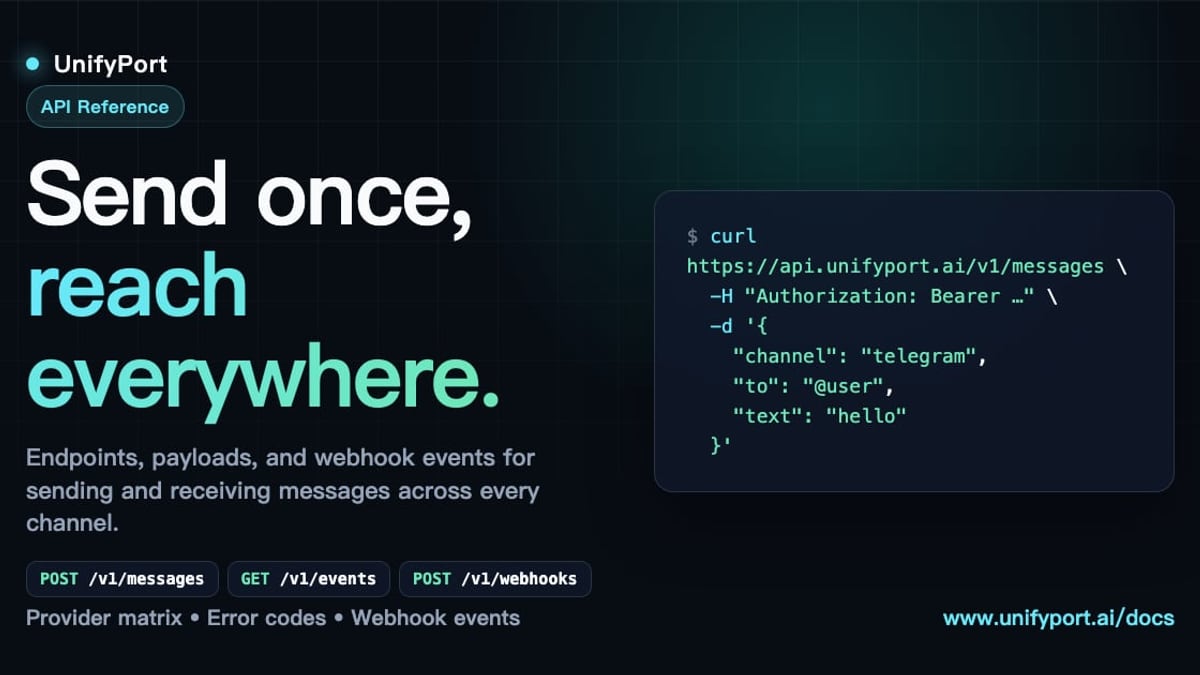
UnifyPort solves that with a single REST API and a standardized webhook event stream covering LINE Messaging API, WhatsApp Business, Telegram, X (Twitter), Zalo, and TikTok. Instead of dealing with LINE’s proprietary reply token and webhook structure, you send a JSON payload to UnifyPort and it dispatches to the right provider. Incoming messages, delivery receipts, and error events all arrive in one normalized shape—regardless of the channel. This drastically reduces engineering overhead when you’re already integrating LINE Login and want to extend into messaging without building a multi-channel routing layer from scratch.
For a side-by-side evaluation of UnifyPort and another popular omnichannel API provider, read our UnifyPort vs CM.com comparison. And to see where UnifyPort stands among all major offerings, check the top 10 unified multi-channel messaging API platforms.
Setting Up LINE Messaging with UnifyPort
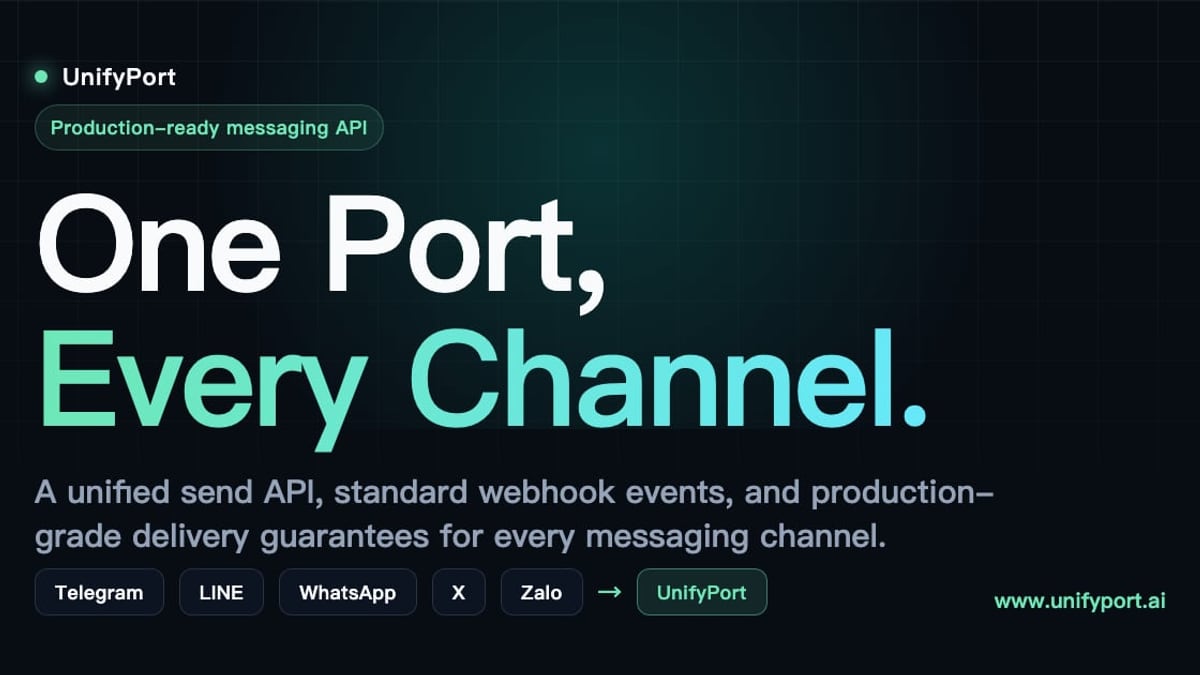
LINE Login: The Complete Guide for Users, Developers & Businesses product interface and feature overview.
While a full tutorial is beyond the scope of this article, the general process is straightforward:
- Create a LINE Messaging API channel (a separate channel from the Login channel) in the LINE Developers Console and link it to your LINE Official Account.
- Configure channel access token and channel secret on the LINE side.
- Add your LINE account in the UnifyPort dashboard. UnifyPort guides you through authentication—via QR code scan, session import, or direct key input.
- Receive webhook events through UnifyPort’s standard event layer. A LINE message event arrives with the same
typeandfromstructure as a WhatsApp or Telegram event, letting your handler code stay simple. - Send messages using UnifyPort’s unified send endpoint. Specify the channel (
line), recipient ID, and content (text, image, video, etc.), and UnifyPort handles formatting, rate limiting, and idempotency.
The same pattern works for other channels. Our Telegram setup guide walks through a similar flow, and the concepts transfer directly to LINE.
LINE Login Troubleshooting for Developers
Integrating LINE Login is usually smooth, but a few gotchas can trip you up:
- Callback URL mismatch: The redirect URI in your code must exactly match what you registered in the LINE Developers Console, including protocol and trailing slash.
- Missing scopes: If you request
profilebut notopenid, you won’t receive an ID token. Plan your scopes carefully. Theopenidscope is mandatory if you want to verify the ID token server-side. - Rate limits: LINE Login endpoints have per-channel rate limits. Hit them and users will see login failures. Implement exponential backoff and cache access tokens.
- User not following your Official Account: For LINE Messaging API, users must already have added your Official Account as a friend (or have initiated a conversation) before you can send push messages. LINE Login does not automatically grant messaging permissions. Consider prompting users to add your LINE OA after login.
- Testing on localhost: LINE Login requires HTTPS even for testing. Use a tunnel like ngrok and update the callback URL accordingly.
For more community-driven troubleshooting, the LINE developer forums and the LINE Help Center are valuable resources.
Related reading
- CM.com Review 2025: Conversational Commerce Platform Tested - Unbiased CM.com review covering features, pricing, setup, pros & cons. See if its AI chatbots, omnichannel messaging & payments fit your business.
Sources and further reading
- LINE STORE Help Center - Find answers to your questions using LINE Help.
- To those who cannot login to Line app using email and ... - To those who cannot login to Line app using email and ...Reddit · r/lineapp80+ comments · 3 years agoReddit · r/lineapp80+ comments · 3 years agoTo those who cannot login to Line app using email and password Note: This method is likely outdated.
Frequently Asked Questions
Can I use LINE Login without a LINE Official Account?
Yes. LINE Login is a standalone product and does not require a LINE Official Account. However, if you also want to send push messages via the LINE Messaging API, you will need an Official Account.
Is LINE Login free for developers?
Yes. LINE Login itself is free. There are no per-authentication charges or monthly fees just for using the social login service.
How do I link my existing LINE account to a third-party app?
When an app presents the LINE Login consent screen, you are logging in with your existing LINE identity. There is no separate account creation—your LINE account is the credential.
Can I use LINE Login on multiple platforms (iOS, Android, Web) with the same Channel?
Yes. A single LINE Login channel can serve multiple platforms. You just register multiple callback URLs.
How does LINE Login compare to other social logins?
It offers the same OAuth 2.0 flow as Facebook or Google but is regionally specific. In markets where LINE dominates, it’s often the social login with the highest conversion rate. Combined with LINE’s messaging capabilities, it gives you a direct channel for re-engagement that many other social logins don’t provide natively.
Where does UnifyPort fit into the LINE Login picture?
UnifyPort is not an authentication provider; it’s a multi-channel messaging API. After your user logs in via LINE Login, UnifyPort lets you send and receive LINE messages—as well as messages on WhatsApp, Telegram, and others—through a single integration. It simplifies the infrastructure needed to turn a one-time login into an ongoing conversation.
Final Thoughts
LINE login serves two distinct but complementary purposes: a convenient entry point for personal use and a powerful authentication tool for developers. By understanding both, you can help your users get unstuck when they can’t sign in, and you can build apps that leverage LINE’s massive audience.
For businesses, the real magic happens when you combine LINE Login with a messaging strategy. LINE’s Messaging API is robust, but managing multiple APIs across different messaging channels quickly becomes a maintenance headache. A unified platform like UnifyPort keeps your notification system, CRM, or AI agent focused on delivering value—not on juggling provider-specific quirks.
At UnifyPort, we test and compare the tools that make modern messaging platforms work, so you can deploy with confidence. Whether you’re setting up your first LINE Login integration or scaling to a dozen channels, having the right foundation matters.