
How to Use UnifyPort with Telegram: Setup & API Guide
Integrate Telegram messaging into your apps via UnifyPort's unified API. Step-by-step setup: create a bot, send messages, handle webhooks, and build AI agents.
How to Use UnifyPort with Telegram: A Developer’s Guide
Telegram is one of the world’s most capable messaging platforms, offering a rich bot API, massive group limits, and cloud-based sync. UnifyPort brings Telegram into a single API layer that also manages WhatsApp, LINE, Zalo, and TikTok, so your application can treat every chat channel the same. In this guide you’ll learn how to set up a Telegram bot, connect it to UnifyPort, send and receive messages through the unified REST API, and handle webhooks reliably—all while keeping your codebase clean and ready for additional channels.
For developers building AI agents, notification systems, or customer‑support tools, this combination removes the need to juggle multiple provider SDKs. You’ll get delivery guarantees, automatic rate limiting, and a normalized event stream that turns every incoming Telegram event into a consistent JSON structure.
Why Combine UnifyPort and Telegram?
How to Use UnifyPort with Telegram: Setup & API Guide product interface and feature overview.
Telegram’s strengths—self‑destructing messages, no media size limits, groups up to 200,000 members, and a deep bot platform—make it ideal for community management, alerts, and automation. The challenge is that direct Telegram API integration often means writing custom polling logic, token handling, and message formatting code that doesn’t transfer to other messengers.
UnifyPort abstracts all of that into:
- One REST API for text, images, video, audio, documents, and provider‑specific options like
parse_modeorreply_to. - Standardized webhook events that normalize Telegram’s
message,callback_query, and other updates into a single JSON shape. - Managed connections with automatic token verification, health monitoring, and retries.
- Built‑in idempotency and HMAC‑SHA256 signature verification so you can trust that a webhook came from your UnifyPort workspace.
If you’re already using UnifyPort for WhatsApp or LINE, adding Telegram takes minutes and follows the exact same workflow. To understand Telegram’s own feature set, check out our Telegram Review 2025: Secure, Feature‑Rich Messenger? for an in‑depth look at groups, channels, bots, and security.
What You’ll Need
- UnifyPort workspace with an API key and access to the webhook control plane.
- A Telegram account and the BotFather bot to register your bot.
- Basic familiarity with REST requests and webhook endpoints.
- A development server with a public URL to receive webhooks (or a tunnelling tool like ngrok for local testing).
Step 1 – Create a Telegram Bot
- Open Telegram and chat with BotFather.
- Send the command
/newbotand follow the prompts to name your bot (e.g., “MyUnifiedBot”) and create a username (must end inbot, likeMyUnifiedBot_bot). - BotFather returns an access token—a long string of numbers and letters. Store this token securely; you’ll use it in UnifyPort.
For official details on permissions, bot settings, and commands, refer to the Telegram Bot API documentation. You control everything from inline keyboards to command descriptions through BotFather, but all message delivery and incoming update handling will now go through UnifyPort.
Step 2 – Add the Telegram Account in UnifyPort

How to Use UnifyPort with Telegram: Setup & API Guide product interface and feature overview.
UnifyPort treats each messaging account—whether a bot or a user session—as a virtual account. You create it once via the API, and the platform keeps the connection alive, monitors its status, and routes events.
Send a POST request to the accounts endpoint with your API key in the Authorization header:
curl -X POST https://api.unifyport.com/v1/accounts \
  -H "Authorization: Bearer YOUR_API_KEY" \
  -H "Content-Type: application/json" \
  -d '{
    "provider": "telegram",
    "auth": {
      "type": "bot_token",
      "token": "YOUR_TELEGRAM_BOT_TOKEN"
    },
    "label": "Support Bot"
  }'
The response includes an account_id and status "connecting". Within seconds the status changes to "connected"—you can poll the account endpoint or rely on the webhook event account.ready to know when the bot is ready to send and receive.
What UnifyPort does behind the scenes:
- Validates the token with Telegram.
- Establishes a persistent connection for real‑time updates.
- Registers a webhook (or uses long polling, depending on provider support) and pipes all events into your workspace.
If you prefer to reuse an existing Telegram bot, just provide its token. No additional SDK installation is required.
Step 3 – Send Messages via UnifyPort’s API
How to Use UnifyPort with Telegram: Setup & API Guide product interface and feature overview.
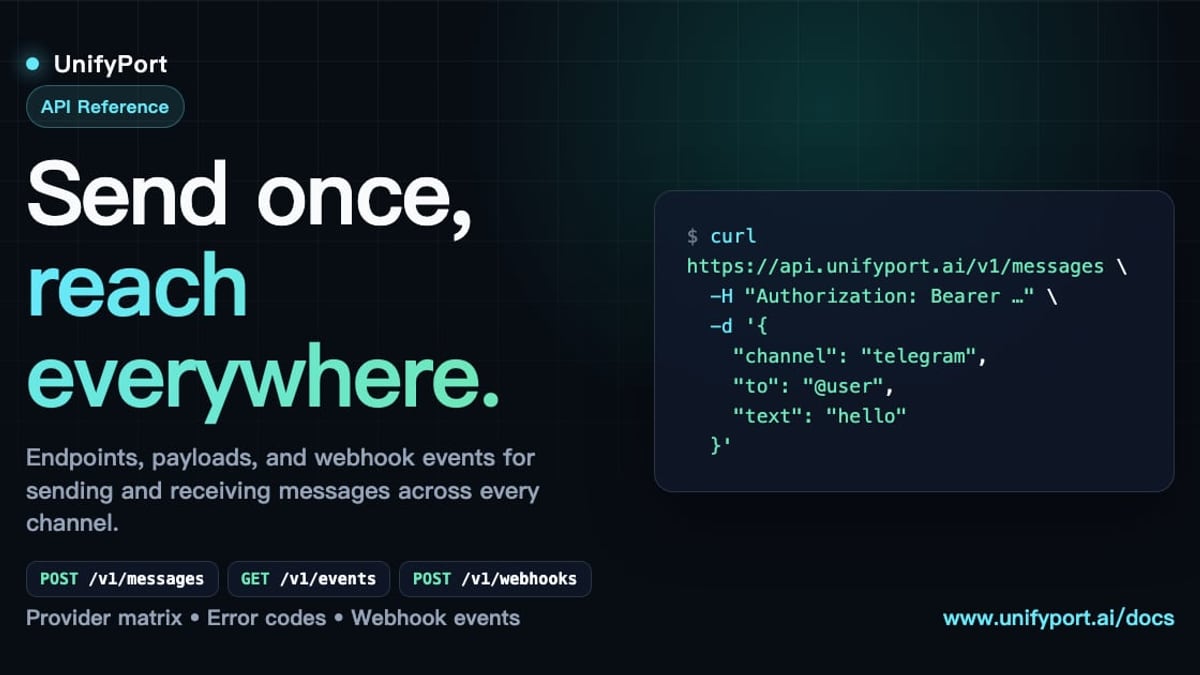
All outbound messages go through the /v1/messages endpoint. The payload is the same no matter the channel; only the channel field and channel‑specific extensions (like parse_mode) change.
Sending a Simple Text Message
curl -X POST https://api.unifyport.com/v1/messages \
  -H "Authorization: Bearer YOUR_API_KEY" \
  -H "Content-Type: application/json" \
  -d '{
    "channel": "telegram",
    "account_id": "acc_123abc",
    "to": "-1001234567890",
    "type": "text",
    "text": {
      "body": "Hello from UnifyPort!"
    },
    "opts": {
      "telegram": {
        "parse_mode": "MarkdownV2"
      }
    }
  }'
toaccepts a Telegram chat ID, group ID (prefixed with-), or channel username.opts.telegramlets you pass any native Telegram option such asparse_mode,disable_web_page_preview, orreply_markup.
Sending an Image with a Caption
curl -X POST https://api.unifyport.com/v1/messages \
  -H "Authorization: Bearer YOUR_API_KEY" \
  -H "Content-Type: application/json" \
  -d '{
    "channel": "telegram",
    "account_id": "acc_123abc",
    "to": "123456789",
    "type": "image",
    "media": {
      "url": "https://example.com/photo.png",
      "caption": "Check this out"
    }
  }'
UnifyPort downloads the media, uploads it to Telegram, and delivers it. You can also send local files by providing a base64‑encoded content and a filename.
Replying to a Specific Message
Use reply_to to create threaded responses:
"reply_to": {
  "message_id": "message_456"
}
The message ID comes from the incoming webhook event (see Step 4).
All payload types—audio, video, document, sticker—follow the same pattern. This consistent API design means you can write one function that sends a message to any channel, with minor per‑channel tweaks under opts.
Step 4 – Handle Incoming Messages with Webhooks
UnifyPort normalizes all Telegram updates (messages, edits, callback queries, inline requests) into a single webhook event structure. You create a webhook subscription from the UnifyPort dashboard or API, specifying your endpoint URL and the event types you want.
Example Incoming Text Message Event
{
  "event": "message.received",
  "data": {
    "id": "ev_987xyz",
    "channel": "telegram",
    "account_id": "acc_123abc",
    "from": {
      "id": "123456789",
      "name": "John Doe",
      "type": "user"
    },
    "to": {
      "id": "bot_username",
      "type": "bot"
    },
    "message": {
      "type": "text",
      "text": {
        "body": "How do I reset my password?"
      },
      "ts": "2025-03-15T10:30:00Z",
      "message_id": "message_456"
    }
  }
}
Every event arrives with a X‑UnifyPort‑Signature header. Verify it using your HMAC‑SHA256 secret to ensure authenticity. Your handler can then switch on event and data.message.type to dispatch to the right business logic.
Webhook Subscription Setup
- In the UnifyPort dashboard, go to Webhooks and click New Subscription.
- Enter your endpoint URL (e.g.,
https://yourapp.com/webhooks/unifyport). - Select the events:
message.received,message.updated,callback.query, etc. - UnifyPort sends a verification request; respond with the expected challenge to confirm ownership.
- Once active, you’ll receive real‑time Telegram events directly to your server.
UnifyPort handles retries for failed deliveries with exponential backoff, and you can inspect every attempt in the logs. The webhook control plane also lets you pause, resume, or revoke subscriptions without touching your application code.
Practical Use Cases
AI‑Powered Chatbot Across Channels
Build a single LangChain or UnifyPort AI agent that understands natural language. Use UnifyPort’s webhook to capture Telegram messages, process them through your AI logic, and send replies through the same /v1/messages endpoint. When you later add WhatsApp or LINE, the agent code remains untouched—only the channel field changes.
CRM Deal Alerts to a Telegram Channel
Your CRM creates a new deal. A webhook fires, and your integration calls UnifyPort’s API to post a formatted alert (using MarkdownV2) to a Telegram sales channel. Because UnifyPort normalizes errors and rate limits, the alert is delivered reliably even if the channel has many subscribers.
Multi‑Channel Customer Support Hub
Route Telegram support inquiries to a shared inbox. Support agents reply using an internal tool; the tool sends messages through UnifyPort, which translates the reply into the correct Telegram format. The same endpoint can push answers to WhatsApp or LINE with no extra code.
For a similar walkthrough with LINE, see our guide How to Use UnifyPort with LINE for Multi‑Channel Messaging.
Why UnifyPort Beats Direct Telegram Integration
How to Use UnifyPort with Telegram: Setup & API Guide - supporting product research image 4.
| Challenge | Direct Telegram API | UnifyPort |
|---|---|---|
| Channel‑specific SDKs | Write custom polling or webhook logic for each provider | One REST API for all channels |
| Rate limiting & retries | Must implement exponential backoff manually | Built‑in rate limiting with idempotency keys |
| Event normalization | Parse different JSON shapes for messages, callbacks, inline queries | Standardized event schema across all platforms |
| Multi‑account management | Separate bot tokens, polling loops, and error handling per bot | Single dashboard with account health and unified logging |
| Future channels | Re‑build integration from scratch | Add a new channel by creating a new account; API never changes |
If you are evaluating UnifyPort against other multi‑channel API providers, our detailed UnifyPort vs CM.com: Multi‑Channel Messaging API Comparison breaks down feature coverage, pricing, and developer experience.
Related reading
- Unipile Review 2025: Is the Multi-Channel API Worth It? - In-depth Unipile review for developers and sales teams. We test LinkedIn, email, WhatsApp, and calendar APIs, pricing, setup, safety, and how it compares to building in-house.
- Top 10 Cloud-Based Messaging Apps in 2026 Ranked - Discover the 10 best cloud-based messaging apps for 2026. We rank Telegram, Discord, LINE, Viber, and more based on sync, features, and security. Find your ideal messenger.
Sources and further reading
- Unraid System Notification Using Telegram Bots | Telegram | Unraid - Enjoy the videos and music you love, upload original content, and share it all with friends, family, and the world on YouTube.
- Telegram Bot Notifications - hi guys, I've followed the right steps to setup Telegram but this has never worked for me for some reason. I can't get the test notice to work. Fyi: I've also looked in token and made sure that's the correct token too. I can't think/find out what else to try. Strangely when I try: https://api.tel...
- Integrate Unify with Telegram for automation | viaSocket - viaSocket enables seamless integration between Unify and Telegram, empowering you to automate tasks, and achieve more in less time. Get started now!
Frequently Asked Questions
How do I find my Telegram chat ID?
After your bot is connected in UnifyPort, send a test message from Telegram to the bot. Then either:
- Check the incoming webhook event’s
from.idfield, or - Call Telegram’s
getUpdatesmethod once using your bot token (only needed for initial discovery). Group and channel IDs usually start with-100(supergroups) or-(older groups). UnifyPort treats them transparently.
Can I send images larger than 10 MB through UnifyPort?
Telegram itself limits bot‑uploaded files to 50 MB for documents and 10 MB for photos. UnifyPort enforces these limits as they are provider‑specific. If a file exceeds the limit, the API returns a clear error message so you can adjust before retrying.
Does UnifyPort support Telegram inline keyboards and commands?
Yes. Pass the reply_markup object through the opts.telegram field, exactly as you would with the Telegram Bot API. This includes inline keyboard arrays, reply keyboard markup, and force reply. Commands are defined in BotFather and handled via webhook events; UnifyPort automatically routes them to your handler.
Is there a free tier to try the integration?
Yes. Every UnifyPort workspace includes a free tier that lets you connect a limited number of messaging accounts and send a certain volume of messages. It’s perfect for testing the Telegram setup before scaling.
How does UnifyPort handle Telegram’s webhook connection limits?
Each Telegram bot can only have one webhook URL. UnifyPort manages that single connection on your behalf and pipes all events to your workspace’s subscriptions. You can have multiple webhook endpoints in UnifyPort for different event types without conflicting with Telegram’s limitation.
Conclusion
UnifyPort gives Telegram a home inside a truly multi‑channel messaging layer. You gain a single, developer‑friendly API for sending rich messages, a secure webhook pipeline for incoming events, and the freedom to add WhatsApp, LINE, Zalo, or TikTok whenever your use case demands it—without ever rewriting your Telegram integration.
Sign up for a UnifyPort workspace, create your first Telegram virtual account, and send a test message in minutes. Whether you’re equipping an AI agent with chat channels, building mission‑critical notification flows, or weaving a unified customer‑support fabric, UnifyPort and Telegram deliver the reliability and reach you need.