
How to Use UnifyPort with OneSignal for Omnichannel Messaging
Learn how to integrate UnifyPort's unified messaging API with OneSignal's engagement platform to send social channel messages and orchestrate cross-channel journeys.
How to Use UnifyPort with OneSignal for Omnichannel Messaging
OneSignal excels at engaging users through push notifications, email, SMS, and in-app messages. UnifyPort excels at sending and receiving messages across social channels like WhatsApp, Telegram, LINE, TikTok, Zalo, and X through a single API. Combining them lets you orchestrate engagement across both owned and social channels without building separate integrations for each platform.
This guide explains how the two platforms complement each other, walks through the integration workflow, provides practical examples, and helps you decide when this combination is the right fit.
Why combine UnifyPort and OneSignal?
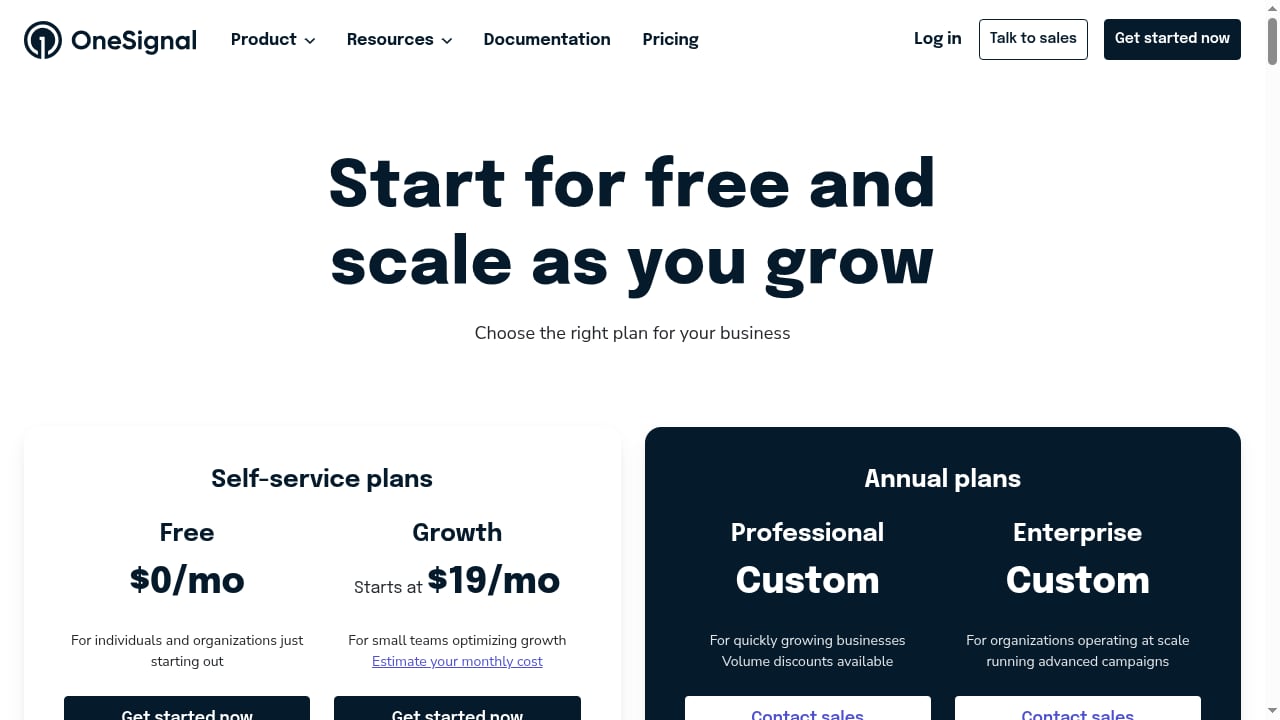
First viewport screenshot of onesignal.com.
OneSignal is a customer engagement platform used by over 2 million businesses, powering 200,000 apps and sending 1.3 trillion messages annually to 1.5 billion monthly active users. It provides push notifications, email, SMS, in-app messages, and AI-driven lifecycle marketing through Journeys, personalization, analytics, A/B testing, and permission management.
UnifyPort is a unified messaging API platform that connects WhatsApp, Telegram, LINE, TikTok, Zalo, and X through a single REST API and a standardized webhook event stream. Instead of maintaining a separate integration for each social channel, teams send messages with one POST /v1/messages call and receive normalized events such as message.received, with provider, account, conversation, sender, and message data in a consistent schema. Official SDKs are available for Node.js, PHP, Go, and Python.
Together, they solve a common problem: engagement teams can reach users on the channels those users prefer, whether that's a push notification inside an app or a WhatsApp message on their phone, without duplicating audience logic or building custom connectors for every social platform.
How the integration works
First viewport screenshot of onesignal.com.
At a high level, UnifyPort handles the social messaging layer while OneSignal handles audience segmentation, journey orchestration, and cross-channel engagement. The two systems communicate through APIs and webhooks.
Core integration patterns
There are three common patterns for connecting the platforms:
- OneSignal triggers UnifyPort messages. When a user enters a Journey step or receives a push notification, a webhook or server-side call sends a message through UnifyPort to the user's preferred social channel.
- UnifyPort events feed OneSignal audiences. When a user replies on WhatsApp or LINE, UnifyPort's
message.receivedwebhook fires. Your backend processes the event and updates OneSignal user attributes or triggers a Journey. - Bidirectional orchestration. Combine both patterns so that social replies influence push campaigns and push engagement influences social follow-ups.
Data flow overview
A typical bidirectional flow looks like this:
- A user signs up in your app and is registered in OneSignal with a user ID.
- Your backend links that OneSignal user ID to a UnifyPort conversation or account identifier.
- OneSignal sends a push notification; if the user doesn't engage, a Journey step calls your backend, which sends a WhatsApp message via UnifyPort.
- The user replies on WhatsApp; UnifyPort fires
message.received; your backend updates OneSignal attributes and tags the user as "responded via WhatsApp." - OneSignal uses that tag to suppress further push notifications or trigger a follow-up Journey.
Prerequisites
Before starting, ensure you have:
- A UnifyPort workspace with at least one messaging account connected (WhatsApp, Telegram, LINE, TikTok, Zalo, or X).
- A OneSignal account with your app configured for push, email, or SMS.
- A backend service (Node.js, PHP, Go, or Python) that can receive webhooks and make HTTP requests.
- API keys for both platforms stored securely.
Step-by-step setup
Step 1: Configure your UnifyPort messaging account
Connect the social channel you want to use in your UnifyPort workspace. For QR-code-based providers, follow the authentication flow described in QR Auth for Messaging Accounts. Once connected, note the account ID and provider name; you'll need these when sending messages.
Step 2: Set up OneSignal audiences and attributes
In OneSignal, define the user attributes and tags that will drive your cross-channel logic. For example:
preferred_channel: whatsapp, telegram, line, etc.social_opt_in: true or falselast_social_reply: timestamp
These attributes let OneSignal Journeys branch based on channel preference and engagement history.
Step 3: Link user identities across platforms
Create a mapping between your OneSignal user ID (or external ID) and the UnifyPort conversation or sender identifier. Store this mapping in your backend database. When a user replies on a social channel, UnifyPort's webhook payload includes sender and conversation data that you can use to look up the corresponding OneSignal user.
Step 4: Send messages from OneSignal Journeys via UnifyPort
OneSignal Journeys support webhook steps that call external services. Configure a Journey step to call your backend endpoint, which then sends a message through UnifyPort's POST /v1/messages API. Your backend should:
- Receive the OneSignal webhook payload with the user ID and message template.
- Look up the user's social channel identifier and preferred channel.
- Call UnifyPort with the appropriate provider, account ID, recipient, and message content.
- Log the response for analytics and error handling.
Step 5: Process UnifyPort webhooks and update OneSignal
Subscribe to UnifyPort's message.received events. When a user replies on a social channel, your backend should:
- Verify the webhook signature.
- Parse the normalized event payload (provider, account, conversation, sender, message).
- Map the sender to a OneSignal user ID.
- Update OneSignal attributes or tags via the OneSignal API.
- Optionally trigger a OneSignal event or Journey.
Step 6: Test and monitor
Send test messages through both platforms. Verify that push notifications trigger social messages, that social replies update OneSignal attributes, and that Journeys branch correctly based on channel preference. Monitor delivery rates and error responses from both APIs.
Practical examples
Example 1: Abandoned cart recovery across push and WhatsApp
An e-commerce app uses OneSignal to send a push notification when a user abandons a cart. If the user doesn't open the app within two hours, a Journey step calls your backend, which sends a WhatsApp message via UnifyPort with a personalized reminder and a deep link back to the cart. When the user replies "yes" on WhatsApp, UnifyPort's webhook updates the OneSignal user tag cart_recovered: true, and the Journey exits.
Example 2: Onboarding sequence with channel fallback
A fintech app uses OneSignal Journeys to onboard new users. The first step is an in-app message; if the user doesn't complete their profile, the next step sends an SMS. If the user still doesn't engage, a final step sends a LINE message via UnifyPort for users in Japan or Taiwan. Replies on LINE update OneSignal attributes, allowing the Journey to personalize subsequent steps.
Example 3: Support follow-up after a push notification
A media company sends a push notification about a breaking story. Users who tap the notification are tagged in OneSignal. A follow-up Journey sends a Telegram message via UnifyPort to users who engaged, inviting them to join a discussion channel. UnifyPort's message.received events capture their responses and update OneSignal tags for future segmentation.
Problems this combination solves
First viewport screenshot of onesignal.com.
- Channel fragmentation: Instead of building separate integrations for WhatsApp, Telegram, LINE, TikTok, Zalo, and X, you use UnifyPort's single API and let OneSignal handle orchestration.
- Duplicate audience logic: OneSignal becomes the single source of truth for user segments and attributes, while UnifyPort handles channel-specific delivery.
- Limited engagement reach: Push notifications only reach users inside your app or browser. Adding social channels via UnifyPort extends reach to where users already spend time.
- Manual follow-up: Journeys automate cross-channel sequences, reducing manual work and improving response times.
- Inconsistent event data: UnifyPort's normalized webhook schema ensures that events from different social platforms share a consistent structure, simplifying backend processing.
Decision guidance: when to use this combination
First viewport screenshot of onesignal.com.
This integration is a strong fit when:
- You already use OneSignal for push, email, or SMS and want to extend engagement to social channels.
- Your users are active on WhatsApp, Telegram, LINE, TikTok, Zalo, or X, especially in Asia-Pacific markets.
- You need automated, multi-step journeys that span owned and social channels.
- You want to avoid building and maintaining separate social messaging integrations.
Consider alternatives if:
- You only need push notifications and have no plans to use social channels.
- You require deep, channel-specific features that UnifyPort doesn't support (check the latest UnifyPort documentation for capabilities like voice calling, which is in private beta for WhatsApp).
- Your team prefers a single platform for both engagement and messaging; in that case, compare options in our UnifyPort vs SaleSmartly vs Gupshup.ai comparison.
For teams evaluating broader platform choices, see our top 10 AI customer experience and communications platforms.
Best practices
- Respect opt-in and permissions. OneSignal's permission management helps you track consent; mirror that logic for social channels in UnifyPort by storing opt-in status as a OneSignal attribute.
- Use tags for channel preference. Let users choose their preferred channel and store it as a OneSignal tag so Journeys can branch accordingly.
- Handle rate limits and errors. Both platforms have API rate limits; implement retries with exponential backoff and log failures for monitoring.
- Keep message templates channel-appropriate. Push notifications are short; WhatsApp and LINE support richer media. Use UnifyPort's media caption support where relevant.
- Monitor webhook delivery. UnifyPort's webhook stream is the backbone of the integration; set up alerting for failed deliveries and verify signatures.
Related reading
- UnifyPort vs Vonage API Developer: Messaging API Comparison - Compare UnifyPort and Vonage API Developer for social messaging. See channel coverage, unified APIs, SDKs, and which platform fits your build.
- bundle.social Review: Unified Social API for SaaS & AI - Evidence-based bundle.social review: 15-platform API, pricing, setup, strengths, limits, and who it fits for SaaS, agencies, and AI agents.
Sources and further reading
- Push overview - OneSignal - Send and manage mobile and web push notifications with OneSignal using the dashboard or API, with targeting, personalization, and scheduling.
- Tutorials & use cases - OneSignal - Explore step-by-step tutorials and best-practice examples to help you implement OneSignal features and boost engagement, retention, and revenue.
- How to Use OneSignal Step by Step Guide for Push Notification Campaigns - In this complete OneSignal tutorial, you will learn how to create, manage, and optimize push notification campaigns. This step-by-step guide covers everythin...
FAQ
What is UnifyPort?
UnifyPort is a unified messaging API platform that lets developers connect WhatsApp, Telegram, LINE, TikTok, Zalo, and X through a single REST API and standardized webhook event stream. It provides official SDKs for Node.js, PHP, Go, and Python.
What is OneSignal?
OneSignal is a customer engagement platform for push notifications, email, SMS, and in-app messages, with features like Journeys, personalization, analytics, and A/B testing. It is used by over 2 million businesses.
Do I need a backend to integrate UnifyPort with OneSignal?
Yes. A backend service is needed to receive webhooks from both platforms, map user identities, and make API calls. You can build it in Node.js, PHP, Go, or Python using UnifyPort's SDKs.
Can I send WhatsApp messages from OneSignal Journeys?
Yes, indirectly. OneSignal Journeys can call a webhook step that triggers your backend, which then sends a WhatsApp message via UnifyPort's POST /v1/messages API.
How do I link a OneSignal user to a UnifyPort conversation?
Store a mapping in your backend database between the OneSignal user ID (or external ID) and the UnifyPort sender or conversation identifier. Use UnifyPort's webhook payload to look up the OneSignal user when a reply arrives.
Does UnifyPort support two-way messaging?
Yes. UnifyPort supports two-way messaging, text and media captions, mentions, message pinning, revocation, emoji reactions, and account lifecycle management including QR-code, code, session, and Passkey authentication flows.
What are the pricing considerations?
UnifyPort uses transparent graduated monthly messaging-account costs in USD with unified API access and free messaging accounts in every workspace. OneSignal offers its own pricing tiers based on subscriber count and features. Evaluate both based on your expected message volume and channel mix.
Conclusion
Combining UnifyPort and OneSignal gives you a powerful omnichannel engagement stack: OneSignal orchestrates audiences and journeys, while UnifyPort delivers messages across the social channels your users actually use. By linking user identities, using webhooks to sync events, and designing Journeys that branch on channel preference, you can reach users wherever they are without building separate integrations for every platform.
Start by connecting one social channel in UnifyPort, setting up a simple Journey in OneSignal, and testing the flow end to end. Once that works, expand to additional channels and more sophisticated automation.
For related integration patterns, see our guide on how to use UnifyPort with Chatwoot.