
How to Use UnifyPort with Chatwoot: Unified Messaging Guide
Connect UnifyPort's unified messaging API to Chatwoot's AI-powered support platform. Step-by-step setup, workflow examples, and practical tips.
How to Use UnifyPort with Chatwoot
Connecting UnifyPort and Chatwoot gives you a single pipeline for social messaging and a full customer support workspace. UnifyPort handles the messy part — talking to WhatsApp, Telegram, LINE, TikTok, Zalo, and X through one REST API and a normalized webhook stream. Chatwoot handles the human and AI side — conversations, agents, automation, and the Captain AI assistant.
This guide explains how the two products fit together, the exact workflow, setup steps, practical examples, and the problems the combination solves.
Why combine UnifyPort and Chatwoot?
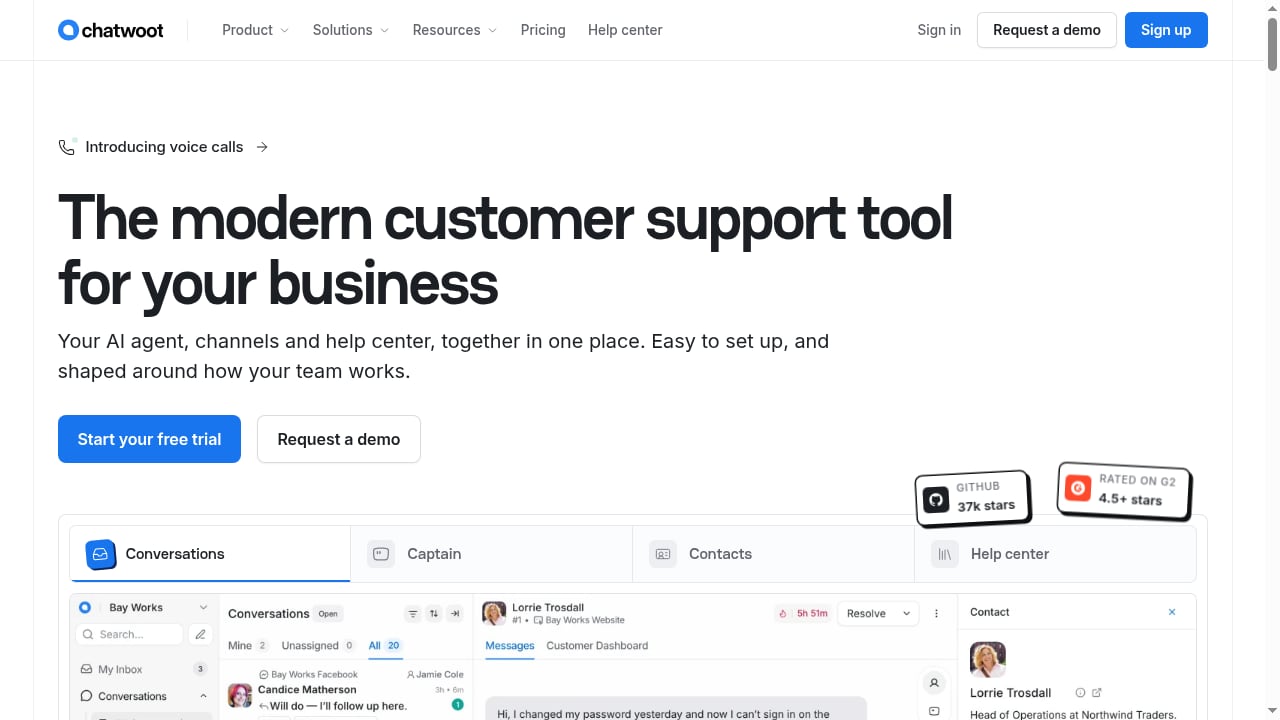
First viewport screenshot of www.chatwoot.com.
Most support teams face the same problem: customers message on five different apps, but agents work in one inbox. Building and maintaining a separate integration for each channel is expensive and brittle. UnifyPort removes that per-channel work by exposing every provider through the same API surface and the same event schema.
Chatwoot, meanwhile, is an AI-powered, open-source customer support platform used by more than 15,000 businesses. It brings an AI agent (Captain), messaging channels, a help center, automation rules, and SLA policies into one place. It can run as a cloud service or self-hosted for full data control.
The combination is complementary rather than overlapping:
- UnifyPort is the transport and normalization layer. One
POST /v1/messagescall sends a message; one webhook stream deliversmessage.receivedevents with consistentprovider,account,conversation,sender, andmessagefields. - Chatwoot is the conversation and support layer. It stores contacts, assigns conversations to teams, runs automation, and lets Captain answer routine questions before handing off to a human.
In short: UnifyPort connects you to the channels, Chatwoot connects you to the customer.
How the workflow works
First viewport screenshot of www.chatwoot.com.
Here is the end-to-end flow you will build:
- A customer sends a message on WhatsApp, Telegram, LINE, TikTok, Zalo, or X.
- UnifyPort receives it and normalizes it into a
message.receivedevent. - Your middleware receives the webhook and maps the UnifyPort payload to a Chatwoot conversation — creating or updating the contact, then posting the message to the right inbox.
- Chatwoot routes the conversation to the correct team or agent, applying labels, priorities, and automation rules.
- Captain may answer first if the question matches your help center or connected documents; otherwise it hands off to a human.
- When an agent replies in Chatwoot, your middleware sends that reply back through UnifyPort's
POST /v1/messagescall to the original channel.
Because UnifyPort's schema is consistent across providers, the middleware you write once works for every channel. Adding LINE or Zalo later is a configuration change, not a new integration project.
Prerequisites
Before you start, make sure you have:
- A UnifyPort workspace with at least one messaging account connected (WhatsApp, Telegram, LINE, TikTok, Zalo, or X).
- A UnifyPort API key and the ability to register a webhook endpoint.
- A Chatwoot account — cloud or self-hosted — with administrator access.
- A Chatwoot API access token and your account ID.
- A small middleware service (Node.js, PHP, Go, or Python — UnifyPort ships official SDKs for all four) that can receive webhooks and call both APIs.
Step-by-step setup
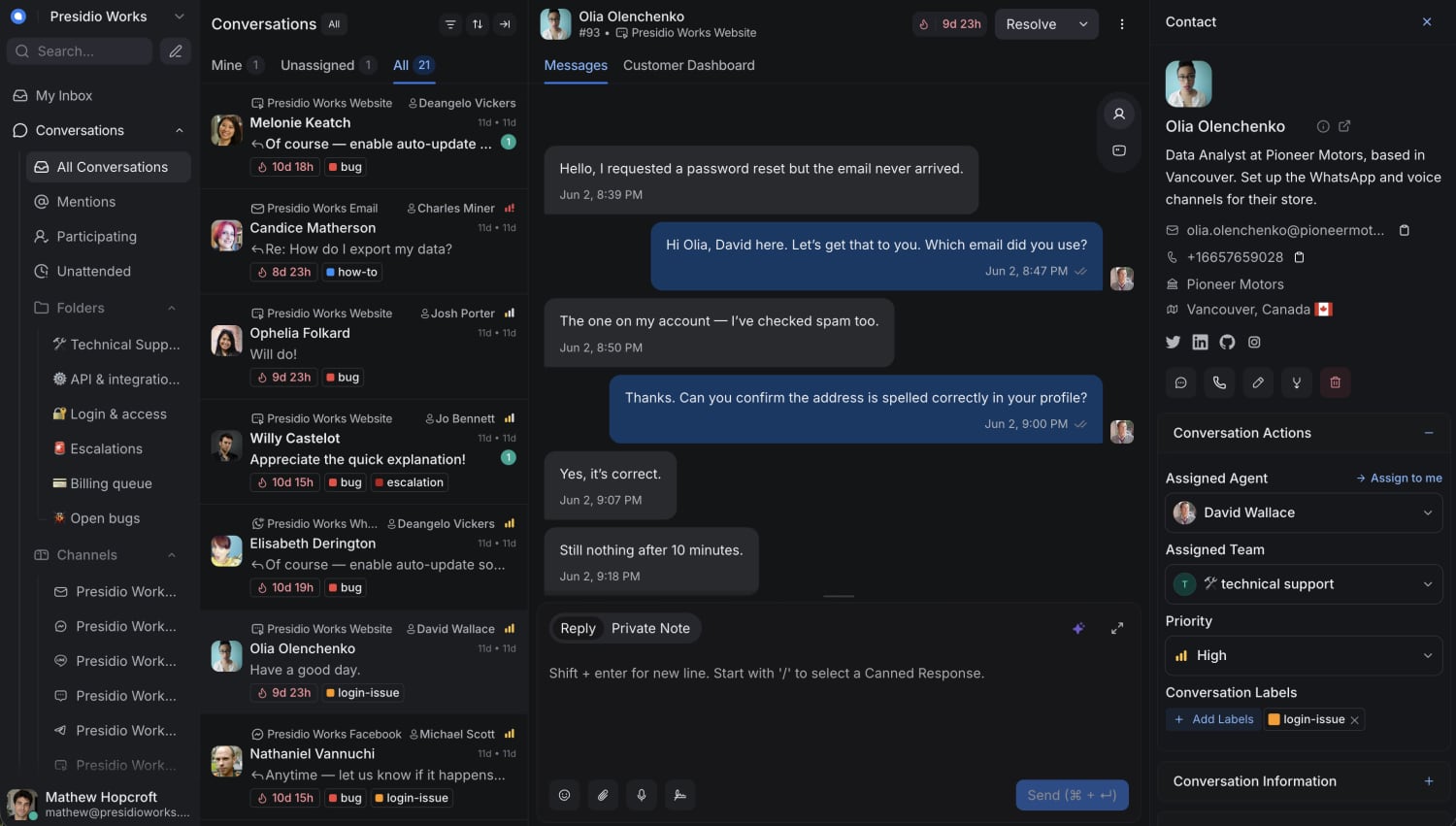
Chatwoot dashboard showing a customer conversation.
Step 1: Connect your channels in UnifyPort
In the UnifyPort dashboard, add the messaging accounts you want to support. Depending on the provider, authentication may use a QR code, a verification code, a session, or a Passkey flow. Each connected account gets an identifier you will use when sending messages.
Test each account by sending a message to yourself through the API. A successful response confirms the account is live.
Step 2: Register your webhook endpoint
Point UnifyPort at your middleware URL so it can deliver events. Subscribe to at least message.received; you may also want delivery and read events if you plan to sync status back to Chatwoot.
Your endpoint should respond quickly (acknowledge first, process asynchronously) and be idempotent, since webhook delivery can retry.
Step 3: Create a Chatwoot inbox for each channel
In Chatwoot, go to Settings → Inboxes and create an API channel inbox for each social channel you want to separate — for example, "WhatsApp — UnifyPort" and "LINE — UnifyPort." Note each inbox's identifier; you will use it when creating conversations via the API.
Separate inboxes make routing, reporting, and Captain's audience rules much easier to manage.
Step 4: Build the inbound middleware
When a message.received event arrives, your middleware should:
- Extract the sender identifier and display name from the UnifyPort payload.
- Search Chatwoot for an existing contact with that identifier, or create one.
- Find or create a conversation in the correct inbox.
- Post the message content, including media captions where present.
- Store the mapping between the UnifyPort conversation ID and the Chatwoot conversation ID so replies can be routed back.
Keep this mapping in a small database table. It is the single most important piece of state in the integration.
Step 5: Build the outbound path
When an agent replies in Chatwoot, a webhook from Chatwoot (or a polling job) notifies your middleware. Your middleware looks up the UnifyPort conversation ID and calls:
POST /v1/messages
with the target account, conversation, and message body. UnifyPort handles the provider-specific formatting. If you need mentions, message pinning, revocation, or emoji reactions, those are exposed through the same API rather than per-provider code.
Step 6: Configure Captain and routing
In Chatwoot, enable Captain on the inboxes where it adds value. Connect your help center, PDFs, or website content so Captain can answer routine questions end to end and hand off when it cannot. Use audience and schedule rules to limit Captain to the hours and channels where it performs well.
Set up automation rules to assign conversations by channel, language, or keyword. Chatwoot's auto-translation lets agents and customers converse in their own languages, which matters when you are serving multiple Asia-Pacific markets.
Practical examples
Example 1: A WhatsApp order-status question
A customer messages your WhatsApp number asking, "Where is order 1234?" UnifyPort delivers the event, your middleware creates the Chatwoot conversation, and Captain — with a custom tool connected to your order API — looks up the status and replies. If the order needs a refund decision, Captain hands off to a human agent with the full context preserved.
Example 2: A LINE inquiry in Japanese
A customer writes in Japanese on LINE. Chatwoot's auto-translation renders the message for an English-speaking agent, who replies in English. The reply is translated back and sent through UnifyPort to LINE. The customer never leaves the app, and the agent never learns a new tool.
Example 3: A TikTok comment that becomes a support ticket
A public comment on TikTok raises a complaint. Your middleware converts it into a Chatwoot conversation, tags it "social-escalation," and routes it to a senior team. The agent replies privately through UnifyPort, and the public thread is handled separately according to your policy.
Example 4: A proactive notification campaign
Your marketing team triggers a batch of order-shipped notifications. Instead of building four provider integrations, they call UnifyPort once per recipient with the appropriate account, and delivery status flows back into Chatwoot as conversation updates. For more on sequencing multi-step messaging, see our guide to journey builder concepts for messaging APIs.
What problems does the combination solve?
First viewport screenshot of www.chatwoot.com.
- Integration sprawl. One normalized API and one event schema replace per-channel code. Adding a new channel is a configuration task.
- Fragmented agent experience. Agents work in one inbox instead of switching between provider dashboards.
- Slow first response. Captain answers routine questions immediately, around the clock, and escalates with context.
- Language barriers. Auto-translation lets a small team serve customers across markets.
- Data control. Self-hosted Chatwoot keeps conversation data on your infrastructure while UnifyPort handles channel connectivity.
- Reporting gaps. Chatwoot's labels, teams, and SLA policies give you metrics that provider dashboards cannot aggregate.
Decision guidance: when this stack fits
This combination is a strong fit when you:
- Operate in Asia-Pacific markets where LINE, Zalo, and TikTok matter alongside WhatsApp.
- Want an open-source or self-hosted support platform rather than a closed SaaS inbox.
- Have developer capacity to run a small middleware service.
- Need AI-assisted support without rebuilding your channel integrations.
It may be less suitable if you only use a single channel and have no plans to expand, or if you need a fully no-code setup with zero middleware. In those cases, a direct Chatwoot channel integration may be simpler. If you are still evaluating messaging APIs, our CPaaS comparison and UnifyPort vs Chat SDK breakdown can help you weigh alternatives.
Operational tips
- Log every webhook payload for the first few weeks. Provider quirks surface in edge cases.
- Make handlers idempotent. Duplicate deliveries should not create duplicate conversations.
- Monitor Captain credit usage. Credits are consumed by assistant replies, Copilot requests, editor actions, audio transcription, and auto-translation when Captain is the translation service. Set a billing alert before you hit the 80% warning banner.
- Keep tool lists short. Captain works best with a focused set of custom tools; too many increase the chance of the wrong one being selected.
- Test with real devices. Emoji reactions, media captions, and mentions behave differently across providers even when the API is unified.
Related reading
- UnifyPort vs Linq vs Sinch: Messaging API Comparison 2026 - Compare UnifyPort, Linq, and Sinch on channels, APIs, pricing, and use cases. Find the right messaging platform for your team in 2026.
- UnifyPort vs 8x8 Developer Portal: Messaging API Comparison - Compare UnifyPort's unified messaging API with the 8x8 Developer Portal's CPaaS and XCaaS tools. See channel coverage, SDKs, and best-fit use cases.
- SocialAPI.ai Review: Unified Social Media API for AI Agents - Evidence-based SocialAPI.ai review: 13-platform unified social API, native MCP server, setup, pricing signals, limitations, and who should use it.
Sources and further reading
- User Guide | Chatwoot - Discover
Captain uses AI credits. Every paid plan includes free credits each month, and you can buy more.
Plan & access: Startups, Business or Enterprise. How many credits each plan includes, and the top-up price, are on Pricing & Plans > Captain AI credits. Administrators see usage and buy credits in Billing.
Set up & try
What uses credits
Each of these uses one credit:
An assistant reply to a customer.
A message in the assistant's Playground.
A Copilot request.
An editor action, such as rephrase, summarize or suggest reply.
An audio transcription.
A message translated by auto-translate, when Captain is the translation service.
Adding documents, approving FAQs, label and priority suggestions from Suggest with Captain, and Captain conditions in automation rules do not use credits.
See your usage
Go to Settings > Billing.
The Captain section shows Credits and Documents used. Click Refresh to update.
Buy more credits
In Billing > Captain, click Buy more credits.
Choose a pack and click Purchase Credits, then confirm. Your saved card is charged straight away.
Bought credits:
Are added straight away and used after your monthly plan credits.
Expire after 6 months.
Need an active subscription to be used.
Are non-refundable.
Test it
After buying, check the new balance in Billing > Captain.
Get value
Monthly credits reset at your plan's renewal date. Buying credits or changing plan does not reset usage.
Unused monthly credits do not carry over. If you use more than your monthly credits, the extra comes out of credits you bought.
When you change plan, your balance goes up or down by the difference between the two plans' monthly credits. Your usage stays the same.
Changing your number of seats does not reset usage.
To make credits last: connect the assistant only to inboxes where it helps, use the audience and schedule rules (Control who Captain replies to and when), and turn off AI features you do not use, such as transcription.
A banner warns you when you have used over 80% of your credits. There is no email alert, and credits do not top up automatically.
Usage is one total for the account. It is not split by agent, assistant or feature. To see how each assistant performs, use its Overview (Captain Overview and reports).
Troubleshoot
Symptom Likely cause What to do New conversations go straight to the team with no assistant reply Credits ran out Buy credits or wait for renewal Assistant says "Transferring to another agent for further assistance." mid-conversation Credits ran out during the conversation Buy credits or wait for renewal Copilot says you are out of Copilot credits Credits ran out Buy credits or wait for renewal Usage did not go to 0 after buying Expected. Usage resets only at renewal; the purchase adds to the balance None Credits are used faster than expected The assistant is on busy inboxes, or AI features are used heavily Narrow the audience or schedule; turn off features you do not need Cannot buy credits You are not an administrator, or no active subscription Ask an administrator; check the subscription
More causes: Troubleshoot Captain.
- How to use Dashboard Apps in Chatwoot? - Learn how to integrate custom apps into your Chatwoot dashboard with our step-by-step guide.
- Companies that use ChatWoot (active customer list) - We detected 287 companies using ChatWoot, 56 companies that churned, and 9 customers with upcoming renewal in the next 3 months. We find new customers by detecting JavaScript snippets or configurations on customer websites.
FAQ
Do I need to write code to connect UnifyPort and Chatwoot?
Yes, in most cases. You need a small middleware service to translate UnifyPort webhook events into Chatwoot conversations and to send Chatwoot replies back through UnifyPort. Official UnifyPort SDKs for Node.js, PHP, Go, and Python reduce the effort.
Which channels can I connect?
UnifyPort supports WhatsApp, Telegram, LINE, TikTok, Zalo, and X. Chatwoot's native channels include live chat, email, WhatsApp, social channels, and voice calls; the UnifyPort integration extends reach to the additional social providers.
Can Captain answer questions on these channels?
Yes. Once conversations land in Chatwoot inboxes, Captain can respond according to its audience and schedule rules, using your help center, PDFs, and website content as knowledge sources.
How much does this cost?
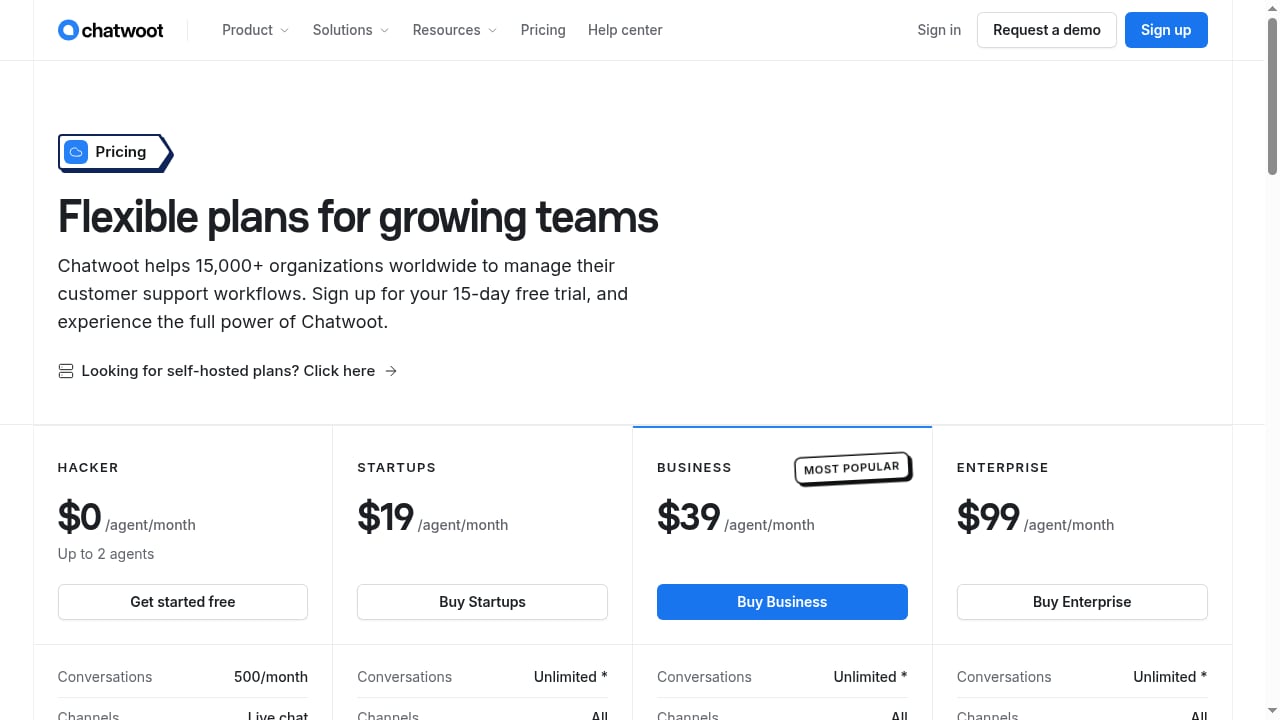
UnifyPort uses transparent graduated monthly messaging-account pricing in USD, with free messaging accounts in every workspace. Chatwoot offers a free Hacker plan for up to 2 agents with 500 conversations per month, paid cloud plans starting at $19/agent/month and $39/agent/month, a free-forever self-hosted Community Edition, and self-hosted Premium Support at $19/agent/month. A 15-day free trial is available.
Can I self-host Chatwoot and still use UnifyPort?
Yes. Chatwoot's self-hosted Community Edition runs on your own infrastructure, and UnifyPort is a cloud API, so your middleware simply calls out to both. This gives you channel connectivity without giving up data control.
What happens if a webhook fails?
UnifyPort retries delivery. Design your middleware to acknowledge quickly and process asynchronously, and use the stored conversation mapping to avoid duplicate messages.
Conclusion
UnifyPort and Chatwoot solve different halves of the same problem. UnifyPort gives you one API and one event stream for every social channel; Chatwoot gives you an AI-assisted support workspace where agents can actually work. Together they let a small team handle multi-channel conversations across Asia-Pacific markets without rebuilding integrations for every provider.
Start by connecting one channel, building the inbound and outbound middleware, and enabling Captain on a single inbox. Once that loop works reliably, expand to the next channel — the schema stays the same, so the work does not multiply.