
UnifyPort Login: How to Access Your API Messaging Dashboard
Learn how UnifyPort login works for invited developers. Access your multi-channel messaging API dashboard, manage API keys, and set up webhooks securely.
UnifyPort Login: How to Access Your Multi-Channel Messaging Dashboard
If you’re searching for “UnifyPort login,” chances are you’re a developer or operations engineer who has been invited to use the platform—or you’re exploring what it takes to get in. UnifyPort isn’t a public consumer app; it’s a unified messaging API infrastructure layer built for teams that need to send and receive messages across WhatsApp, Telegram, LINE, X (Twitter), Zalo, and TikTok through a single REST API. The login experience is therefore tightly controlled and linked directly to a dedicated dashboard where you manage API keys, webhooks, and virtual account lifecycles.
This article walks you through exactly how UnifyPort login works today, what you can access once you’re in, and how to troubleshoot common access issues—without making assumptions about a public sign‑up page that doesn’t exist.
What Is UnifyPort and Who Gets a Login?
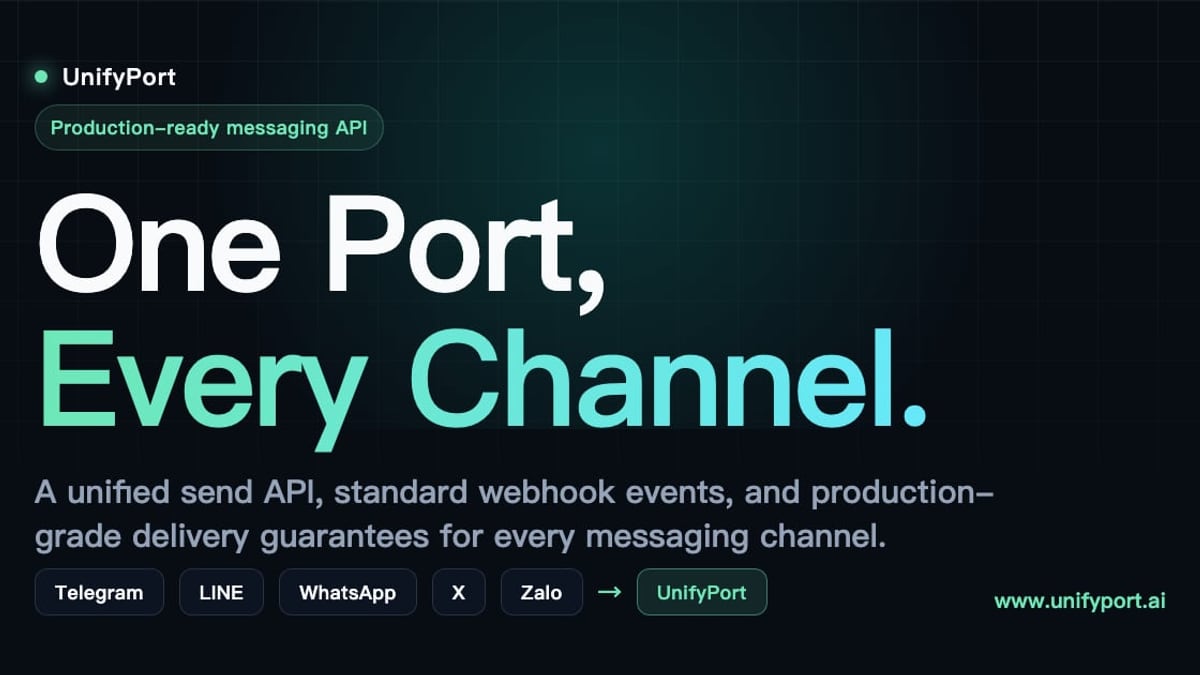
UnifyPort Login: How to Access Your API Messaging Dashboard product interface and feature overview.
UnifyPort is a unified multi‑channel messaging API platform. Instead of wrestling with provider‑specific SDKs for each messaging app, you use one consistent REST API, one standardized webhook event stream, and one management dashboard. That dashboard is what sits behind the UnifyPort login. The platform supports full account lifecycle management—creation, QR‑ or code‑based authentication, runtime health monitoring, and teardown—all tracked through fine‑grained status updates.
Because UnifyPort is currently available only to selected customers, login credentials are not self‑service. If your organization is in the early‑access cohort, you would have received a direct invitation with a link to set up your workspace account. If you haven’t been invited, there’s no public registration form or “sign up” button, which is why the typical Google search for a login page doesn’t lead to an open door.
How UnifyPort Login Works Today
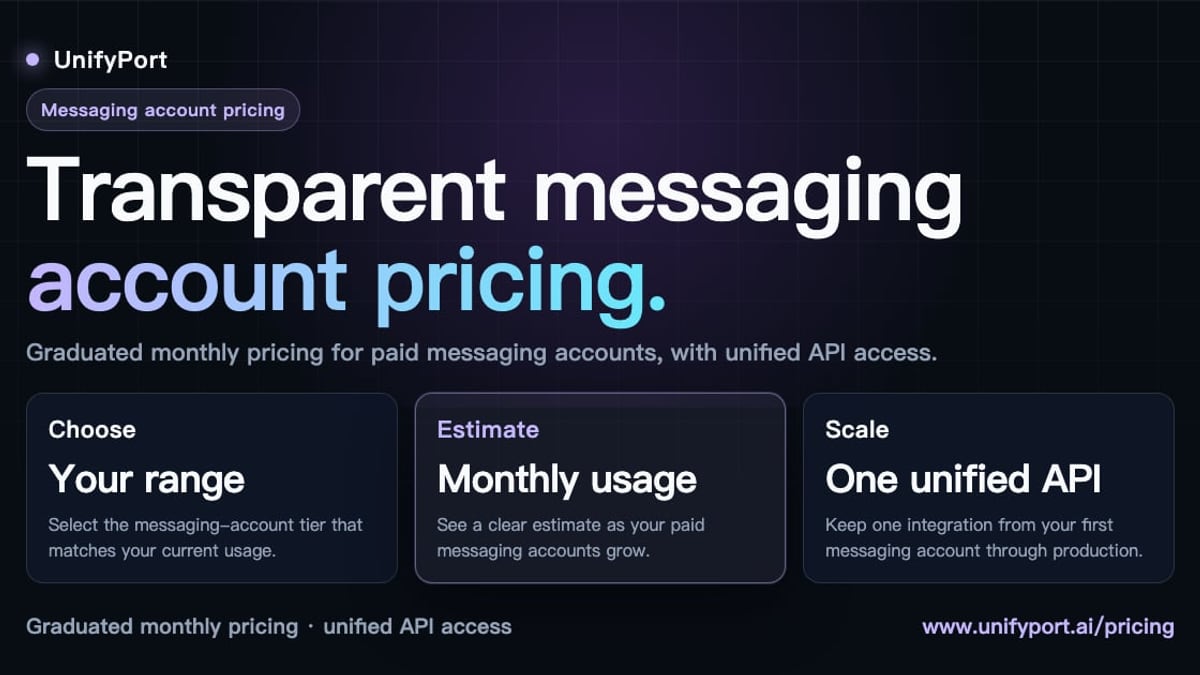
UnifyPort Login: How to Access Your API Messaging Dashboard product interface and feature overview.
For invited users, the login flow follows a standard secure pattern:
- Workspace creation – A workspace admin (often someone from your team) sets up the initial account through an invitation link sent by UnifyPort.
- Credential setup – You choose a strong password (and potentially enable two‑factor authentication, depending on your workspace policy) during the first visit.
- Dashboard URL – The exact login URL is provided in your onboarding email. It is not indexed by search engines, so bookmarking it is essential.
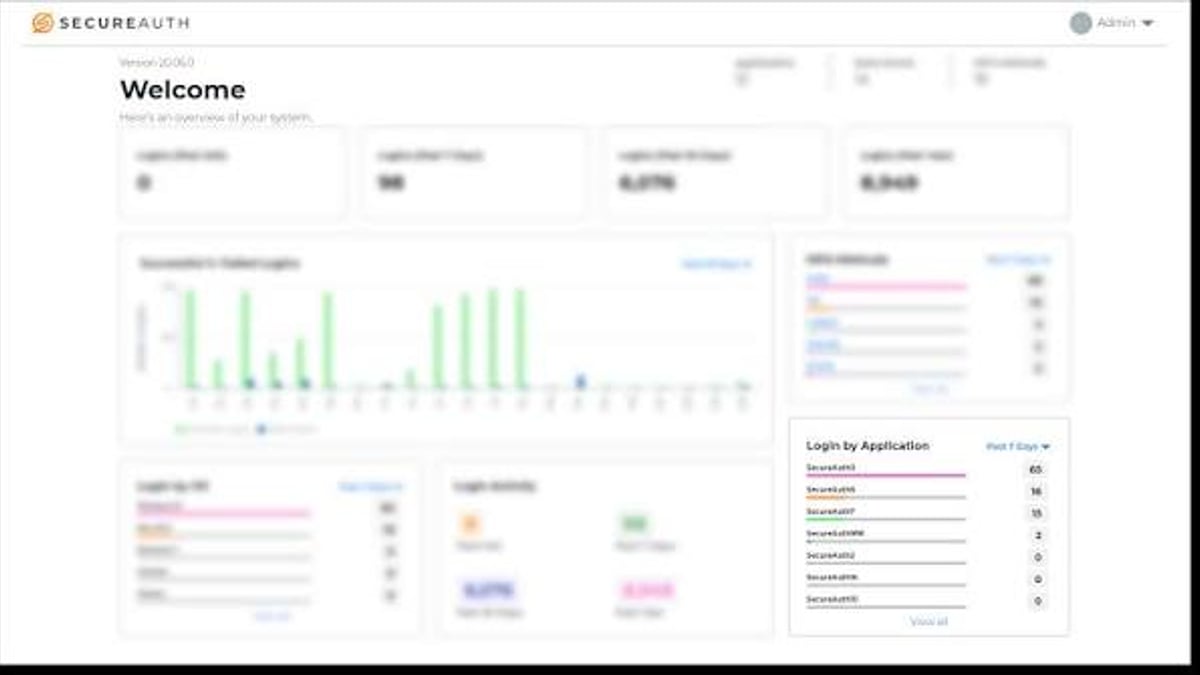
- Ongoing access – After logging in with your email and password, you’ll land on the main dashboard where all your channels, API keys, and webhook configurations live.
There is no “Log in with Google,” “Log in with GitHub,” or social login unless your workspace has explicitly enabled a custom identity provider. The default remains email‑based authentication.
What You Can Do After Logging In
Once you’re past the UnifyPort login, the dashboard becomes your command center. Here are the core capabilities you’ll find:
- API key management – Generate, rotate, revoke, and scope API keys. Each key is secured with HMAC‑SHA256 signatures that you can verify on your server to ensure request integrity.
- Webhook control plane – Configure webhook endpoints, manage signature secrets, set up retry policies, and subscribe to specific event types. The standardized event layer normalizes all provider events into a single JSON shape, so you never have to parse vendor‑specific payloads.
- Virtual account oversight – For every connected channel, you can initiate authentication (QR scan, code entry, or session import), monitor connection health, and tear down accounts when they’re no longer needed. Status updates flow to both the dashboard and your subscribed webhooks.
- Message type configuration – While the actual sending happens through the API, the dashboard lets you verify formatting for text, images, video, audio, documents, and provider‑specific extensions like
reply_toandparse_mode.
All of this is backed by production‑grade delivery guarantees, built‑in rate limiting, automatic retries, idempotency, and failure isolation—features that make the platform attractive to teams building reliable messaging into AI agents, CRMs, and notification systems.
Troubleshooting Common UnifyPort Login Issues
UnifyPort Login: How to Access Your API Messaging Dashboard product interface and feature overview.
“I don’t have a UnifyPort account.”
If you haven’t been explicitly invited, you won’t be able to log in. The best next step is to reach out through your company’s existing relationship with UnifyPort or monitor official announcements for broader availability.
“I forgot my password.”
On the login page (the URL sent to you), there’s typically a “Forgot password?” link that sends a reset email to the address on file. If that doesn’t work, ask your workspace admin to trigger a reset or re‑send the invitation.
“I log in but see an empty dashboard or access denied.”
This can happen if your account hasn’t been granted the right permissions. Contact your workspace administrator to verify that you’ve been added to the correct team and that your role includes the necessary scopes.
“The login page isn’t loading.”
Since the URL is not a generic public port, proxy rules or VPN settings might block it. Make sure you’re on the network that was whitelisted during onboarding.
Beyond the Login: Authenticating with the UnifyPort API
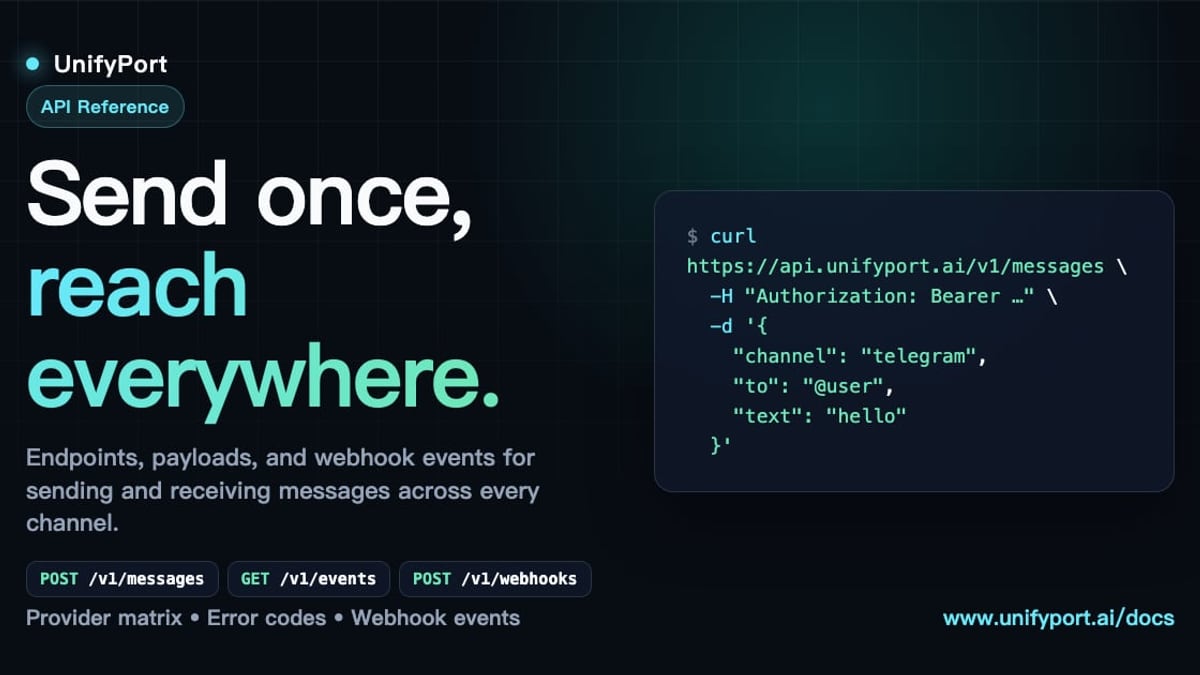
UnifyPort Login: How to Access Your API Messaging Dashboard - supporting product research image 4.
It’s important to distinguish between dashboard login (for humans) and API authentication (for machines). The dashboard is where you create API keys; actual programmatic requests to the UnifyPort API use those keys in an Authorization header, and you sign critical requests with HMAC‑SHA256. This two‑layer security model means even if someone gained access to your dashboard, they would still need the secret signing key to impersonate your messages.
For developers, the “login” to the API is essentially the API key itself. You’ll find detailed documentation inside the dashboard on constructing requests, handling webhook signature verification, and using idempotency keys to avoid duplicate deliveries.
Integrating UnifyPort Channels – Resources from UnifyPort
While UnifyPort abstracts away the complexity of individual channels, knowing the specifics of each platform can help you craft better message flows and handle edge cases. UnifyPort has published several guides that complement what you can do through the API:
- Telegram API: Bot, MTProto, TDLib & Multi‑Channel Integration Guide – Understand the different Telegram APIs and how they fit into a unified architecture like UnifyPort’s.
- LINE Services: A Practical Guide to Messaging, Business & APIs – Get the details on LINE’s messaging ecosystem, from personal accounts to the Business API.
- How to Integrate Unipile: A Step‑by‑Step Developer Guide – See how a similar unified API approach works, including setup, sending your first message, and handling webhooks—patterns that are directly applicable when you’re building on top of UnifyPort.
These resources can accelerate your learning curve and help you make the most of the channels you connect through your UnifyPort dashboard.
Related reading
- Encrypted Messaging Guide: Best Apps, Protocols & Multi-Channel Setup - Learn how encrypted messaging works, compare the best secure apps like Signal & Telegram, and see how businesses integrate encrypted chats across channels.
- IMAP API Solution: Simplify Email Integration with a RESTful Interface - Discover how an IMAP API solution turns raw IMAP protocol into a modern REST API. Learn benefits, features, and how to choose the right integration for your app.
- Women's Linen Pants: Style, Fit & Care Guide - Discover how to style linen pants for women, from wide-leg to cropped fits. Find outfit ideas, practical care tips, and smart shopping advice for summer chic.
Sources and further reading
- Ubiquiti Account - Ubiquiti Account
- Login • Unify - Enter your details below.
- UnifyHR - Privacy Notice
|
Terms of Use
|
Regulatory Information
v. 1.458 ISN-2004 © 2026 UnifyHR, a WEX™ company. All rights reserved.
Frequently Asked Questions
Is there a free UnifyPort login for testing?
UnifyPort includes a free tier per workspace for invited users. There’s no public sandbox or trial that you can access without an invitation. If your team is evaluating the platform, talk to your UnifyPort contact about early‑access options.
Can I log in with my company SSO?
Single sign‑on (SSO) depends on the deployment plan. Some workspaces may have custom identity provider integration, but the default is email‑and‑password. Check with your admin for what’s configured.
Where do I find my API key after login?
In the dashboard, navigate to API Management. You can generate, copy, and rotate keys there. Always store the secret in a secure vault—never in client‑side code.
Is UnifyPort available to small businesses?
Currently, access is limited to selected customers. As the platform matures, its availability may broaden. Keep an eye on official channels for updates.
What if my channel account gets disconnected?
The dashboard shows real‑time status for each virtual account. If a channel disconnects, you can often re‑authenticate (e.g., rescan a QR code) directly from the dashboard without involving end‑users again.
UnifyPort Login is the Gateway to Unified Messaging
For those who have it, the UnifyPort login opens the door to a production‑grade, multi‑channel API layer that removes months of integration work. For those still on the outside, understanding that the platform is invite‑only saves the frustration of hunting for a public sign‑up that doesn’t exist. Once inside, the combination of a clear dashboard, robust API key management, and a standardized webhook event stream makes UnifyPort a powerful foundation for any messaging‑heavy application—from AI agents to CRM‑native chat.
If your organization is already part of the program, bookmark your dedicated login URL and keep your API keys secure. If not, the best path is to watch for public announcements and explore how unified messaging APIs can simplify your architecture in the meantime.