
How to Use UnifyPort with Zendesk: Unified Messaging Setup
Connect UnifyPort's unified messaging API to Zendesk so WhatsApp, Telegram, LINE, TikTok, Zalo and X conversations become routed support tickets.
How to Use UnifyPort with Zendesk: Unified Messaging Setup
Zendesk is built to resolve customer conversations, but the conversation has to reach the ticket first. UnifyPort handles that part: one REST API and one normalized webhook stream for WhatsApp, Telegram, LINE, TikTok, Zalo, and X (formerly Twitter). This guide shows how the two fit together, the setup steps, a working payload example, and the problems the combination removes.
Why pair UnifyPort with Zendesk
First viewport screenshot of AI-Powered Customer Service Platform | Zendesk.
Zendesk already owns the hard parts of service work: ticketing, routing, triggers, analytics, AI agents, and a knowledge base. What it does not do is abstract six messaging providers behind a single API. That is UnifyPort's job.
Without UnifyPort, a team adding WhatsApp and Telegram support typically writes one integration per provider, each with its own auth model, payload shape, and webhook signature scheme. With UnifyPort, inbound messages arrive as one stable JSON event shape, and outbound replies go through a single POST /v1/messages call. Zendesk stays the system of record for the conversation; UnifyPort stays the transport layer.
This is the same pattern used when connecting UnifyPort's unified messaging API to Svix for webhook fan-out: keep the messaging abstraction in one place and let the destination system do what it is good at.
How the workflow fits together
First viewport screenshot of Register.
At a high level, the flow has four stages:
- Inbound event — A customer messages your WhatsApp, Telegram, LINE, TikTok, Zalo, or X account. UnifyPort normalizes the provider payload into a standard event and delivers it to your webhook endpoint.
- Ticket creation — Your service maps the event to a Zendesk ticket via the Tickets API, attaching the channel, sender identity, and message body.
- Agent reply — An agent answers in Zendesk. Your service calls
POST /v1/messageswith the workspace API key and the correct messaging account to send the reply back on the original channel. - Status sync — Delivery and read status events from UnifyPort update the ticket or an internal note so agents see whether the customer actually received the reply.
Because UnifyPort has no REST message-history read API or guaranteed replay, register your webhook endpoint before going live and persist what you need on arrival. Treat the webhook as the durable record of inbound traffic.
Setup steps
1. Prepare the UnifyPort side
Create a workspace, then connect the messaging accounts you need. Each account goes through its channel's authorization flow — QR code, verification code, password, Passkey, or session import — and you should check runtime_status separately from authorization. Only running means the connection is ready to send and receive.
Generate a workspace API key and verify it:
curl "https://api.unifyport.ai/v1/workspace" \
  -H "X-Api-Key: <YOUR_API_KEY>"
If you hit a stalled WhatsApp pairing, see the notes on fixing PASSKEY_REQUIRED during WhatsApp QR pairing before assuming the account is broken.
2. Register a webhook receiver
UnifyPort's control plane manages signatures, subscriptions, retry behavior, and failure tracking. Point it at a public HTTPS endpoint you control, verify HMAC-SHA256 signatures on every request, and keep signing secrets on your server. Idempotency matters here: delivery is retried, so deduplicate on the event identifier before creating a ticket.
3. Authenticate to Zendesk
Zendesk supports Basic authentication, API token, and OAuth for its API. For a server-to-server integration, an API token with an agent or admin identity is the simplest path. Create the token under Admin Center → Apps and Integrations → Zendesk API, and keep it in your secret store rather than in code.
4. Map events to tickets
Decide the requester identity deliberately. A customer messaging you on WhatsApp is a real requester; an internal review handoff is not. Use the actual requester_id for customer conversations, and reserve internal notes (public: false) for operational context that should not reach the customer.
5. Wire the reply path
When an agent replies, your service needs three things: the workspace API key, the messaging account that received the message, and the recipient identifier from the original event. Send the reply through POST /v1/messages and store the returned message ID so you can correlate later status events.
A practical example: WhatsApp to Zendesk ticket
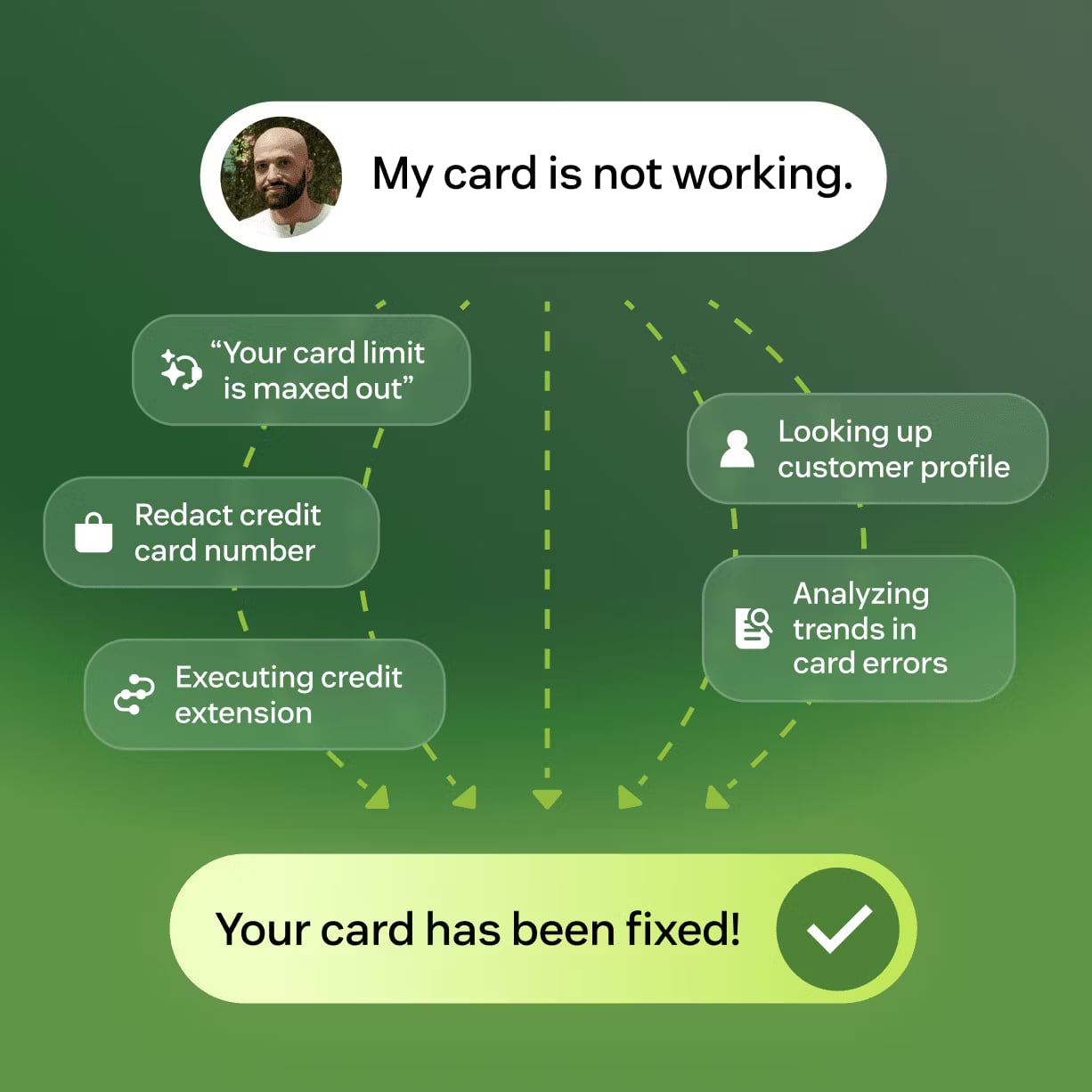
Zendesk product interface.
A customer sends a WhatsApp message asking about an order. UnifyPort delivers a normalized event to your endpoint. Your service creates a ticket:
{
  "ticket": {
    "subject": "WhatsApp: order status question",
    "requester_id": 123456789,
    "comment": {
      "body": "Customer asked about order #4821 delivery timing via WhatsApp.",
      "public": false
    }
  }
}
The internal note carries the channel context so the agent knows where the conversation lives. When the agent replies, your service sends the answer back through UnifyPort on the same WhatsApp account, and the customer sees a normal WhatsApp message — no portal, no app switch.
Note that public: false controls comment visibility; it does not disable every account trigger. Review your Zendesk triggers and test assignment and notification behavior on a controlled ticket before enabling live intake.
Common problems this solves
- Integration sprawl — Six providers become one API and one event shape instead of six SDKs and six signature schemes.
- Channel-blind tickets — Agents see the channel and sender context in the ticket rather than a generic email-style record.
- Delivery uncertainty — Status events from UnifyPort confirm whether a reply was delivered or read, so tickets are not closed on assumptions.
- Rate-limit and retry handling — UnifyPort's delivery queue handles rate limits, retries, idempotency, and failure isolation, so your Zendesk integration does not need to reimplement them.
- Security exposure — Workspace API keys and HMAC-SHA256 signatures keep credentials and verification logic on the server side.
Where this fits — and where it does not
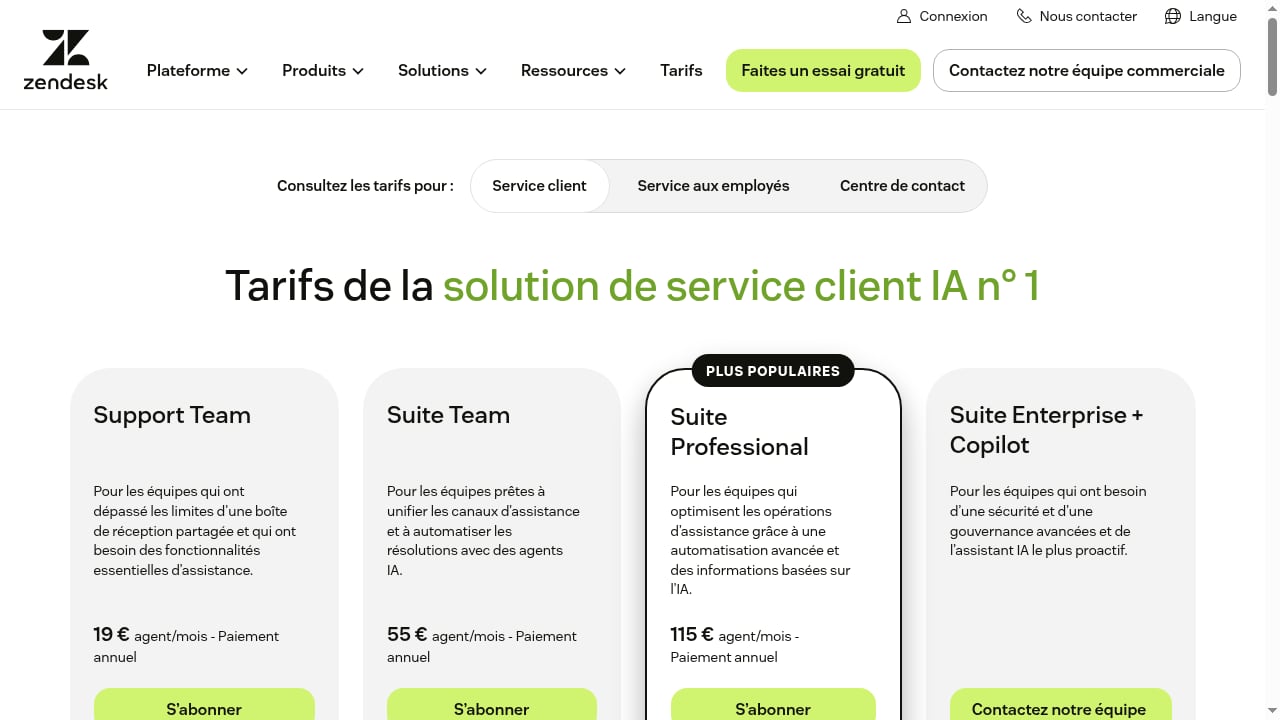
First viewport screenshot of Zendesk Pricing Plans | Starting from $19/month.
This combination is a strong fit when a service team already runs on Zendesk and needs to add messaging channels without rebuilding provider integrations. It is a weaker fit if you only need email support, or if you want a fully prebuilt connector with no code at all — the integration layer here is yours to own.
If you are still evaluating the messaging layer itself, the UnifyPort vs SocialAPI.ai vs Unipile comparison covers channel coverage, webhooks, and developer fit, and the Chat API review looks at WhatsApp Business API access and setup effort in more detail.
Related reading
- UnifyPort vs MSG91: Unified Messaging API or CPaaS Suite? - UnifyPort vs MSG91 compared: unified messaging API for WhatsApp, Telegram, LINE, TikTok, Zalo and X versus MSG91's SMS, OTP and CPaaS suite.
Sources and further reading
- How to integrate Unify with Zendesk - Turn a Unify handoff into a Zendesk ticket with an internal note. Plan requester identity, ticket ownership, business rules, and completion checks.
- Zendesk - Integrate your app with Zendesk to streamline customer support, automate ticket management, and enhance service experiences
- API Reference — UnifyPort - Endpoints, payloads, and webhook events for sending and receiving messages across WhatsApp, Telegram, LINE, TikTok, Zalo, and X through one unified API.
FAQ
Does UnifyPort replace Zendesk?
No. UnifyPort is a unified messaging API and event layer. Zendesk remains the system of record for tickets, routing, and service analytics. UnifyPort moves messages in and out across channels.
Which channels can I route into Zendesk?
WhatsApp, Telegram, LINE, TikTok, Zalo, and X (formerly Twitter), all through the same API and the same normalized webhook event shape.
How do I authenticate the Zendesk side?
Use Basic authentication, an API token, or OAuth. For server-to-server work, an API token tied to an agent or admin identity is usually the fastest path. Create it in Admin Center under Apps and Integrations → Zendesk API.
Can I read message history from UnifyPort later?
No. UnifyPort has no REST message-history read API and no guaranteed replay. Register your webhook endpoint first and store the events you need on arrival. WhatsApp emits limited best-effort HistorySync events after bootstrap or reconnect, but they are not a complete archive.
How do I avoid duplicate tickets when a webhook retries?
Deduplicate on the event identifier before calling the Zendesk Tickets API. UnifyPort retries delivery, so idempotent ticket creation on your side is required.
Should replies be public comments or internal notes?
Customer replies should be sent back through UnifyPort on the original channel. Zendesk comments are for agent-facing context; use public: false when a note should stay internal.
Conclusion
UnifyPort and Zendesk split the work cleanly: UnifyPort normalizes six messaging providers into one API and one event stream, and Zendesk turns those conversations into routed, measurable service work. The setup is four moving parts — a workspace API key, a verified webhook receiver, a Zendesk API token, and a reply path through POST /v1/messages. Get those right, test on a controlled ticket, and you can add channels without adding integrations.