
How to Use Telegram: The Complete Beginner’s Guide
Learn how to use Telegram from setup to advanced features. This guide covers chats, groups, channels, secret chats, multi-device sync, and security settings.
How to Use Telegram: The Complete Beginner’s Guide
Telegram has evolved far beyond a simple messenger. It’s a fast, multi-device platform for private chats, massive communities, broadcast channels, and even automated workflows. Whether you are setting up your first account or want to explore features you’ve overlooked, this guide walks through everything you need to know to use Telegram confidently.
What Makes Telegram Different?
How to Use Telegram: The Complete Beginner’s Guide - What Makes Telegram Different?.
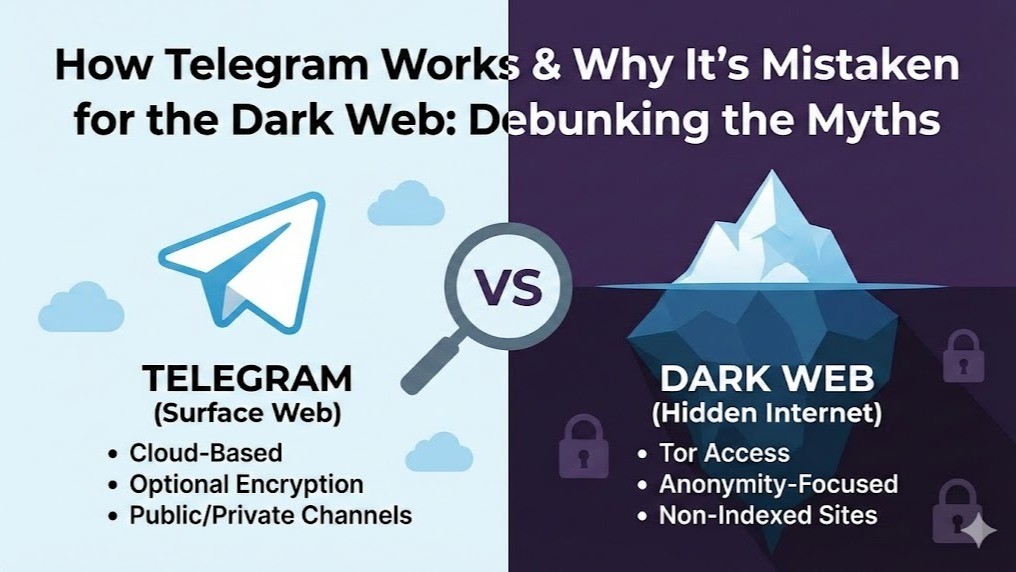
Before diving into the steps, it helps to understand why Telegram stands out among messaging apps. Unlike SMS-based tools, Telegram works over Wi-Fi or mobile data, syncing seamlessly across phones, tablets, and desktops. It supports groups of up to 200,000 members, channels for unlimited broadcasting, and file sharing with a generous 2 GB per-file limit. Security is layered: standard chats use server-client encryption, while Secret Chats offer full end-to-end encryption with self-destruct timers. Telegram also exposes an open API, which means developers can build bots, custom clients, and integrations—something that has made it a backbone for secure messaging in both personal and business contexts.
Setting Up Your Telegram Account
How to Use Telegram: The Complete Beginner’s Guide - Setting Up Your Telegram Account.
Telegram is available on iOS, Android, Windows, macOS, and Linux. You can also use Telegram Web without installing anything. For a detailed walkthrough across all platforms, refer to this Telegram setup guide.
- Download the app from your device’s official store or visit telegram.org.
- Open the app and enter your phone number. Telegram sends a verification code via SMS or a phone call.
- Enter the verification code. Once confirmed, you can add your name and a profile photo.
- Set up two-step verification (recommended). Go to Settings > Privacy and Security > Two-Step Verification to add an extra password layer.
Your account is now active. Because Telegram syncs via the cloud, you can log in on multiple devices and pick up conversations right where you left off.
Navigating the Interface
How to Use Telegram: The Complete Beginner’s Guide - Navigating the Interface.
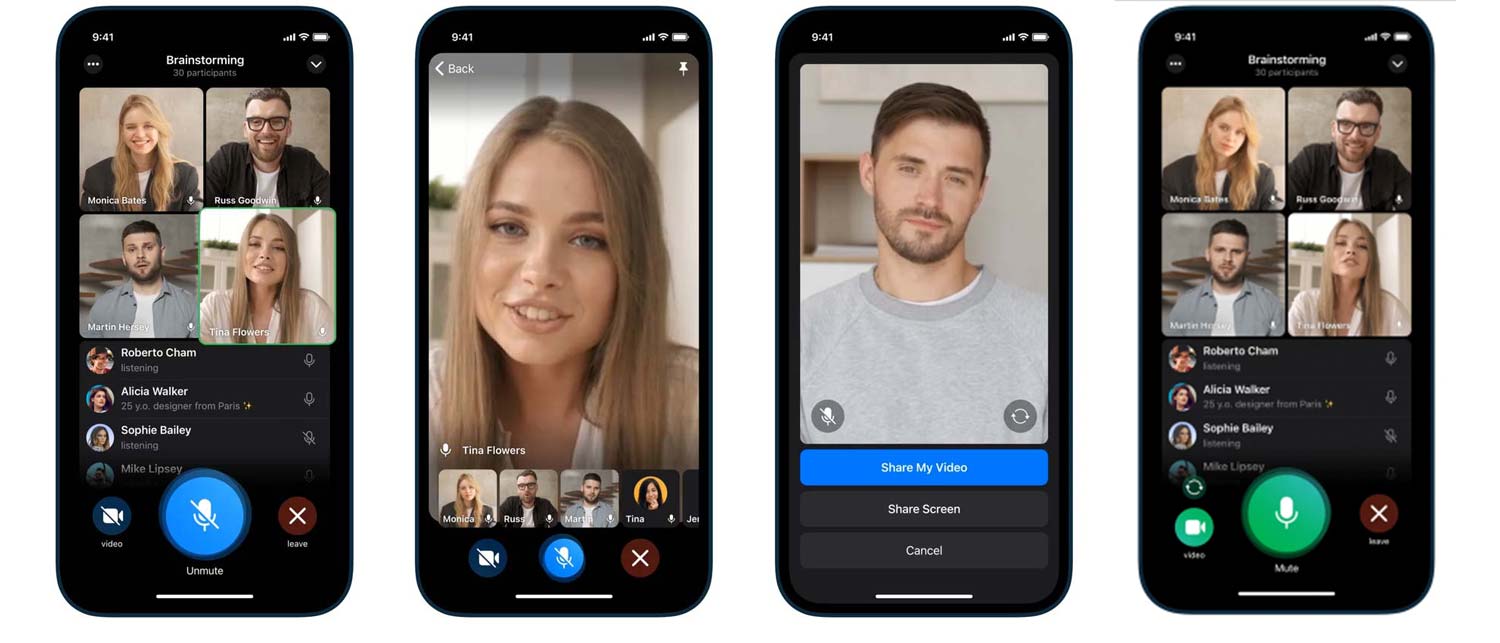
Telegram’s main screen is split into a few key sections:
- Chats: All your one-on-one and group conversations.
- Calls: A dedicated tab for voice and video call history.
- Contacts: People from your phone’s address book who also use Telegram.
- Settings: Privacy controls, chat folders, themes, and account management.
You can create custom chat folders to separate work, family, or interest groups. Swipe right from the chat list or tap the folder icon to set them up.
Starting One-on-One Chats
To send a message, tap the pencil icon (mobile) or the new message button (desktop) and select a contact. Type your message in the input field and hit send. You can also:
- Share media and files up to 2 GB by tapping the attachment icon.
- Use voice messages by holding the microphone button.
- Schedule messages by long-pressing the send button and choosing a date and time.
- Edit sent messages by tapping and holding a message, then selecting Edit.
All regular chats are encrypted between your device and Telegram’s servers, then between the servers and the recipient. However, Telegram holds the encryption keys for cloud chats, which enables multi-device sync but means the company can technically access them. For truly private conversations, use Secret Chats.
Creating and Managing Telegram Groups
Groups are where Telegram’s scale shines. To create one:
- Tap the pencil icon and select New Group.
- Choose members from your contacts.
- Name the group and optionally add a photo.
Groups support up to 200,000 members. As an admin, you can:
- Assign other admins with granular permissions.
- Restrict who can send messages, add members, or pin messages.
- Enable slow mode to limit how often members can post.
- Use bots to moderate content, welcome new members, or run polls.
Large groups are not end-to-end encrypted, so treat them as semi-public forums. For sensitive discussions, smaller groups with Secret Chat–level privacy are not available; instead, use one-on-one Secret Chats or consider alternative platforms for group encryption.
Understanding Telegram Channels
Channels are one-way broadcast tools for reaching unlimited audiences. Unlike groups, only admins can post. Subscribers see content in their chat list but cannot reply directly in the channel (though admins can enable comment buttons that link to a discussion group).
To create a channel:
- Tap the pencil icon and choose New Channel.
- Give it a name, description, and photo.
- Decide if it’s public (a username link) or private (invite-only).
Channels are popular for news, product updates, and community announcements. You can also schedule posts and view detailed analytics on views and shares.
How to Use Secret Chats
Secret Chats provide full end-to-end encryption, meaning only you and the recipient can read the messages—not even Telegram. They also support:
- Self-destruct timers: Messages disappear after a set time.
- No forwarding: Messages cannot be forwarded from a Secret Chat.
- Screenshot alerts: On some platforms, taking a screenshot triggers a notification.
To start a Secret Chat:
- Open a contact’s profile.
- Tap the three-dot menu (⋮) and select Start Secret Chat.
- Wait for the other person to accept.
Secret Chats are device-specific and don’t sync across your other devices. If you log out, the chat is lost. This trade-off is intentional—it keeps the keys off Telegram’s servers.
Multi-Device Sync and Desktop Usage
One of Telegram’s strongest features is seamless synchronization. You can run Telegram on your phone, tablet, and desktop simultaneously. All cloud chats stay in sync, and you can even start a message on one device and finish it on another.
To use Telegram on desktop:
- Download the desktop app from telegram.org.
- Open it and scan the QR code using your phone’s Telegram app (Settings > Devices > Link Desktop Device).
- Alternatively, log in with your phone number.
Desktop apps support most features, including voice calls and file sharing. Secret Chats, however, are only available on mobile.
Customizing Your Experience
Telegram offers deep customization that goes beyond changing wallpapers:
- Chat folders: Organize chats into tabs like Work, Family, or News.
- Themes: Choose from a built-in theme library or create your own.
- Stickers and emoji: Telegram’s sticker platform is open; you can upload custom sticker packs. Animated emoji and reactions add expressiveness.
- Saved Messages: A private cloud space for notes, links, and files. Forward anything to Saved Messages to access it from any device.
- Profile videos: Instead of a static photo, you can set a short video as your avatar.
Bots and Automation
Telegram’s bot platform is a gateway to automation. Bots can provide weather updates, manage to-do lists, process payments, or integrate with external services. To use a bot, simply search for its username and tap Start. Popular examples include @PollBot for group polls and @IFTTT for connecting Telegram to over 1,000 other apps.
For developers, Telegram’s open API and bot framework enable building custom solutions. When you need to connect Telegram to business systems—CRMs, support desks, or AI agents—a unified messaging API like UnifyPort can abstract away the complexity. Instead of wrestling with Telegram’s individual Bot API and maintaining separate integrations for WhatsApp, LINE, or other channels, UnifyPort provides a single REST API and standardized webhook events. This means messages from Telegram arrive in the same normalized JSON shape as those from other platforms, and you can send replies through one interface without learning each provider’s SDK. For teams building multi-channel notification systems or AI-driven chat, this approach reduces development time and isolates failures so a Telegram outage doesn’t cascade into other channels.
Privacy and Security Settings Worth Enabling
Go to Settings > Privacy and Security and review these options:
- Phone number visibility: Set to “Nobody” or “My Contacts” to avoid exposure.
- Last seen & online: Control who sees your activity status.
- Profile photo: Restrict who can view your profile picture.
- Forwarded messages: Decide whether your name links back to forwarded messages.
- Two-step verification: Adds a password on top of the SMS code.
- Active sessions: Review and terminate any device you don’t recognize.
- Auto-delete: Set a global timer to automatically remove messages in new chats.
If you ever decide to leave the platform, you can permanently delete your Telegram account through the deactivation page or by setting up auto-deletion in the privacy settings.
Telegram vs. Other Messaging Apps
| Feature | Telegram | Signal | LINE | |
|---|---|---|---|---|
| Group size limit | 200,000 | 1,024 | 1,000 | 499 |
| File size limit | 2 GB | 2 GB | 100 MB | 50 MB |
| Multi-device sync | Cloud-based, independent | Requires phone connection | Desktop linked to phone | Phone-centric |
| Secret Chats | Yes (device-specific) | No (all chats E2EE) | All chats E2EE | Letter Sealing (E2EE) |
| Open API / Bots | Yes | Limited business API | No | Yes (Messaging API) |
| Channels | Yes | Channels (broadcast) | No | Official accounts |
Telegram’s sweet spot is flexibility: it works as a simple messenger, a community hub, and a developer platform. If your priority is default end-to-end encryption for every message, Signal is stronger. If you need the largest user base, WhatsApp still leads. But for features, scale, and cross-device freedom, Telegram is hard to beat.
Related reading
- Telegram Setup: Complete Guide for Desktop, Mobile & Business - Step-by-step Telegram setup for desktop, mobile, and business. Learn account creation, security settings, Telegram Business features, and multi-channel API integration.
- LINE Download: How to Install LINE on Mobile & Desktop Safely - A complete guide to downloading LINE on iOS, Android, Windows, and Mac. Covers installation, key features, security settings, and how unified APIs extend LINE into business workflows.
- What Is Secure Messaging? Standards, Risks & How to Choose - Secure messaging protects data with encryption, authentication, and integrity controls. Learn the standards, compare apps, and see how unified APIs add secure multi-channel delivery.
Sources and further reading
- Can someone explain to me how the app Telegram works? : r/answers - *cracks knuckles
- Telegram – a new era of messaging - Fast. Secure. Powerful.
- How to Use Telegram for Beginners: Step-by-step guide - Telegram is a free, encrypted messaging app with 950M+ users. Click to see how to set up an account, start group chats, use Secret Chats, and automate it wi...
Frequently Asked Questions
Is Telegram free to use?
Yes. Telegram is free, with no ads in private chats. The company is funded by its founder and, more recently, premium subscriptions that offer extra features like larger uploads and exclusive stickers.
Can I use Telegram without a phone number?
You need a phone number to create an account, but you can hide it from everyone after setup. You can also buy anonymous virtual numbers through Fragment, Telegram’s blockchain-based platform, to register without your real number.
Are Telegram calls encrypted?
Voice and video calls are end-to-end encrypted, similar to Secret Chats. Group voice chats in channels and large groups, however, are not E2EE.
How do I find people on Telegram?
You can sync your phone contacts, search by username, or join groups and channels via invite links. Telegram also has a “People Nearby” feature (opt-in) to discover local users.
Can businesses use Telegram for customer support?
Absolutely. Many businesses use Telegram bots and channels for support, updates, and even e-commerce. For companies managing support across multiple channels, integrating Telegram with a unified API platform like UnifyPort can normalize incoming messages from Telegram, WhatsApp, LINE, and others into a single support dashboard.
What happens if I lose my phone?
Your cloud chats are safe. Log in on a new device with your phone number and verification code. Secret Chats, however, are device-specific and will be lost if you don’t have a backup of that device.
Final Thoughts
Telegram rewards exploration. Start with the basics—messaging, groups, and maybe a channel or two—then gradually layer in folders, bots, and privacy settings as you get comfortable. Its open architecture means the platform can grow with you, whether you’re coordinating a small team, running a large community, or building automated workflows that connect Telegram to the rest of your digital life.
For developers and teams looking to integrate Telegram into a broader messaging strategy, exploring a Communication Platform as a Service approach can simplify multi-channel delivery while keeping the rich Telegram features your users expect.