

How to Use UnifyPort with LINE for Multi-Channel Messaging
Step-by-step guide to integrating LINE messaging into your app via UnifyPort's unified API. Set up accounts, send texts, media, handle webhooks, and scale reliably.
How to Use UnifyPort with LINE
Managing multiple messaging channels usually means juggling different SDKs, inconsistent event formats, and fragile connections. UnifyPort solves this by giving you one REST API and a single webhook stream for platforms like WhatsApp, Telegram, LINE, and more. If your users or business partners rely on LINE, adding it through UnifyPort saves development time, reduces maintenance, and lets your application send and receive messages reliably.
This guide walks through the entire workflow: setting up a LINE virtual account in UnifyPort, configuring webhooks, sending and receiving messages, and handling real-world scenarios. You’ll also see practical code snippets and learn why this integration makes multi-channel messaging much simpler.
Why Combine UnifyPort with LINE?
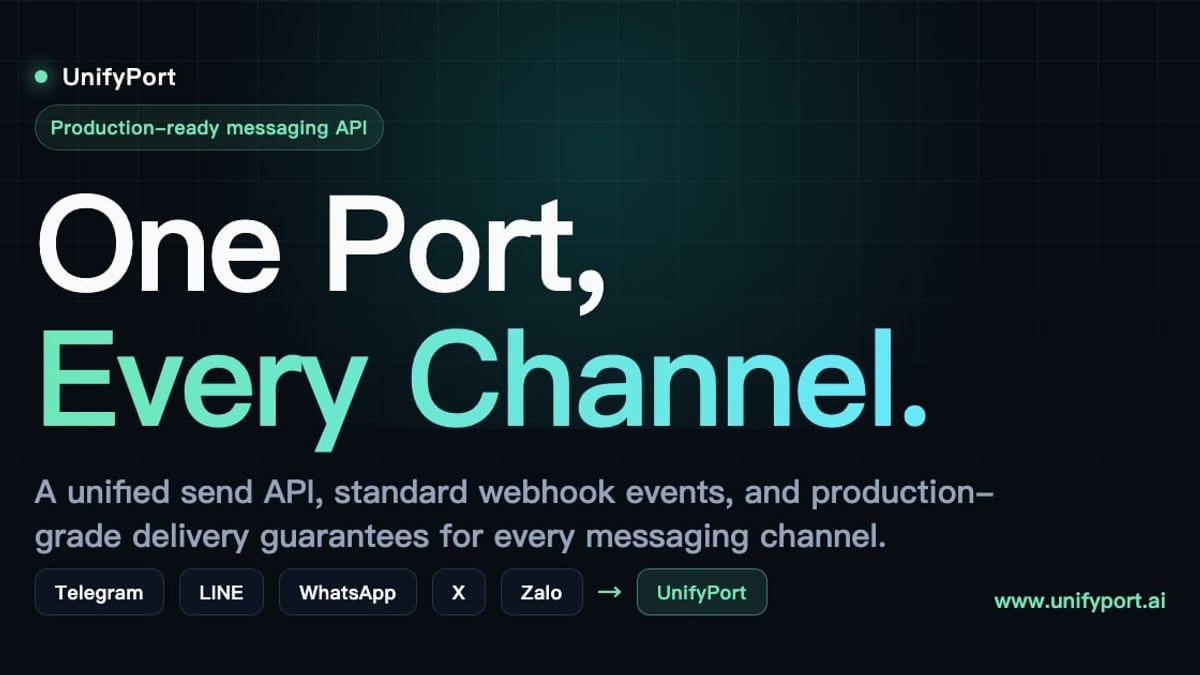
How to Use UnifyPort with LINE for Multi-Channel Messaging product interface and feature overview.
LINE isn’t just a chat app—it’s a digital ecosystem used by millions for everyday communication, news, payments, and more. By connecting LINE to your product, you tap into a highly engaged audience. UnifyPort removes the pain of learning LINE’s proprietary APIs, managing access tokens, and decoding heterogeneous events. Instead, you get:
- A normalized event format that looks the same whether the message came from LINE, WhatsApp, or Telegram.
- Built‑in reliability: idempotency keys, automatic retries, rate limiting, and failure isolation so one channel’s hiccup doesn’t crash your system.
- Full lifecycle management: create, authenticate (via QR or code), monitor, and retire virtual LINE accounts right from the API or dashboard.
- Consistent message types: text, images, video, audio, documents, and provider‑specific options like
reply_towork the same way across channels.
If you’ve ever evaluated multi‑channel APIs, you know the landscape can be tricky. Our UnifyPort vs Unipile vs CM.com comparison details how UnifyPort’s abstraction layer and developer experience differ from alternatives.
Setting Up LINE on UnifyPort

How to Use UnifyPort with LINE for Multi-Channel Messaging product interface and feature overview.
Before you can send a single message, you need to register a LINE messaging account inside your UnifyPort workspace. The process takes only a few minutes and requires access to a LINE account that will act as the sender.
Prerequisites
- An active UnifyPort account (currently available to selected customers; sign up at UnifyPort if you haven’t already).
- A LINE account with a profile you intend to use for business messaging. This account must be able to receive QR scan or login‑code authentication.
- Basic familiarity with REST APIs and webhooks.
To understand LINE’s consumer features and why your audience might already be there, read our LINE app review.
Step 1: Create a Virtual LINE Account
UnifyPort treats every messaging identity as a virtual account. You can create one programmatically:
POST /v1/accounts
{
  "provider": "line",
  "label": "Support LINE Account"
}
The response contains an account_id and an authentication method—usually a QR code URL or a numeric code. For LINE, UnifyPort instructs you to scan the QR code with the LINE mobile app or enter the code under Settings > Account > Login with QR code.
Step 2: Authenticate and Verify
Follow the on‑screen instructions in the UnifyPort dashboard or consume the auth_url returned by the API. Once the LINE app confirms the login, UnifyPort automatically updates the account status to active. You can poll the account status or rely on webhooks:
GET /v1/accounts/{account_id}
Returns "status": "active" when authentication succeeds. From this point, the virtual account is ready to send and receive messages.
Configuring Webhooks for Real‑Time Events
How to Use UnifyPort with LINE for Multi-Channel Messaging product interface and feature overview.
UnifyPort forwards all LINE events—messages, postbacks, follow/unfollow actions—to a URL you control. To set it up:
- Go to the Webhook Control Plane in your workspace.
- Enter your endpoint URL (must be
https). - Subscribe to the LINE provider and choose the event types you care about (e.g.,
message.received,follow). - UnifyPort gives you a signing secret. Every webhook payload is signed with HMAC‑SHA256; verify the signature on your server to reject spoofed requests.
A typical incoming LINE message event looks like this, already normalized:
{
  "id": "evt_9a2b3c",
  "type": "message.received",
  "provider": "line",
  "account_id": "acc_123",
  "timestamp": "2025-03-20T11:05:00Z",
  "data": {
    "message_id": "123456789",
    "from": "Udeadbeef...",
    "content": {
      "type": "text",
      "body": "Hello, I need help"
    }
  }
}
The structure is the same for WhatsApp, Telegram, and others, so your backend logic stays clean. Webhook retry policies and subscription management are all handled within UnifyPort; you don’t need to build per‑provider reconnection flows.
Sending Messages to LINE Users via the API

How to Use UnifyPort with LINE for Multi-Channel Messaging product interface and feature overview.
Sending a message is a single REST call. The base endpoint is /v1/messages, and you specify the account_id of your active LINE virtual account.
Text Messages
POST /v1/messages
{
  "account_id": "acc_123",
  "to": "Udeadbeef...",
  "message": {
    "type": "text",
    "body": "Your order #4521 has shipped!"
  }
}
The API responds with a message ID and a delivery status. For LINE, UnifyPort automatically injects the proper payload structure behind the scenes.
Images, Video, and Other Media
All media types follow the same pattern. UnifyPort accepts publicly accessible URLs or presigned URLs:
{
  "account_id": "acc_123",
  "to": "Udeadbeef...",
  "message": {
    "type": "image",
    "url": "https://example.com/order_receipt.png",
    "caption": "Here is your receipt"
  }
}
File types like audio, video, and document are supported. Provider‑specific features are abstracted: for example, LINE stickers can be sent by providing the sticker’s package ID and sticker ID in a sticker message type. Check the UnifyPort docs for the exact fields.
Replying to a Specific Message
To keep the conversation threaded, include a reply_to field with the original message ID. UnifyPort translates this into LINE’s reply token mechanism automatically:
{
  "account_id": "acc_123",
  "to": "Udeadbeef...",
  "message": {
    "type": "text",
    "body": "We’ll look into that right away.",
    "reply_to": "123456789"
  }
}
This works identically across channels that support quoted replies, keeping your codebase channel‑agnostic.
Handling Incoming Messages and Events
Your webhook endpoint receives all LINE events. The key is to identify the type and act accordingly. For a customer message, you might:
- Validate the HMAC signature.
- Extract
data.from(the LINE user ID) anddata.content.body. - Pass them to your CRM, AI agent, or support queue.
- Send a reply using the same user ID and, if applicable, the
message_idasreply_to.
UnifyPort also forwards follow events (when a user adds your account as a friend) and unfollow events. You can use these to trigger welcome messages or update subscription lists.
Because all events are normalized, a single handler can route LINE, WhatsApp, and Telegram messages through the same pipeline. This drastically reduces the complexity of running a multi‑channel AI agent or notification system.
Practical Use Cases
Customer Support Automation
Connect LINE to your chat desk via UnifyPort. When a user sends a question, the webhook triggers your ticketing system. Replies go back through the same virtual account, with delivery guarantees.
E‑commerce Order Notifications
Send order confirmations, shipping updates, and delivery statuses directly to a customer’s LINE, without them having to install another app. Use the same template logic you already use for email or SMS, but over LINE.
Multi‑Channel AI Agents
Deploy a single AI agent that answers queries from any messaging app. UnifyPort normalizes the input and delivers the response on the correct channel, maintaining context through reply_to. The agent never knows which platform the user is on.
Troubleshooting and Best Practices
- Authentication expiry: LINE sessions may expire due to inactivity or password changes. UnifyPort tracks account health via the status endpoint and can send a webhook when re‑authentication is needed. Monitor these events to avoid interruptions.
- Rate limiting: UnifyPort applies per‑channel rate limits. If you hit LINE’s sending limits, the API returns a
429with a retry‑after header. The platform handles retries internally when idempotency keys are used. - Webhook security: Always verify the HMAC‑SHA256 signature. UnifyPort’s webhook control plane lets you regenerate secrets and view delivery logs.
- Idempotency: For critical messages (payments, alerts), pass an
Idempotency-Keyheader. UnifyPort ensures the message is sent exactly once, even if the request is retried.
Related reading
- UnifyPort vs Unipile: Multi-Channel Messaging API Comparison - Compare UnifyPort and Unipile for multi-channel messaging. See channel coverage, pricing, reliability, and safety. Learn which API fits your AI agent or SaaS product.
Sources and further reading
- How to Tie the Double Uni Knot (Bend) - Is a dependable and easy-to-learn knot used to join two fishing lines—ideal for pairing mono, fluoro, or braid.
- The Best Knot for Tying Fishing Line Together - Enjoy the videos and music you love, upload original content, and share it all with friends, family, and the world on YouTube.
- How to Tie a Uni Knot - Home | Fishing Knots | Uni Knot Uni Knot The uni knot, also known as the Duncan loop or Grinner knot, is a versatile and strong fishing knot used to attach the fishing line to a hook, lure, or swivel. It is favored for its reliability and simplicity, suitable for both monofilament and braided lines. The uni knot can al
FAQ
Do I need a separate LINE Official Account to use UnifyPort?
No, UnifyPort uses the virtual account approach. You can authenticate with a standard LINE account, making it suitable for many business use cases. For large‑scale official accounts, contact UnifyPort support for guidance.
How does UnifyPort charge for LINE usage?
Pricing is per active paid messaging account per month, with a free tier per workspace. LINE accounts count toward your monthly bill only when active. Check the latest rates on the UnifyPort website.
Can I send LINE stickers through the API?
Yes, using the sticker message type. You’ll need the sticker’s package ID and sticker ID, which UnifyPort passes through to LINE’s API.
What happens if my webhook endpoint is down?
UnifyPort retries delivery with exponential backoff for up to 24 hours. You can monitor pending deliveries in the dashboard and replay events manually if needed.
Is it secure to handle LINE messages through a third‑party API?
All traffic is encrypted in transit, API keys are managed securely, and webhook payloads are signed. UnifyPort never stores message content longer than necessary for delivery.
Conclusion
UnifyPort transforms LINE integration from a standalone project into a simple configuration step. By abstracting authentication, event normalization, and delivery guarantees, it lets developers focus on building great user experiences instead of managing channel‑specific quirks. Whether you’re adding LINE to an existing multi‑channel stack or starting fresh, the combination of UnifyPort’s unified API and LINE’s rich messaging ecosystem opens up reliable, scalable communication with your users.
Ready to give it a try? Sign up at UnifyPort and create your first LINE virtual account in minutes. For a deeper look at how UnifyPort compares to other multi‑channel solutions, visit UnifyPort vs Unipile vs CM.com.