How to Use UnifyPort with Zendesk: Unified Messaging Guide
Connect UnifyPort's unified messaging API to Zendesk so WhatsApp, Telegram, LINE, and more become tickets. Setup, webhook flow, and examples.
How to Use UnifyPort with Zendesk: Unified Messaging Guide
Support teams live in Zendesk. Customers live in WhatsApp, Telegram, LINE, TikTok, Zalo, and X. UnifyPort bridges the two: it turns every provider's messages and account events into one normalized JSON stream, and Zendesk turns that stream into tickets, agent workflows, and AI-assisted resolutions. This guide explains the architecture, the setup steps, practical routing examples, and the problems the combination actually solves.
Why pair a unified messaging API with an AI-powered service platform
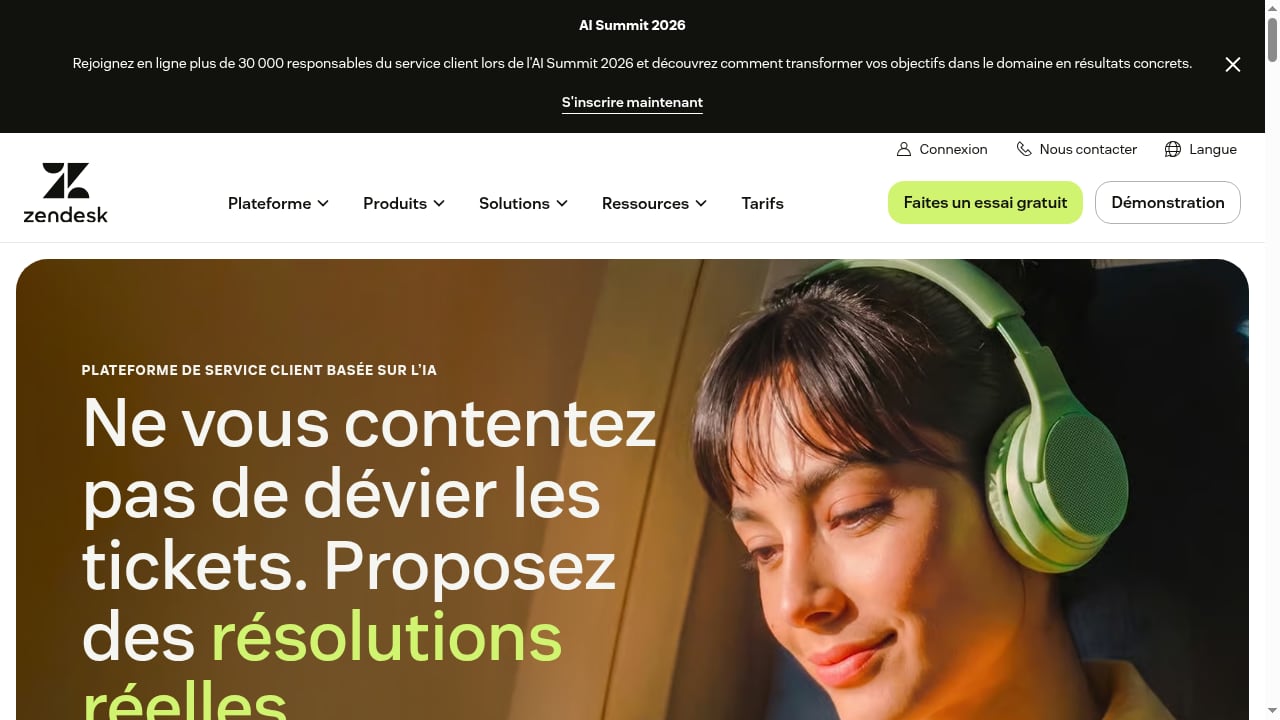
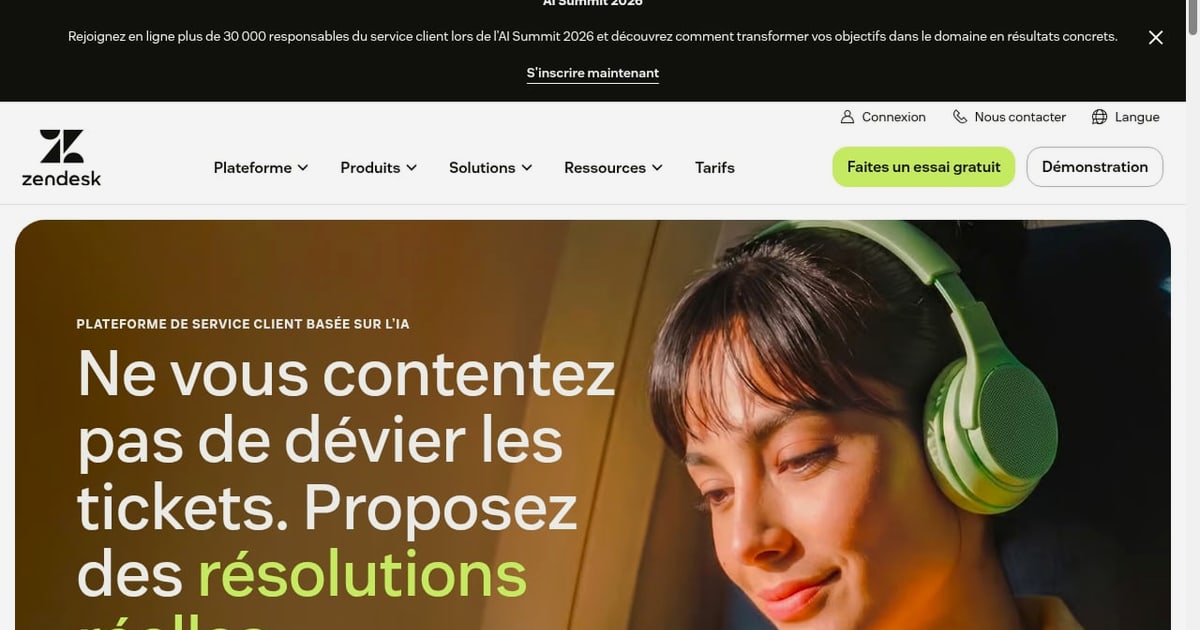
First viewport screenshot of AI-Powered Customer Service Platform | Zendesk.
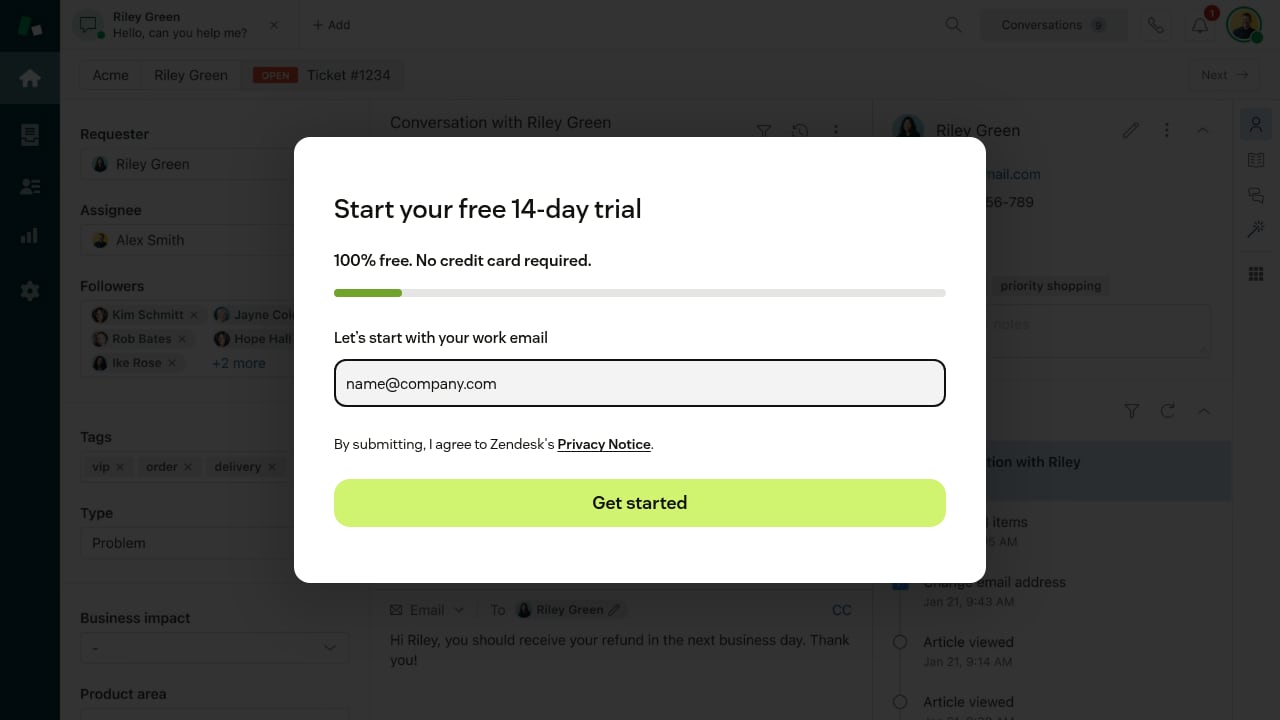
Zendesk is built to resolve issues end-to-end with AI agents, improve service quality, and scale support without proportionally scaling headcount. But Zendesk's strength is the service layer — triage, assignment, macros, knowledge, reporting. It is not a messaging integration layer for six regional chat apps.
UnifyPort is that layer. Instead of maintaining separate integrations for WhatsApp, Telegram, LINE, TikTok, Zalo, and X, you connect each account once and receive a stable event shape. The division of labor is clean:
- UnifyPort handles transport and normalization. One REST API to send, one standard webhook event stream to receive, plus a control plane for signatures, subscriptions, retries, rate limits, idempotency, and failure tracking.
- Zendesk handles the customer conversation. Tickets, agent routing, SLA policies, AI agents, and the reporting your operations team already trusts.
The result: a customer messages you on LINE, and your Zendesk agents respond from the same queue they use for email — without your engineering team building a LINE integration from scratch.
Architecture: how the two systems fit together
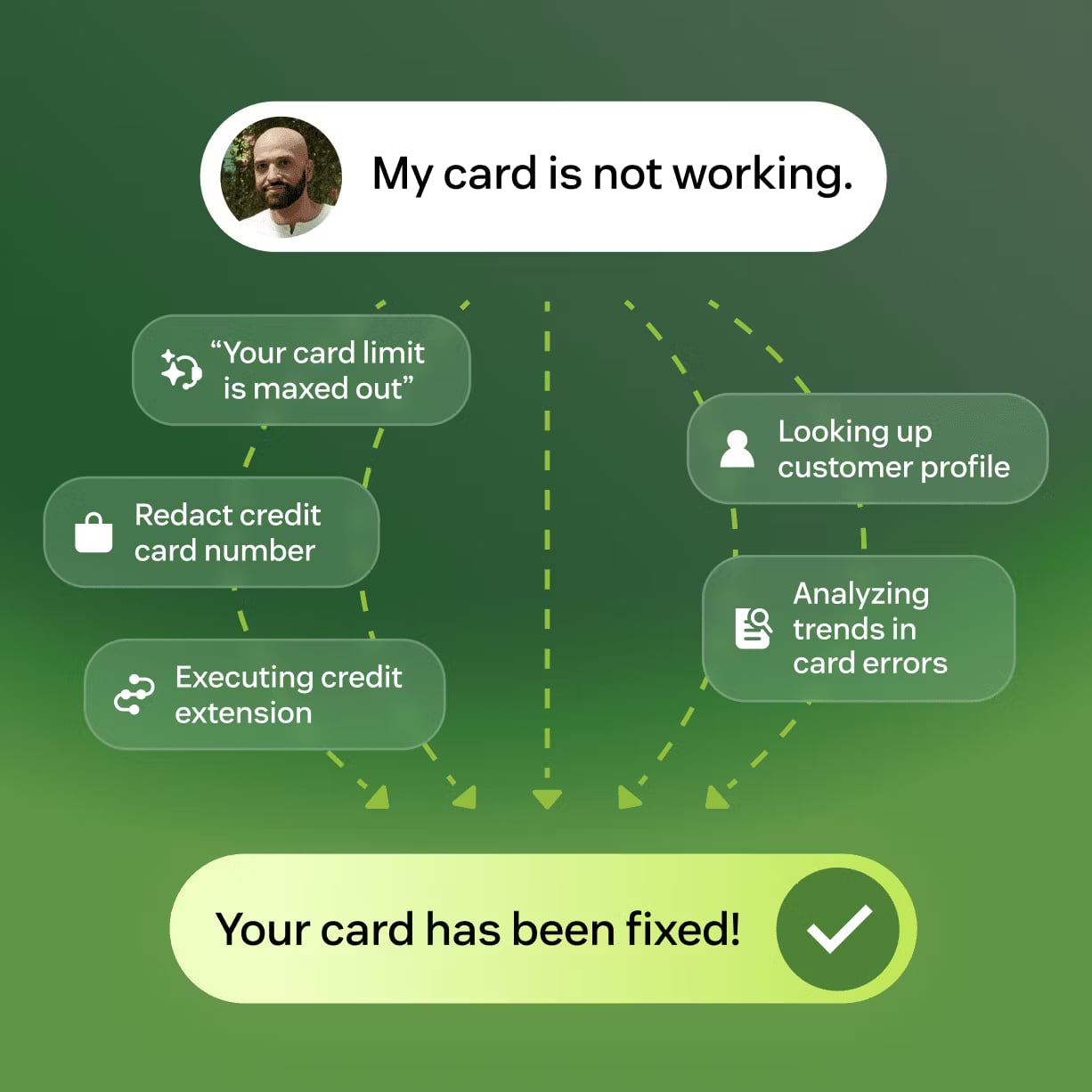
AI-Powered Customer Service Platform | Zendesk product interface.
The data flow has two directions, and both are simpler than they look.
Inbound: customer message to Zendesk ticket
- A customer sends a message on any connected channel.
- UnifyPort receives it and normalizes it into a standard event with a consistent JSON shape.
- UnifyPort delivers the event to your webhook endpoint, signed with HMAC-SHA256.
- Your middleware verifies the signature, checks idempotency, and creates or updates a ticket in Zendesk through the Zendesk API.
- Zendesk routes the ticket to the right agent or AI agent, applying your existing triggers and SLAs.
Outbound: agent reply to customer channel
- An agent replies in Zendesk, or an AI agent resolves the issue automatically.
- A Zendesk trigger or webhook fires to your middleware with the reply content and the original channel identity.
- Your middleware calls UnifyPort's unified
/v1/messagesendpoint with the correct account and recipient. - UnifyPort's delivery queue handles rate limits, retries, and failure isolation per provider.
- The customer receives the reply on the channel they originally used.
The key design point: your middleware is thin. It maps identities and translates between two well-defined APIs. It does not know or care how LINE's webhook format differs from Telegram's — UnifyPort already flattened that difference.
Setup steps
First viewport screenshot of Register.
Step 1: Create a UnifyPort workspace and connect your first channel
Every UnifyPort workspace includes one free messaging account, so you can validate the flow before committing to a multi-channel rollout. Pick the channel where your customers already talk to you — WhatsApp for cross-border buyers, Telegram for a developer community, LINE for Japan or Thailand, Zalo for Vietnam, X for social support, or TikTok for creators and sellers.
Account authorization flows vary by provider (QR code, code, password, Passkey, or session import), and UnifyPort handles each through the same account lifecycle model.
Step 2: Create and store your API key
Generate an API key from the dashboard for development or production. Keys are shown once at creation, so copy them into your environment securely. The dashboard keeps key metadata — names, prefixes, status — so you can rotate or revoke credentials without filing a request.
Step 3: Register your webhook and verify signatures
Point UnifyPort at your middleware endpoint. Configure signature verification using HMAC-SHA256, and decide your retry and failure-tracking behavior in the webhook control plane. If you are new to this pattern, the webhook event processing guide covers signature verification, idempotency, and retry handling with practical code patterns.
Step 4: Map channel identities to Zendesk users
Each inbound event carries a channel-specific sender identity. Store a mapping table — for example, channel + sender_id → zendesk_user_id — so repeat conversations attach to the same requester instead of creating duplicate tickets. This is the single most important piece of middleware logic.
Step 5: Create tickets from inbound events
On each verified event, call the Zendesk API to create or update a ticket. Include the channel name and a link back to the conversation context so agents know where the customer is writing from.
Step 6: Send agent replies back through UnifyPort
When an agent replies, your middleware calls UnifyPort's /v1/messages endpoint with text, images, or files. Because the endpoint is unified, the same code path works whether the customer is on Telegram or Zalo.
Step 7: Add channels incrementally
Once the first channel works, add the next one behind the same webhook-driven architecture. The backend pattern does not change — only the connected account does.
Practical examples
Example 1: WhatsApp order-status support
A customer messages your WhatsApp account asking where their order is. UnifyPort delivers the normalized event to your middleware, which looks up the order in your commerce system and creates a Zendesk ticket pre-populated with the order ID. An AI agent answers with the shipping status; the reply goes back through UnifyPort's /v1/messages endpoint to WhatsApp. No agent touched the ticket.
Example 2: LINE escalation with human handoff
A Japanese-speaking customer asks a nuanced billing question on LINE. The AI agent attempts a resolution, cannot confirm the answer, and escalates. Zendesk assigns the ticket to a Japanese-speaking agent based on your existing routing rules. The agent replies in Zendesk, and the customer receives it on LINE — with the full conversation history visible in the ticket.
Example 3: Multi-channel social support on X and TikTok
Your social team monitors X and TikTok. Both channels feed the same UnifyPort event stream, so both create tickets in the same Zendesk queue. Reporting shows volume and resolution time per channel without any per-channel instrumentation.
Problems the combination solves
- Integration sprawl. Six channels normally mean six integrations, six webhook formats, and six sets of retry logic. UnifyPort collapses that into one API and one event shape.
- Provider turbulence. Rate limits, transient failures, and provider-specific quirks stay inside UnifyPort's delivery queue and failure isolation instead of leaking into your support stack.
- Duplicate conversations. Identity mapping plus idempotent event handling keeps one customer thread as one ticket.
- Slow channel expansion. Adding a channel becomes a configuration task, not a quarter-long engineering project.
- Reporting blind spots. Because every channel lands in Zendesk, your existing dashboards and SLAs apply uniformly.
Decision guidance: when this stack fits
First viewport screenshot of Zendesk Pricing Plans | Starting from $19/month.
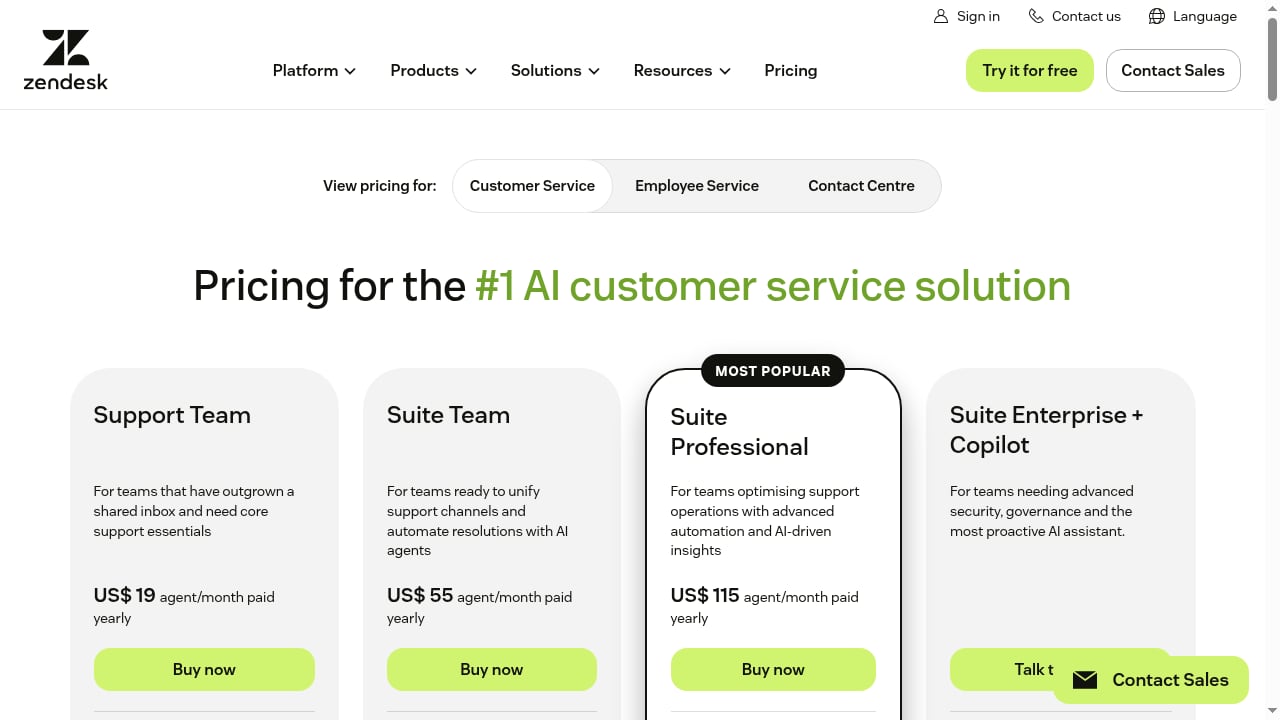
This combination fits teams that already run support in Zendesk and need to meet customers on regional or social messaging channels without building each integration themselves. It is especially strong when you operate in multiple markets where the dominant channel differs — LINE in Japan, Zalo in Vietnam, WhatsApp in Latin America and Europe.
If you are still evaluating messaging API vendors, comparisons such as UnifyPort vs Gupshup and UnifyPort vs Unipile vs Esendex break down channel coverage, webhook control, SDKs, and pricing. If your support stack is not Zendesk, the same UnifyPort architecture applies to other platforms — see the SleekFlow setup guide for a parallel walkthrough.
Related reading
- UnifyPort vs 8x8 Developer Portal vs Gupshup - Compare UnifyPort, 8x8 Developer Portal, and Gupshup on API model, channels, webhooks, SDKs, and pricing to pick the right messaging stack.
- Syniverse CPaaS Omni-Channel Messaging Review 2026 - Evidence-based Syniverse CPaaS Omni-Channel Messaging review: channels, unified API, Communication Assistant, pricing signals, setup, and who it fits.
Sources and further reading
- UnifyPort — One API. Every Channel. - Connect WhatsApp, Telegram, LINE, TikTok, Zalo, and X through one API for messages and events, without rebuilding the integration for every platform.
- UnifyPort Dashboard is live: start with one free messaging account - Every UnifyPort workspace now includes one free messaging account slot. Sign up, pick Telegram, WhatsApp, LINE, X, Zalo, or TikTok as your first channel, and manage API keys from the dashboard.
- Tools for messaging developers — curated by UnifyPort - A hand-picked list of tools messaging developers actually use: webhook receivers, HMAC signers, JWT decoders, Telegram utilities, phone number validators.
FAQ
Does UnifyPort replace Zendesk?
No. UnifyPort is the messaging transport and normalization layer; Zendesk is the customer service platform where tickets, agents, AI resolution, and reporting live. They solve different problems and connect through a thin middleware layer.
Which messaging channels can I connect?
WhatsApp, Telegram, LINE, TikTok, Zalo, and X (formerly Twitter), all through one REST API and one standard webhook event stream.
Do I need to build separate integrations for each channel?
No. That is the core value of UnifyPort. You connect each account once, and inbound messages arrive in a normalized JSON shape regardless of provider.
How do I secure the webhook between UnifyPort and my middleware?
Use HMAC-SHA256 signature verification, which UnifyPort supports alongside API key authentication. Verify every inbound request before creating or updating a Zendesk ticket.
What happens if a provider rate-limits or fails?
UnifyPort's delivery queue applies rate limits, retries, idempotency, and failure isolation per provider, so a single channel's turbulence does not cascade into your support workflow.
Can I start with just one channel?
Yes. Every UnifyPort workspace includes one free messaging account, which is enough to validate the full flow — inbound event, ticket creation, agent reply — before expanding.
Which SDKs are available for the middleware?
Official SDKs exist for Node.js, PHP, Go, and Python, so you can build the Zendesk bridge in whichever language your team already uses.
Conclusion
UnifyPort and Zendesk solve complementary halves of the same problem. UnifyPort makes multi-channel messaging a stable, observable pipeline with one API and one event stream. Zendesk turns that pipeline into resolved customer conversations with AI agents, routing, and reporting. Together they let you meet customers on WhatsApp, Telegram, LINE, TikTok, Zalo, and X without rebuilding your support stack for every provider.
Start with one free messaging account, connect your first channel, verify a webhook, and create a single ticket. Once that flow works, every additional channel is an increment — not a rewrite.