
Gmail API Scope Guide: Choosing the Right OAuth Permissions
A complete guide to Gmail API scopes: understand restricted vs. sensitive permissions, choose the right scope for send, read, or modify, and apply them in domain-wide delegation and OAuth flows.
Gmail API Scope Guide: Choosing the Right OAuth Permissions
Gmail API scopes define exactly what your application can do with a user’s mailbox—from sending messages to reading metadata. Picking the wrong one either opens too many doors (and triggers stricter OAuth verification) or blocks the functionality you need. This guide walks you through every available scope, explains the difference between sensitive and restricted tiers, and shows you how to scope down for domain-wide delegation, incremental authorization, and multi-channel messaging architectures.
Complete List of Gmail API Scopes

Gmail API Scope Guide: Choosing the Right OAuth Permissions product interface and feature overview.
The table below maps each scope URL to a human-readable alias, the operations it allows, and a quick note on when to use it. The full reference is maintained on the Google Gmail API auth documentation.
| Scope URL | Alias | Permissions | Notes |
|---|---|---|---|
https://mail.google.com/ |
full | Full access including permanent deletion. | Restricted. Requires CASA Tier 2 security assessment. Avoid unless you must delete threads permanently. |
https://www.googleapis.com/auth/gmail.modify |
gmail.modify | Read, write, send, delete (except permanent deletion). | Sensitive. Best for full-featured apps that need to manage the inbox but never permanently erase mail. |
https://www.googleapis.com/auth/gmail.readonly |
gmail.readonly | Read all resources and metadata, no writes. | Sensitive. Ideal for analytics, backup, or dashboards that only read. |
https://www.googleapis.com/auth/gmail.compose |
gmail.compose | Create, read, update, delete drafts; send messages and drafts. | Sensitive. Perfect for composing email and managing drafts without touching existing inbox items. |
https://www.googleapis.com/auth/gmail.send |
gmail.send | Send messages only; no read or modify privileges. | Sensitive. The most locked-down write scope for transactional notification apps. |
https://www.googleapis.com/auth/gmail.insert |
gmail.insert | Insert and import messages only. | Sensitive. Useful for email migration tools that only add messages. |
https://www.googleapis.com/auth/gmail.labels |
gmail.labels | Create, read, update, delete labels only. | Sensitive. Scope for label management apps. |
https://www.googleapis.com/auth/gmail.metadata |
gmail.metadata | Read metadata (headers, history, labels) but not message body or attachments. | Sensitive. Good for productivity summaries or notification previews without exposing content. |
https://www.googleapis.com/auth/gmail.settings.basic |
gmail.settings.basic | Manage basic mail settings (signature, vacation responder). | Sensitive. |
https://www.googleapis.com/auth/gmail.settings.sharing |
gmail.settings.sharing | Manage forwarding, IMAP/POP settings, aliases. | Restricted (G Suite/Workspace only). Requires security assessment. |
Understanding Scope Tiers: Sensitive vs. Restricted
Gmail API Scope Guide: Choosing the Right OAuth Permissions product interface and feature overview.
Google classifies Gmail scopes into two tiers that directly impact your OAuth consent screen and verification process:
- Sensitive scopes – Include all read/write operations that respect the user’s privacy but don’t fully impersonate the account. Apps using sensitive scopes (like
gmail.send,gmail.readonly) require verification through the Google Cloud Console and a homepage link in the OAuth consent screen, but you don’t need a third‑party security assessment. - Restricted scopes – The
https://mail.google.com/scope (full access) andgmail.settings.sharingfall into this bucket. Restricted scopes require a CASA Tier 2 security assessment and are only granted after Google’s own review. For most applications, you can achieve the required functionality with a combination of sensitive scopes and avoid the restricted review altogether.
Always start with the least‑privileged sensitive scope. If your app only sends email, gmail.send is enough; if you need to read and modify messages but never permanently delete them, use gmail.modify instead of the full mailbox scope.
How to Choose the Right Scope for Your Application
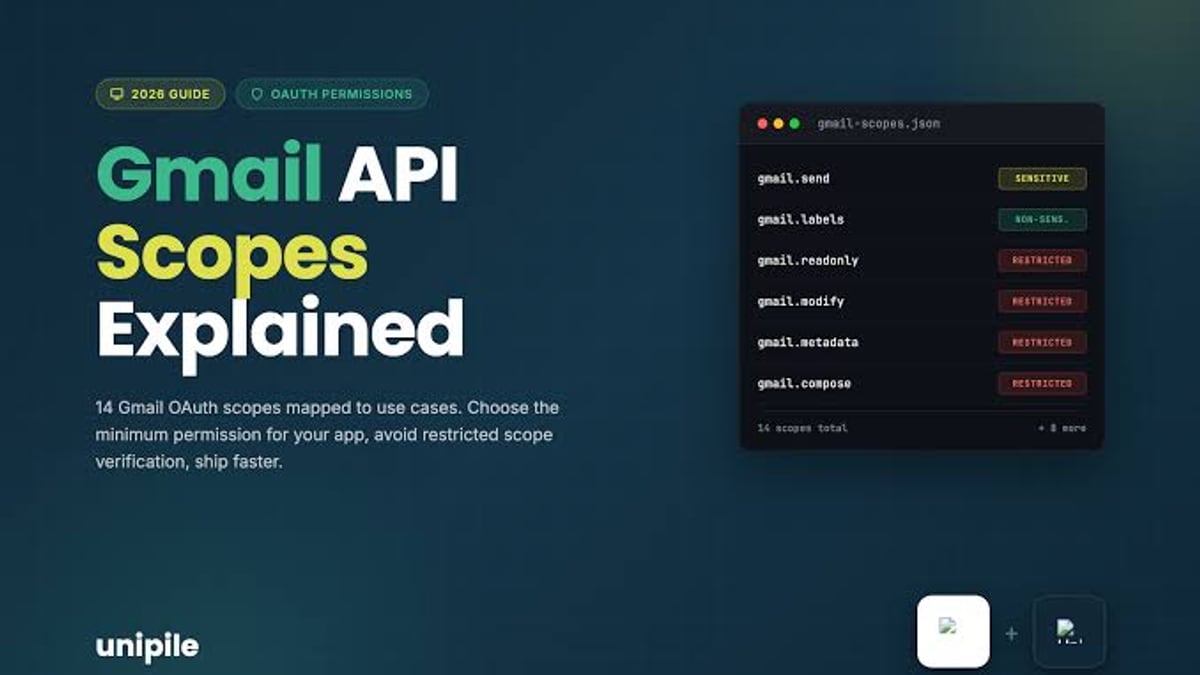
Gmail API Scope Guide: Choosing the Right OAuth Permissions - supporting product research image 4.
Match your use case to the exact scope to keep your security footprint small and verification simple:
- Transactional notifications: Use
gmail.sendto fire off email alerts, receipts, or password resets. - Email client with compose and inbox: Use
gmail.modifyfor full read/write (but no permanent deletion). - Analytics dashboard: Use
gmail.readonlyto pull message counts, labels, and metadata. - Email composer only: Use
gmail.composeto create, edit, and send drafts while leaving the inbox untouched. - Migration tools: Use
gmail.insertto import historical messages. - Label management: Use
gmail.labelsto reorganize folders programmatically. - Inbox preview or notification: Use
gmail.metadatato scan subject lines and senders without downloading bodies.
If your application evolves, use incremental authorization to add new scopes gradually. For example, start with gmail.send for basic sending, and later request gmail.modify when users need to manage their inbox. Google’s OAuth servers will only prompt the user for the additional scope, improving consent rates.
Domain-Wide Delegation and Scopes for Service Accounts
In Google Workspace, domain-wide delegation (DWD) lets a service account impersonate any user in the domain. This requires you to authorize the service account’s client ID in the Admin Console with an explicit list of OAuth scopes—exactly the same scopes from the table above.
When configuring DWD, you must enter the scope URLs as a comma‑separated list (e.g., https://www.googleapis.com/auth/gmail.readonly,https://www.googleapis.com/auth/gmail.send). The mail.google.com full scope is rarely appropriate here; stick to sensitive scopes that match the job the service account performs. Note that multi‑party approval was introduced in August 2024 for certain Workspace admin actions, so a second Super Admin may need to confirm the DWD setup.
For a detailed walkthrough of creating the service account, enabling the Gmail API, and authorizing the client ID, see Google’s Control API access with domain-wide delegation documentation. The code to impersonate a user then follows the same pattern as any OAuth flow, with the addition of a subject field:
from google.oauth2 import service_account
from googleapiclient.discovery import build

SCOPES = ['https://www.googleapis.com/auth/gmail.readonly']
SERVICE_ACCOUNT_FILE = 'service-account-key.json'

credentials = service_account.Credentials.from_service_account_file(
    SERVICE_ACCOUNT_FILE, scopes=SCOPES
)

delegated_creds = credentials.with_subject('user@yourdomain.com')
service = build('gmail', 'v1', credentials=delegated_creds)

results = service.users().labels().list(userId='me').execute()
print(results)
Best Practices for Scope Management

Gmail API Scope Guide: Choosing the Right OAuth Permissions product interface and feature overview.
- Apply the principle of least privilege – Start with the narrowest sensitive scope that fulfills your feature set, and expand only when needed.
- Use incremental authorization – Add new scopes gradually through additional consent prompts rather than requesting all of them upfront.
- Avoid the full mailbox scope –
https://mail.google.com/triggers a restricted scope review; nearly every operation can be done withgmail.modifyor a combination of narrower scopes. - Monitor scope changes in the Google Cloud Console – OAuth consent screen configuration may increase verification requirements. Regularly review the “Sensitive scopes” and “Restricted scopes” sections.
- Plan for verification early – Even sensitive scopes require a published privacy policy, homepage link, and a description of how your app uses data. Start the verification process before you launch.
These principles extend well beyond Gmail. When building multi‑channel communication platforms that combine email with messaging channels like WhatsApp, Telegram, or LINE, you’ll manage permissions across multiple providers. Platforms like UnifyPort abstract away provider‑specific scopes and authentication for chat services, offering a single REST API with HMAC‑signed API keys and webhook subscriptions. Pairing a minimalist Gmail scope (e.g., gmail.send) with a unified messaging layer that handles its own permission model gives you both security isolation and operational simplicity.
Related reading
- LINE Services: A Practical Guide to Messaging, Business & APIs - Explore LINE services: from the popular messaging app and official business accounts to powerful developer APIs. Learn how to integrate LINE with multi-channel platforms.
- How to Integrate Unipile: A Step-by-Step Developer Guide - Learn how to integrate Unipile's unified API for messaging, email, and calendar. Follow this step-by-step setup guide, get credentials, send first messages, and handle webhooks.
- Telegram Features: A Complete Guide to Its Most Powerful Tools - Explore Telegram's top features, from secret chats and 2GB file sharing to bots, channels, and cloud sync. Learn why it's a favorite for personal and business messaging.
Sources and further reading
- gmail - Google OAuth scope for sending mail - Using Google Oauth2, the following scope is used to get API-access to a users email: https://mail.google.com/ Testing the scope via OAuth 2.0 Playground confirms that the app wants to "View and ma...
- Gmail API Service Account & Domain-Wide Delegation: The 2026 Guide for Developers - Set up Gmail API service account with domain-wide delegation: full Admin Console steps, scopes, limits, and when to use OAuth user-side instead.
- Produce scopes specific to the Gmail API — gm_scopes - When called with no arguments, gm_scopes() returns a named character vector of scopes associated with the Gmail API. If gm_scopes(scopes =) is given, an abbreviated entry such as "gmail.readonly" is expanded to a full scope ("https://www.googleapis.com/auth/gmail.readonly" in this case). Unrecognized scopes are passed through unchanged.
Frequently Asked Questions
Can I use gmail.send with SMTP/IMAP via OAuth?
No. SMTP and IMAP OAuth flows still require the full https://mail.google.com/ scope, not the Gmail API scopes. Google recommends migrating to the Gmail API with gmail.send for sending only.
How do I get a Gmail API scope verified?
Go to the Google Cloud Console, navigate to the OAuth consent screen, and add the scopes you need. Google will prompt you for verification details after you call the sensitive scopes in test mode. Submit your app for verification, provide the required documentation, and wait for approval.
What happens if I change scopes after verification?
Adding new sensitive scopes requires re‑verification. Adding restricted scopes requires the full CASA assessment. Always plan your scope set before entering production.
Is gmail.modify enough for an email automation tool?
Yes, as long as you never permanently delete threads or messages. gmail.modify covers sending, reading, moving, labelling, and trashing. Permanent deletion requires the restricted mail.google.com scope.
Conclusion
Choosing the correct Gmail API scope is less about technical know‑how and more about mapping your feature set to the narrowest possible permission. By sticking to sensitive scopes like gmail.send, gmail.readonly, or gmail.modify, you avoid the heavy security assessment required for restricted scopes while still delivering a rich email experience. Domain‑wide delegation layers those same scopes onto a service account for enterprise automations, and incremental authorization keeps your consent flow clean as your app grows.
For UnifyPort users, applying the same least‑privilege mindset to your broader messaging stack is just as critical. Whether you’re integrating Gmail for transactional emails or connecting your app to WhatsApp, Telegram, and other channels through UnifyPort, a unified approach to permission management helps you ship faster and stay secure. Explore our business messaging guide to compare SMS, chat app, and unified API strategies.