
Telegram Desktop: Complete Download, Install & Features Guide
Download Telegram Desktop for Windows, Mac, or Linux. Explore features, installation tips, and how businesses integrate Telegram messaging via unified APIs like UnifyPort.
Telegram Desktop: Complete Download, Install & Features Guide
Telegram Desktop offers a fast, native messaging experience that stays perfectly in sync with your mobile device. Whether you’re looking to type on a full keyboard, switch between conversations while working, or run the app in the background without draining your phone battery, the desktop version is the tool of choice for millions.
In this guide you’ll find everything from installation on Windows, macOS, and Linux to advanced shortcuts, security details, and how developers bring Telegram into multi-channel workflows.
What Is Telegram Desktop?

Telegram Desktop: Complete Download, Install & Features Guide product interface and feature overview.
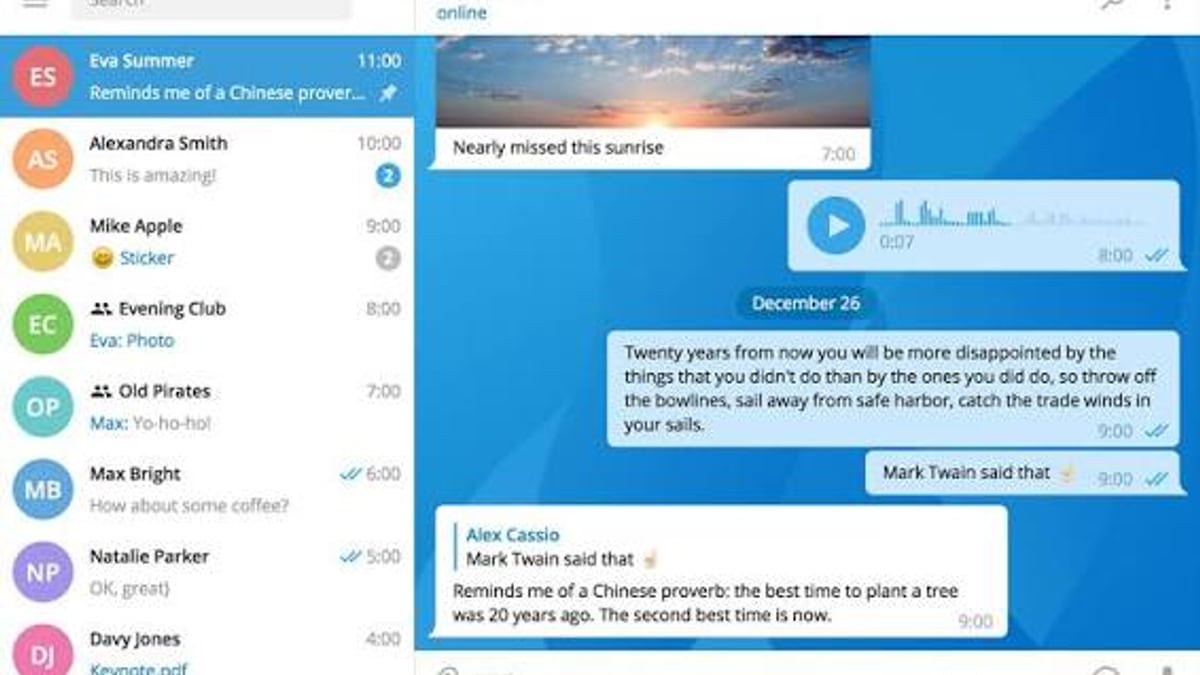
Telegram Desktop is the official stand‑alone application for Windows, macOS, and Linux, built by the Telegram team. Unlike the web version that runs inside a browser, the desktop app is installed locally, supports system notifications, and stores an encrypted local cache. It uses the same MTProto protocol as the mobile apps, giving you end‑to‑end encryption in Secret Chats and cloud sync for regular chats.
Because it’s open source under GPLv3, anyone can inspect the source code on GitHub. A portable version is also available for Windows so you can run Telegram from a USB stick without installation.
System Requirements
Telegram Desktop: Complete Download, Install & Features Guide product interface and feature overview.
Telegram Desktop works on all major desktop operating systems:
- Windows – Windows 7 and later (32‑bit or 64‑bit)
- macOS – macOS 10.12 Sierra and above (Intel and Apple Silicon)
- Linux – 64‑bit distributions with glibc 2.23 or newer; AppImage and Snap packages available
The app is lightweight and uses minimal resources. An internet connection is required for synchronization, but you can still read cached messages offline.
How to Download and Install Telegram Desktop
Telegram Desktop: Complete Download, Install & Features Guide - supporting product research image 4.
Windows
- Visit the official download page and click Get Telegram for Windows.
- Run the installer (
.exefile) and follow the prompts. - Alternatively, install from the Microsoft Store: search “Telegram Desktop” in the Store and click Install.
- After installation, open the app and log in by scanning the QR code (mobile Telegram → Settings → Devices → Link Desktop Device) or by entering your phone number.
macOS
- Go to desktop.telegram.org and download the macOS version.
- Open the
.dmgfile and drag the Telegram icon into your Applications folder. - Launch the app and authenticate with either the QR code or SMS code.
Linux
Telegram Desktop is available through several package managers. The recommended method is the official tarball or AppImage:
- AppImage: Download from the official site, make it executable (
chmod +x Telegram), and run. - Snap:
sudo snap install telegram-desktop - Flatpak:
flatpak install flathub org.telegram.desktop
Portable Version (Windows)
If you prefer not to install anything, grab the portable archive from the same download page. Extract the folder and run Telegram.exe directly. Your profile stays inside that folder, making it easy to carry on an external drive.
Key Features of Telegram Desktop
1. Perfect Cloud Sync
All your chats, media, and stickers are instantly available. Start a conversation on mobile and continue seamlessly on desktop without manually forwarding anything.
2. Native Performance and Speed
Written in C++ with Qt, the app feels snappy even with thousands of active chats. It handles large media files and long chat histories without lag.
3. Full Notification Support
Desktop notifications follow your operating system’s native style. You can reply to messages directly from a notification banner on Windows 10/11 and macOS.
4. Multiple Account Support
Log in to up to three different Telegram accounts simultaneously and switch between them without logging out.
5. Secret Chats
Secret Chats with end‑to‑end encryption are available on desktop, complete with self‑destruct timers and screenshot alerts. Note that these chats are device‑specific and won’t sync across devices by design.
6. Keyboard Shortcuts
Power users save time with shortcuts:
Ctrl + N– new chatCtrl + F– search within a chatCtrl + Shift + K– toggle boldCtrl + Tab– switch to next chatAlt + Up/Down– jump between unread messages
A full list is available in Settings → Advanced → Keyboard shortcuts.
7. Themes and Customization
Choose from dozens of built‑in themes or create your own with custom colors, background images, and chat bubble styles. Dark mode, night mode, and system‑following theme options are all supported.
Telegram Desktop vs. Web vs. Mobile
| Feature | Desktop App | Telegram Web | Mobile App |
|---|---|---|---|
| Installation required | Yes | No | Yes |
| Offline message cache | Yes (local encrypted database) | Limited (browser cache) | Yes |
| Secret Chats | Yes | No | Yes |
| System notifications | Yes, native | Browser‑dependent | Yes |
| Multiple accounts | Up to 3 | Usually 1 per session | Up to 3 on Android/iOS |
| Performance with large media | Fast (native code) | Slower (JavaScript) | Fast |
For everyday work, the desktop app gives a more reliable experience. The web version is useful for quick access on a borrowed computer, but it lacks Secret Chats and full notification support.
Advanced Tips and Tricks
- Read receipts: Right‑click a chat and select “Mark as read” to clear unread counts without opening it.
- Folders: Organize chats into custom folders (e.g., “Work”, “Friends”) from Settings → Folders.
- Scheduled messages: Right‑click the send button to schedule a message for later.
- Auto‑download settings: Fine‑tune what media automatically saves to disk in Settings → Advanced → Automatic media download.
- Beta testing: Enable “Beta versions” in Settings → Advanced to receive early updates (usually stable enough for daily use).
Integrating Telegram with Your Business Tools

Telegram Desktop: Complete Download, Install & Features Guide product interface and feature overview.
If you’re running a business that uses Telegram for customer communication, you may quickly find yourself juggling multiple messaging channels like WhatsApp, LINE, or Zalo. Managing each platform’s custom API and webhooks separately adds complexity and risks inconsistent delivery.
That’s where a unified multi‑channel messaging API layer becomes valuable. Instead of writing Telegram‑specific bot logic and handling webhook signatures for each service, developers can use a single REST API to send and receive messages across all channels. For example, UnifyPort API normalizes events from Telegram, WhatsApp, LINE, and others into one consistent JSON shape, while providing built‑in rate limiting, retries, and delivery guarantees.
For teams building AI agents, CRMs, or notification engines, this means you integrate once, add new channels later, and keep your messaging infrastructure observable and resilient. Compared to managing the Telegram Bot API directly, a unified platform isolates failures so an issue on one channel never crashes your entire notification system. You can see how such platforms compare in our Top 10 Unified Multi‑Channel Messaging API Platforms list.
Related reading
- What Is Linen? The Complete Guide to the Flax Fabric - Linen is a natural textile made from flax. Learn about its history, properties, types, uses, sustainability, and how it compares to cotton. Your ultimate guide to linen.
- Unipile Login: Dashboard Access, API Credentials, and Troubleshooting - Struggling with Unipile login? Learn how to access your dashboard, create an account, find DSN and API tokens, troubleshoot issues, and discover UnifyPort alternatives.
- UnifyPort API: The Developer's Guide to Multi-Channel Messaging - Explore UnifyPort API, a unified multi-channel messaging platform for AI agents, CRMs, and ops tools. Send and receive messages on WhatsApp, Telegram, LINE & more via REST.
Sources and further reading
- Telegram Web - Access your Telegram messages from any mobile or desktop device.
- Telegram Desktop - Free download and install on Windows - Pure instant messaging — simple, fast, secure, and synced across all your devices. One of the world
Frequently Asked Questions
Is Telegram Desktop safe and private?
Yes. All cloud chats are encrypted client‑to‑server, and Secret Chats use the MTProto protocol for end‑to‑end encryption. The desktop app stores data locally in an encrypted format. Telegram does not sell your data, and you can enable two‑step verification for extra account protection.
How do I update Telegram Desktop?
The app checks for updates automatically and installs them when you restart it. For the Microsoft Store version, updates come through the Store. Portable users must manually download the latest archive.
Can I use Telegram Desktop without a phone?
Initially, you need a phone number to create an account and authenticate. After that, the desktop app works independently as long as your phone or another device remains logged in to receive the SMS code when re‑authenticating.
Does Telegram Desktop support video calls?
Yes, both voice and video calls are supported. Starting from version 2.0, you can call any user one‑on‑one, and group video calls are also possible with screen sharing.
Where are my Telegram files stored on the computer?
By default, downloaded files go to the Downloads/Telegram Desktop folder. You can change this location in Settings → Advanced → Download path.
Can I run multiple instances of Telegram Desktop?
The official client supports up to three accounts within one instance. If you need more, you can use the portable version in a separate folder, but be mindful that each instance runs independently.
Conclusion
Telegram Desktop brings the full messaging experience to your computer with speed, security, and seamless sync. Whether you need to type faster, manage large groups, or keep work chats separate, the desktop app is an essential companion to the mobile version. And for developers building products that connect Telegram with other messaging platforms, a unified API layer removes the complexity of multi‑channel integration, letting you focus on your core product instead of protocol details.
Ready to start? Head to the official Telegram Desktop site and download the version for your operating system.